
Scenes and Schedules
Create the perfect scene with your Cync smart products. Set the scenes with one touch or schedule them to turn on automatically.
Routines allow you to create and manage Scenes and Schedules to personalize your home experience. Scenes and Schedules are found under the Routines page on the top right of the Cync App Homescreen. They can be accessed by the icons at bottom of the page.

Quickly navigate to a specific section by selecting an link below.
How to Create a Scene
How to Create a Schedule
How to Edit or Delete a Scene or Schedule
Using the Sunrise/Sunset Feature
Using the Fades Feature
Using Voice Control
Helpful Hints
Troubleshooting
How to Create a Scene
In the example shown below, a user is creating a Scene to add their Fan Speed Switches to their Kitchen.
- Tap Routines in the top right corner of your Home screen in app.
- Select the Scenes page by tapping on the icon in the bottom left of the screen. Then tap the + icon in the upper right-hand corner to create a new Scene.

- Name your Scene (i.e., Midnight Blue, Game Night, I'm Home, Reading, etc.).
- Choose the class of device to be added to the Scene.
- Tap on the ellipsis on a Room to select which devices to add to the Scene. Alternatively, you may check off the Room to add every device within that Room. Select Next.
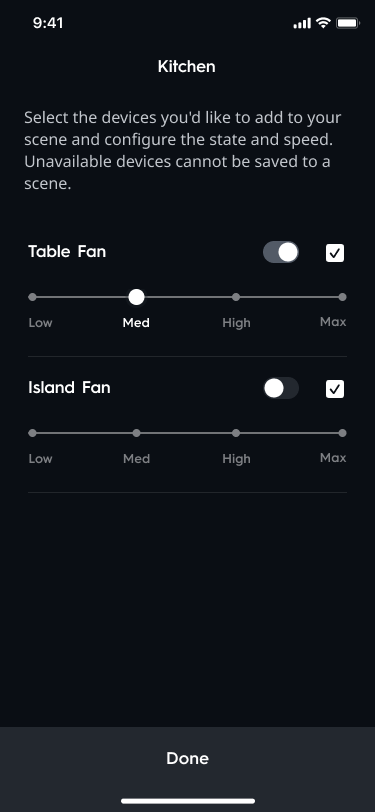
- Add or Edit a class device. Skip this step by selecting Next.
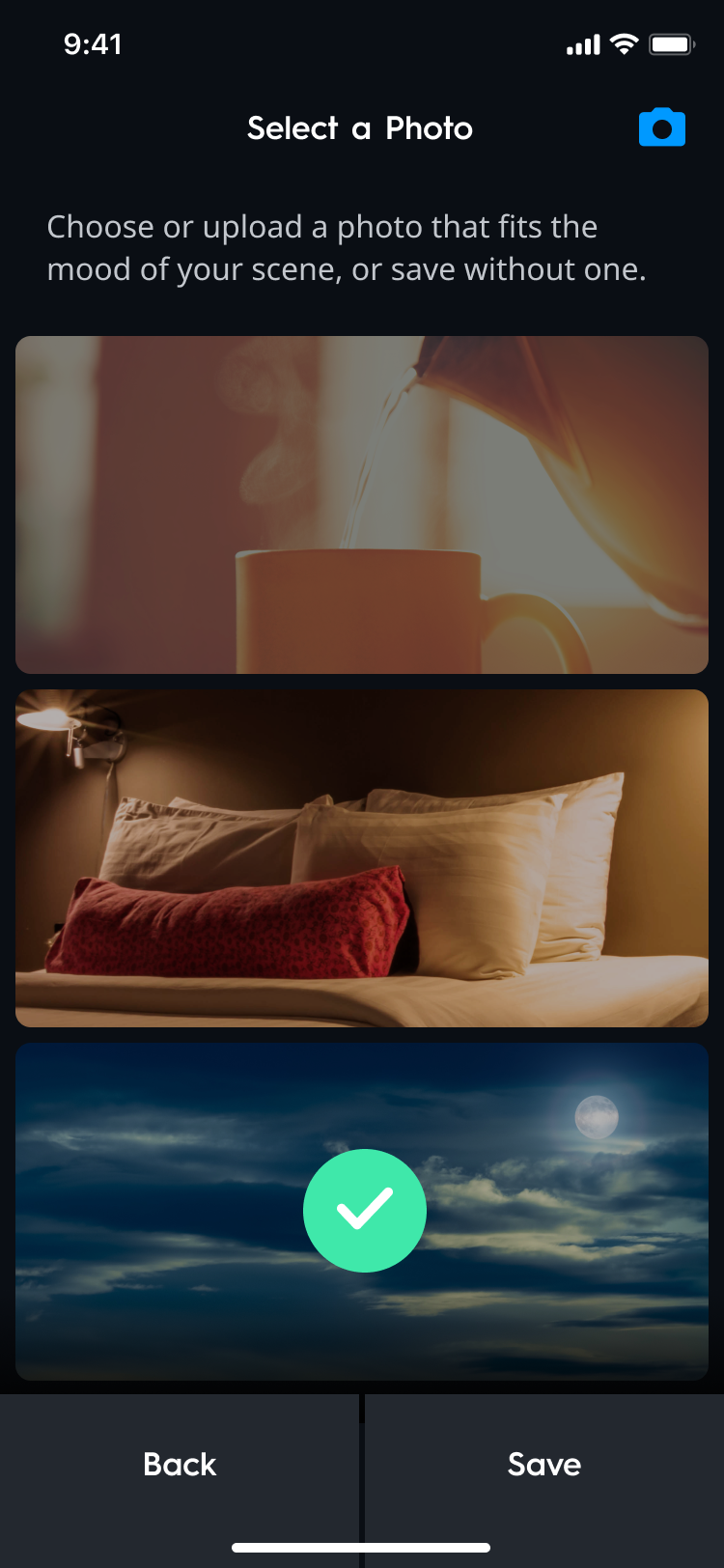
- Add a photo by selecting the blue camera icon; or select a preset photo, to represent your Scene. Select Save.
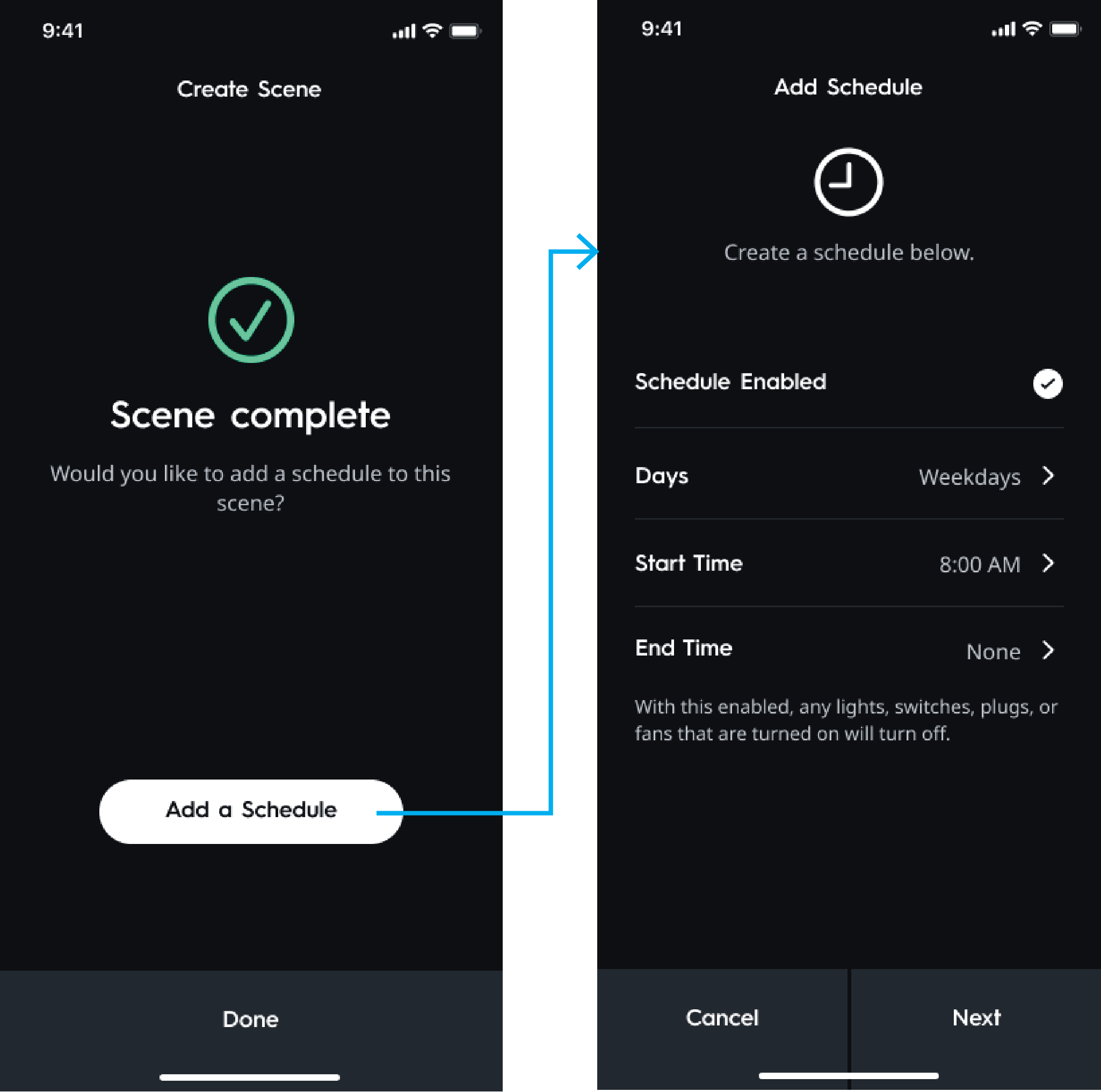
- Choose to create a Schedule for this Scene or skip by selecting Done. If you wish to create a Schedule, select Add a Schedule.
How to Create a Schedule
If you would like to automatically control your devices at specific times, you will need to create Schedules.
- Tap Routines on the Cync app home screen.
- From the Scenes screen, tap the Schedules icon in the bottom right-hand corner.
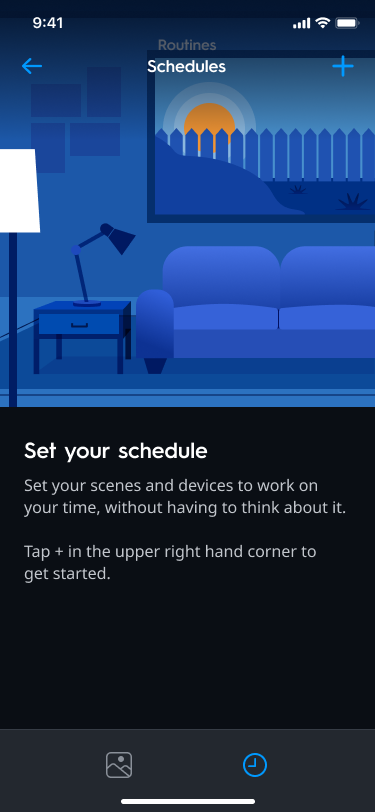
- Tap the + at the top right of the Schedules screen.
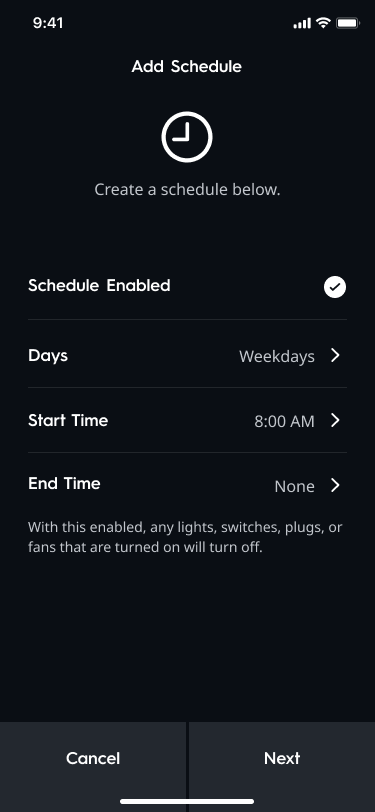
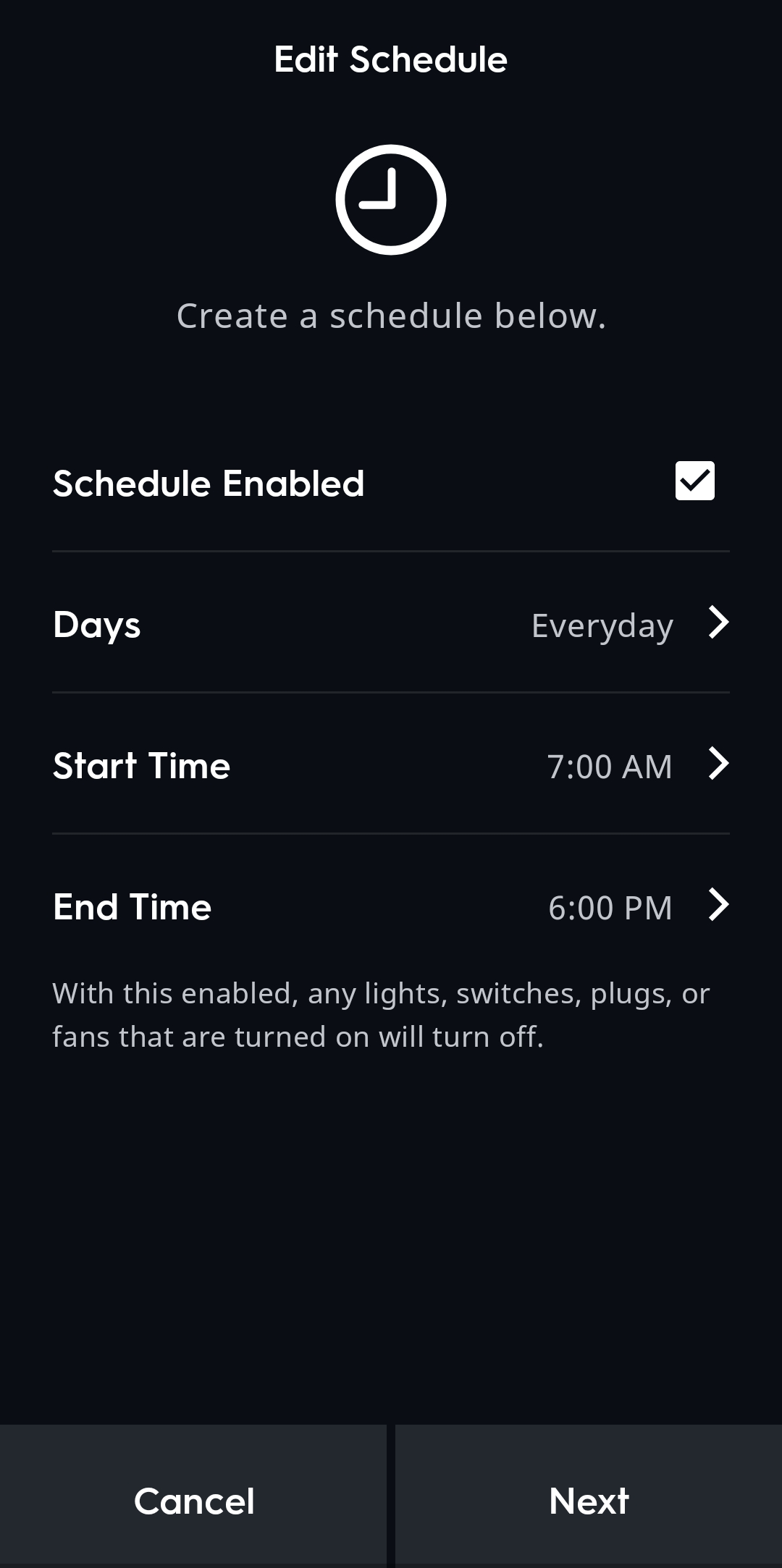
- Select the days, start time and end time of your schedule. You may also choose to enable or disable the Schedule from this screen. Select Next.
- If you have an older version of our Schedule feature where two scenes were required for an ON and OFF Schedule and would like to change this to a single Schedule, click here.
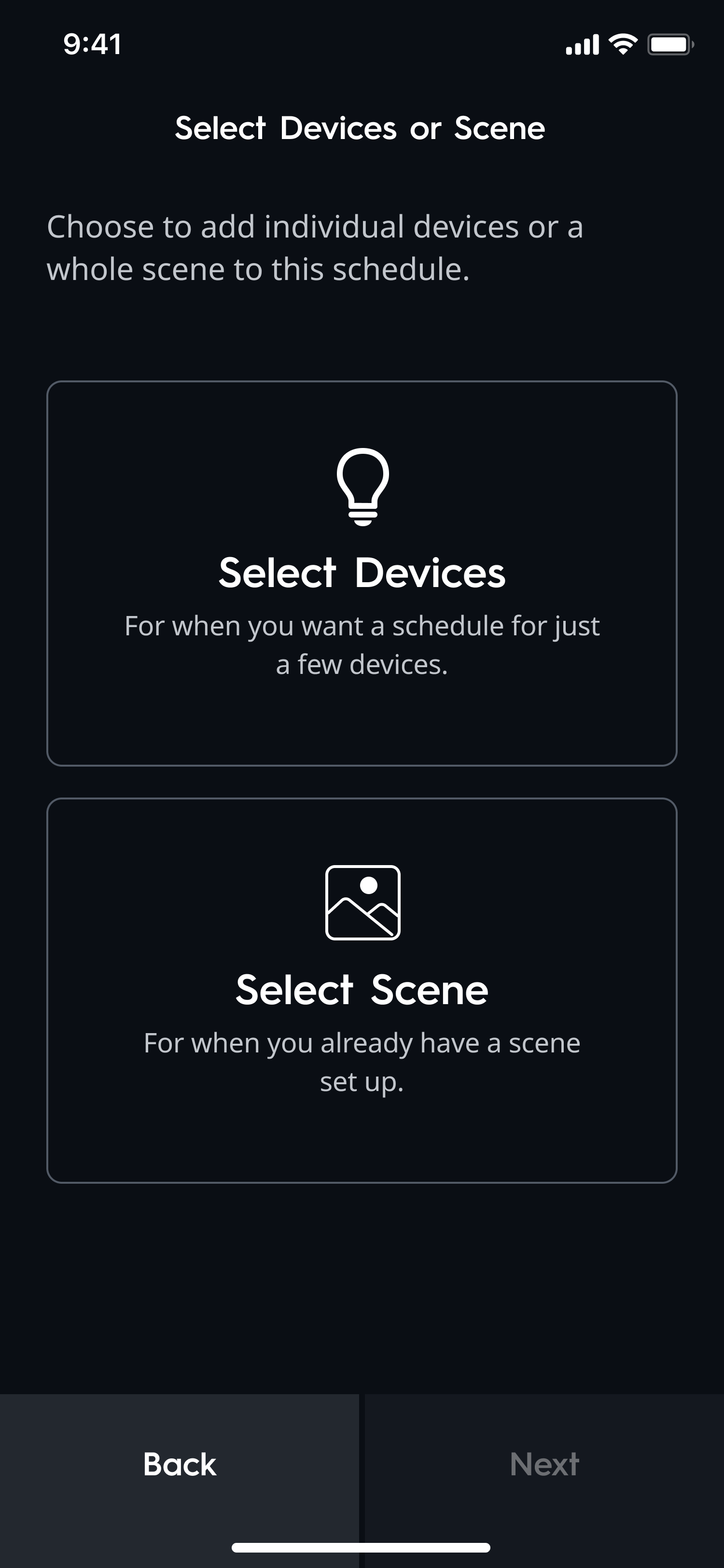
- Choose either Select Devices to add devices to your schedule, or Select Scene if you have a scene already set up to use. A device may be toggled on/off when selecting a scene or the specific device. Be sure the devices you wish to activate are toggled on (button pushed to the right side), and the devices you do not wish to use are unchecked.
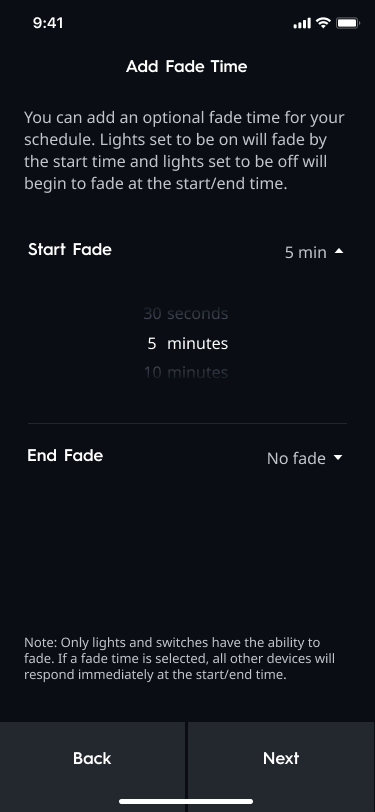
- Choose whether your schedule has fades, then select Next. To learn more about fades, click here.
NOTE: Only lights and switches have the ability to use the fade feature. All other devices will respond immediately at the start or end time that is set.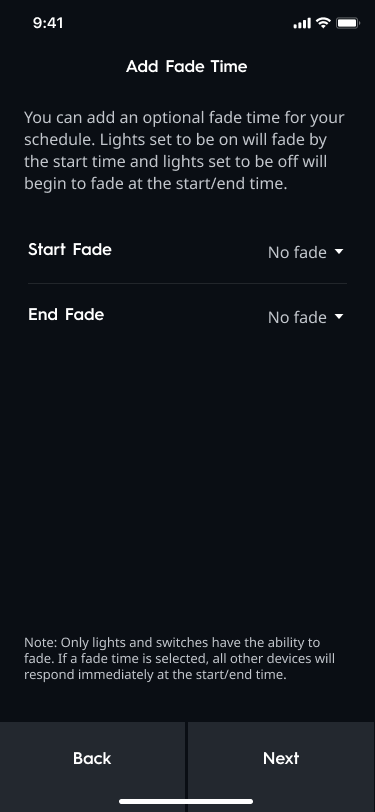
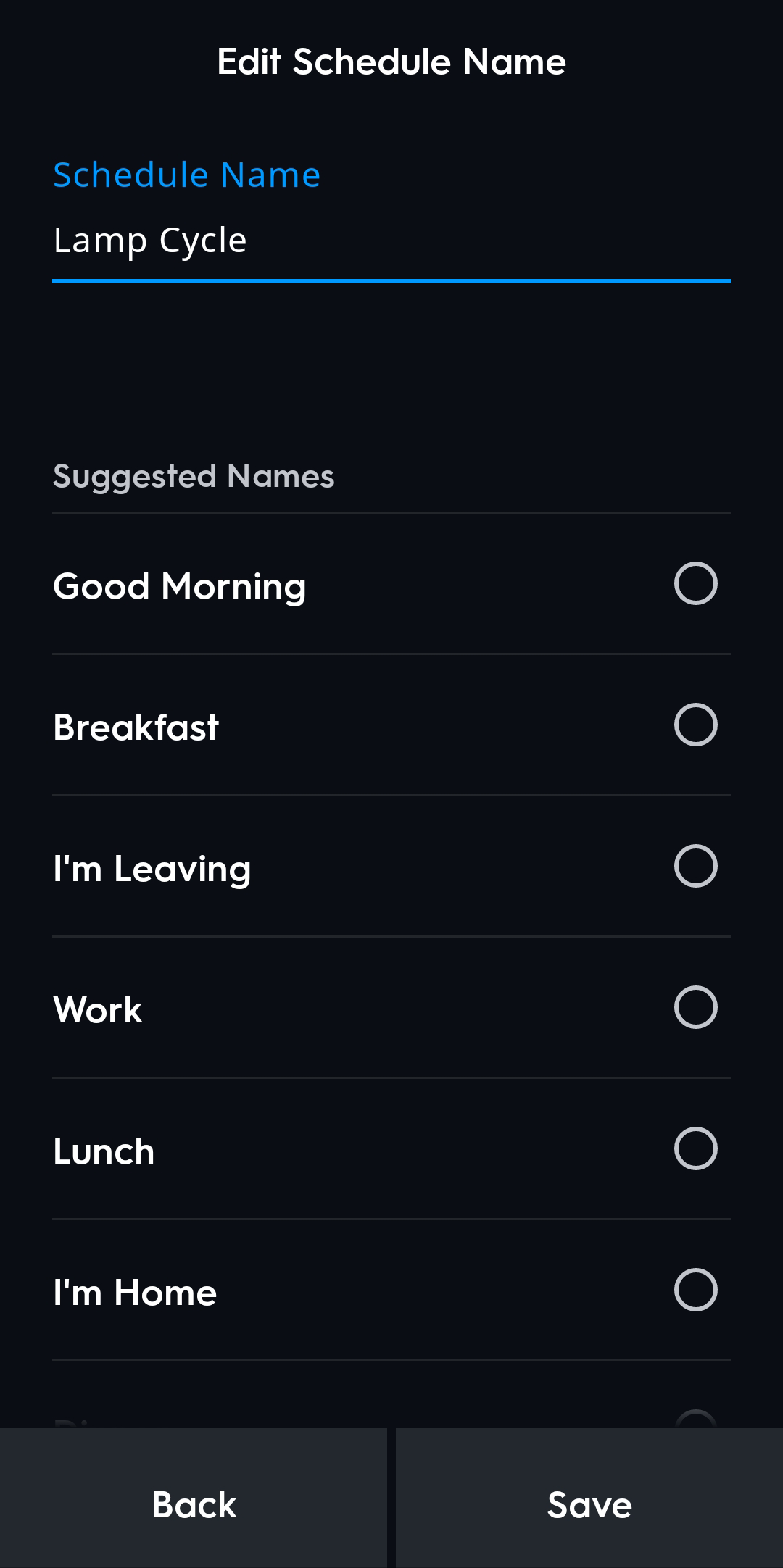
- Name your schedule with either a custom name, or choose one of the default names from the list. Then select Next.
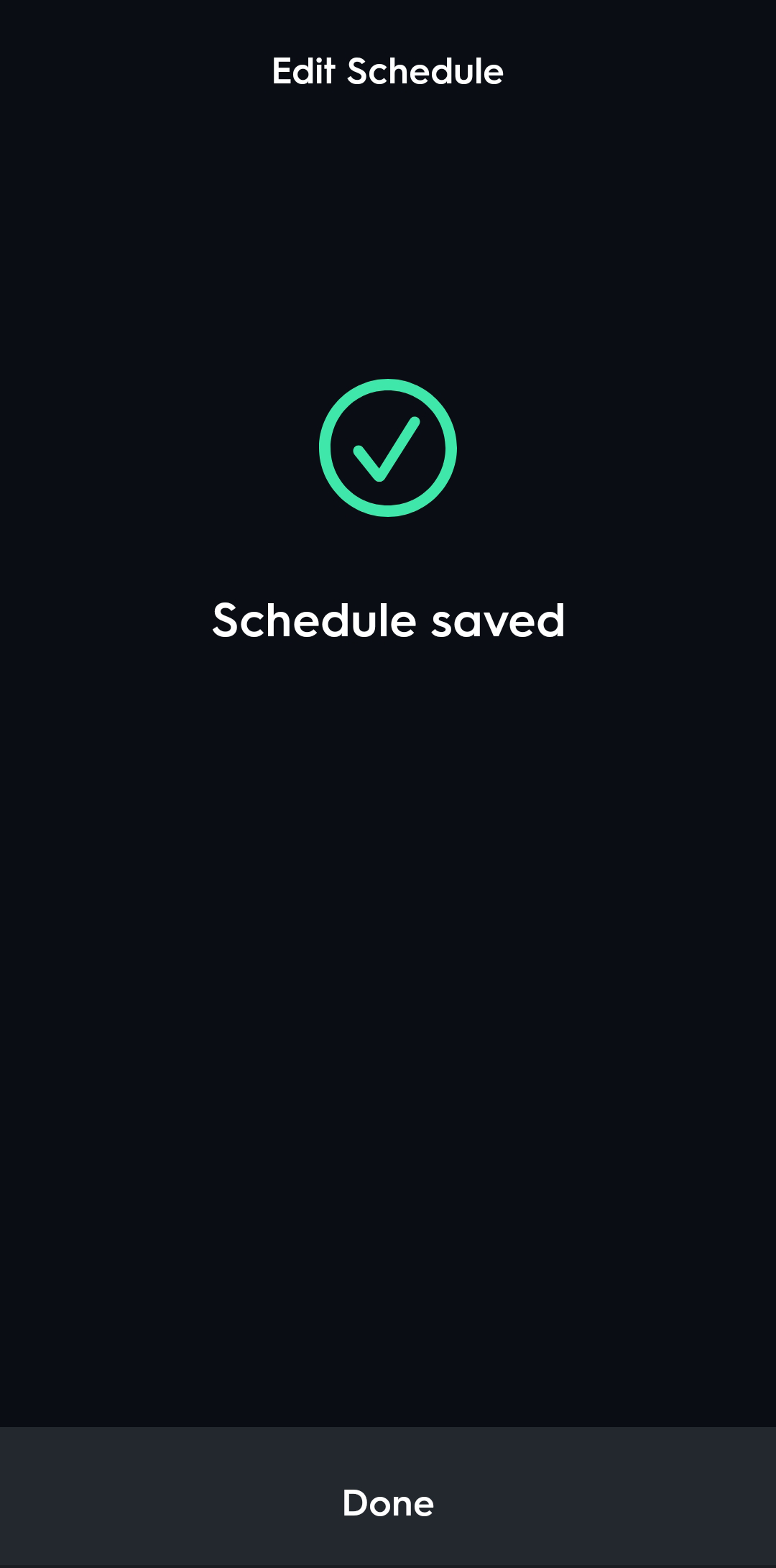
- Your schedule is now created and will follow all the settings selected in the creation process.
How to Edit or Delete a Scene or Schedule
- Tap Routines on your Cync home screen.
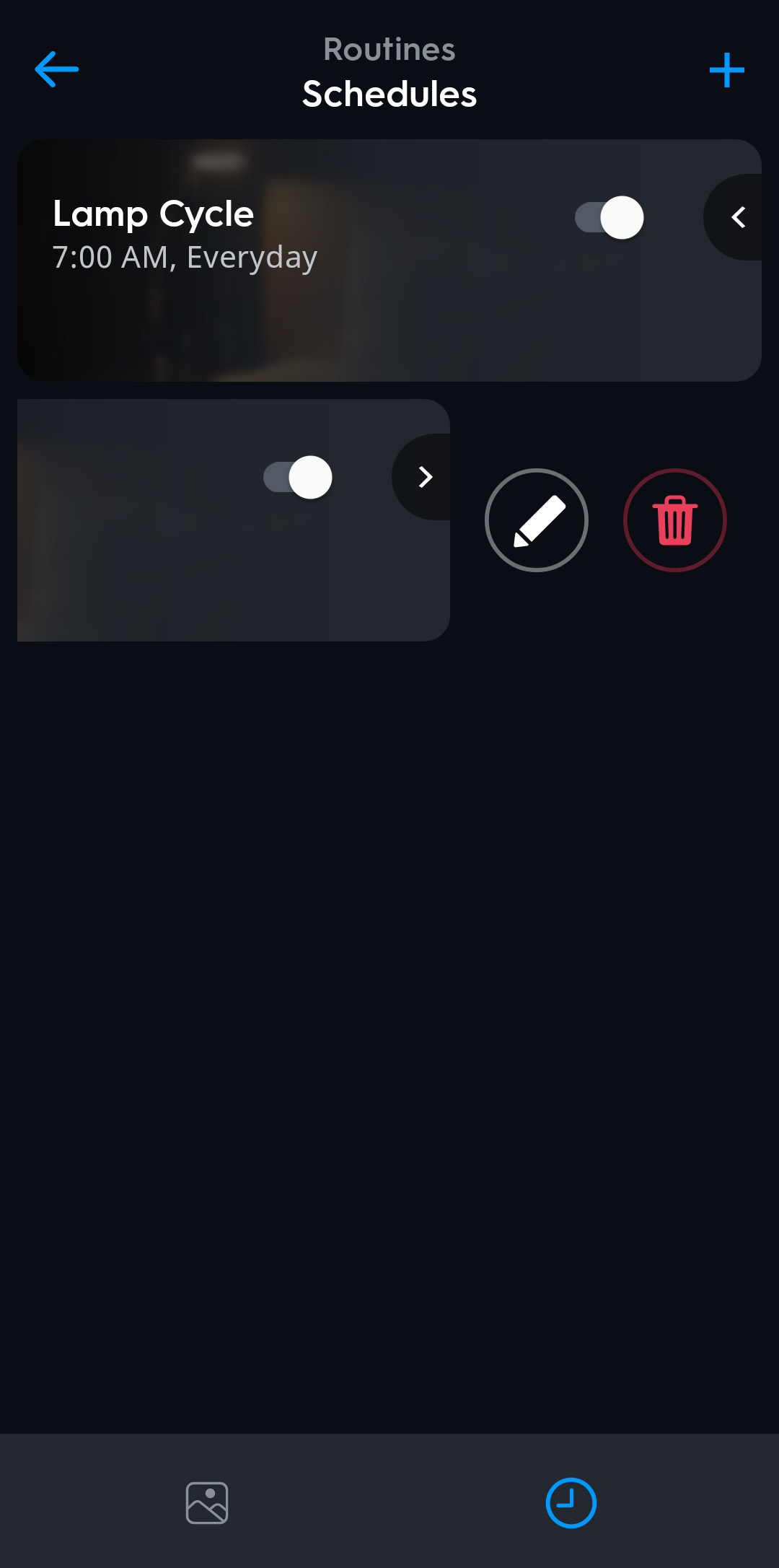
- Slide the Scene or Schedule card to the left by tapping the chevron icon to view options.
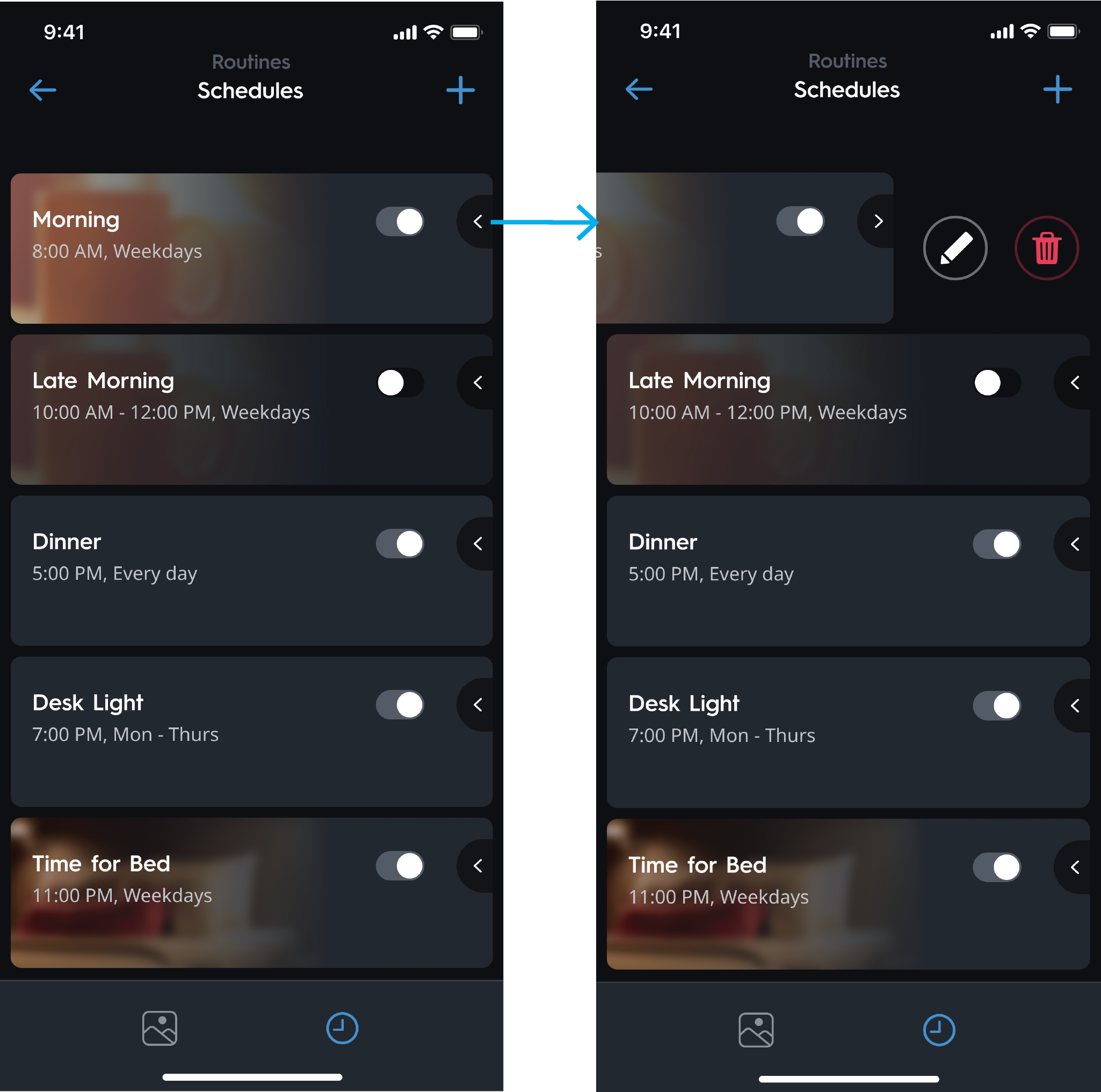
- Tap the pencil icon to edit or the trash can icon to delete the Scene or Schedule.
Using Sunrise/Sunset
The Sunrise and Sunset options within Schedules for Start Time and End Time allow more flexible and accurate timing for your scheduled scenes or devices to turn on or off.
When you first choose this option, the Cync app will prompt you to input your zip code to give you the most accurate Sunrise and Sunset times. Select Go to Set Location to set your location via zip code.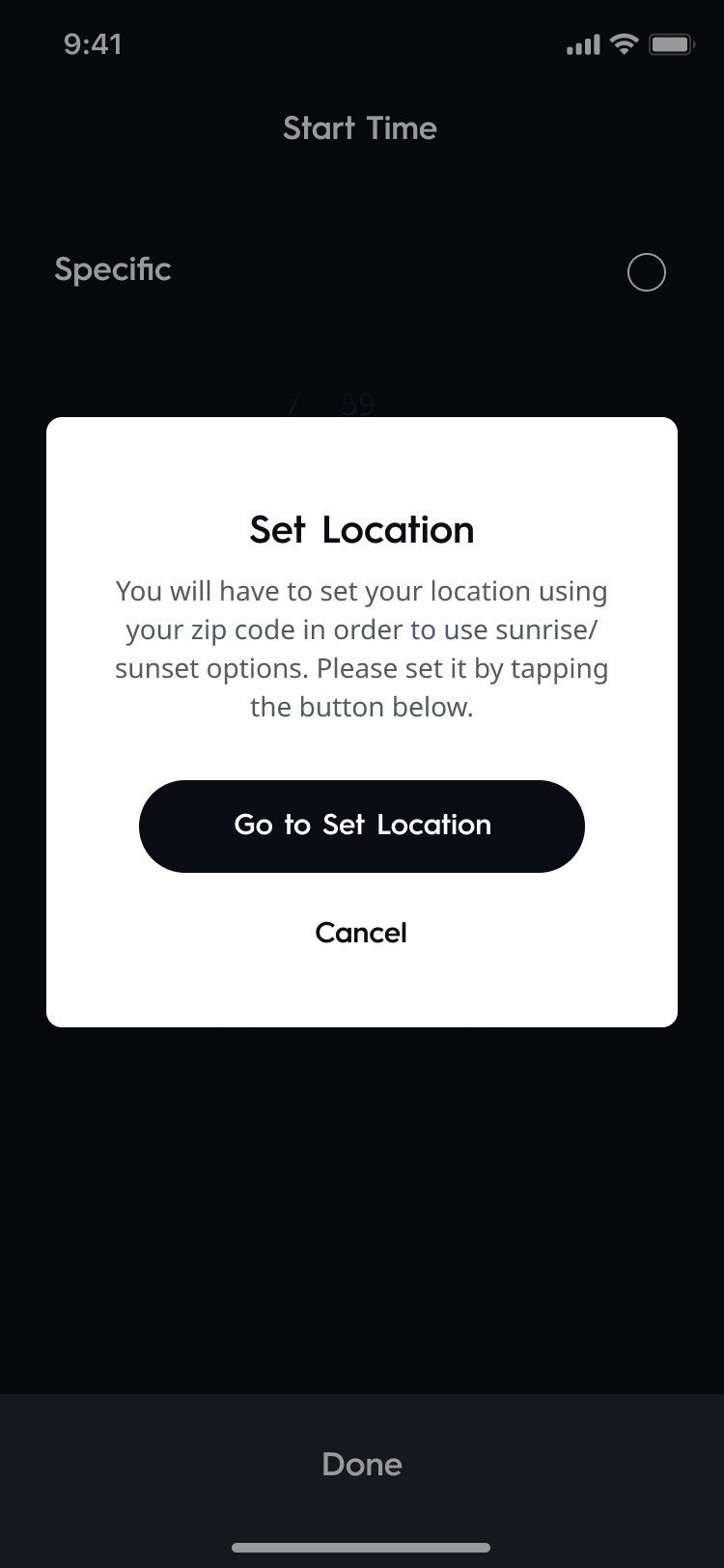
Users can choose for the schedule to happen at exactly Sunrise/Sunset, or they may choose for the schedule to occur at a specific the time of day (i.e., 15 minutes before sunset, 30 minutes after sunrise).
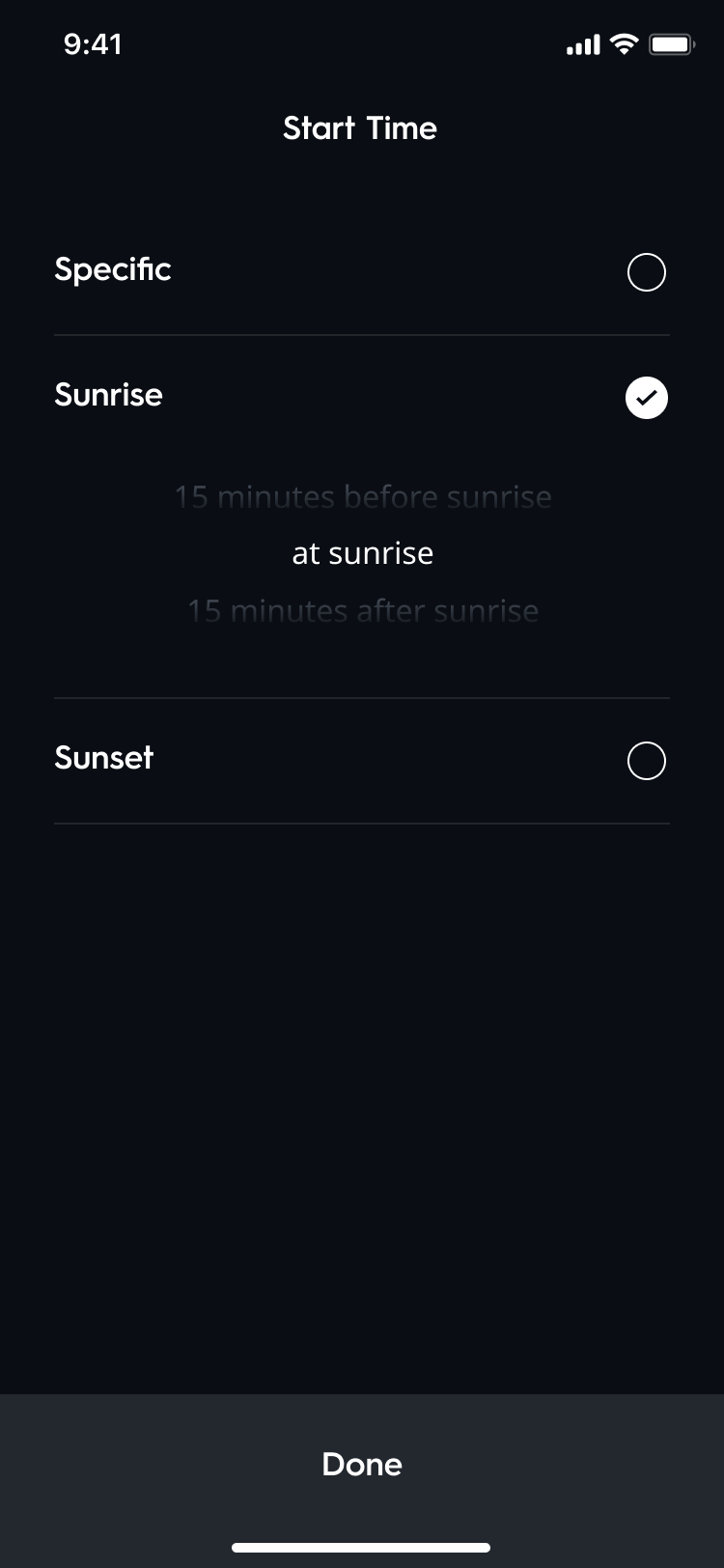 | 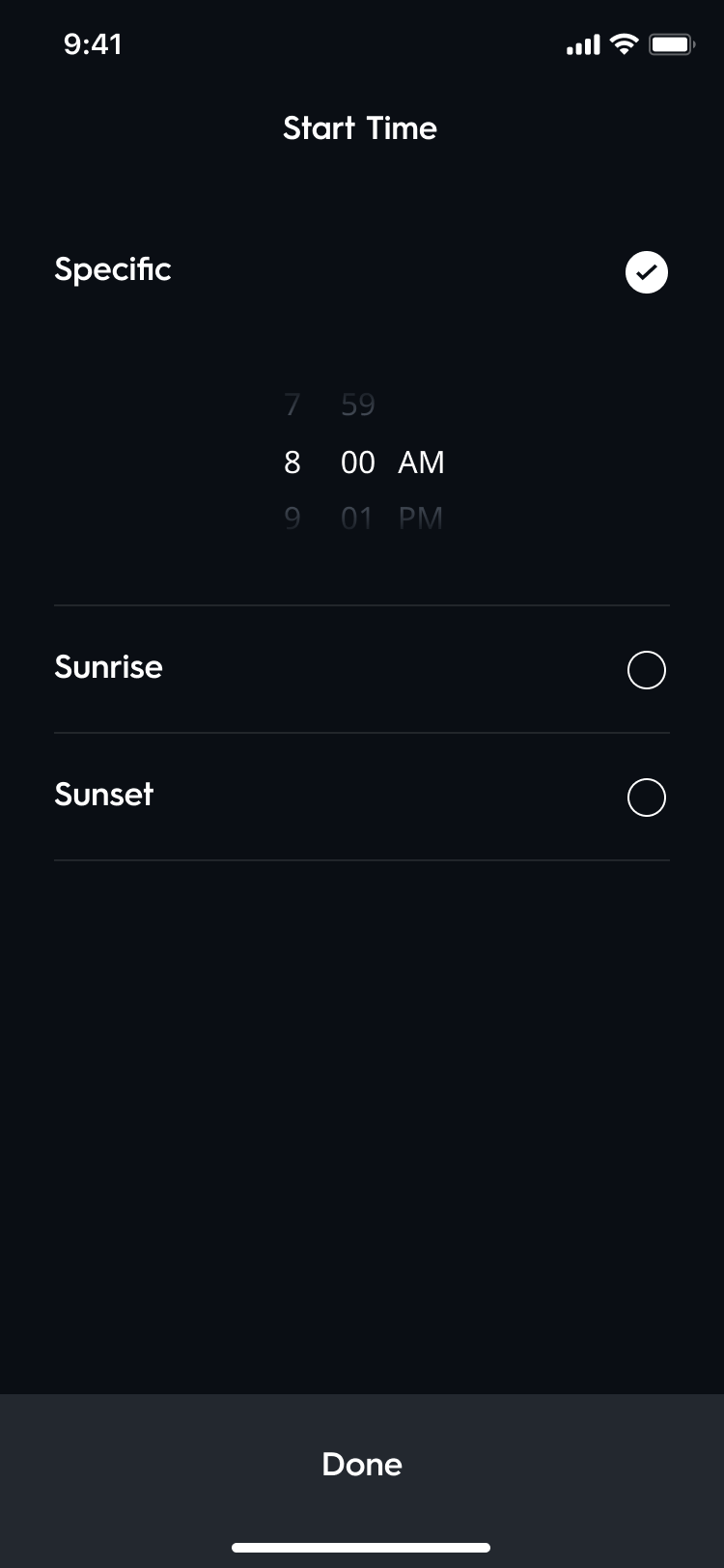 |
| Example of a user setting the Start Time to Sunrise based on their zip code. | Example of a user setting a Specific Time of 8am to start their scene or schedule. |
Using Fades
You can use fades to gradually increase or decrease brightness of lights, which can reduce drastic lighting changes. Lights set to be on will fade by the start time and lights set to be off will begin to fade at the start/end time.
Using Voice Control
Cync Scenes in Google Home
Import Cync Scenes into Google Home
- From the Cync Home screen, select Settings.
- In the Setting screen, select Voice.
- On the Voice screen choose Google Home and link the Alexa app to your Cync app by tapping the Link Google Home button and following the prompts.
- Once the applications are linked, Google Home will sync your existing scenes, and will add new scenes as you create them within the Cync app.
NOTE: You may need to relink your Google Home app if your Cync Scenes are not appearing.
Using Scenes with Google Voice Control
When addressing your Cync Scenes with voice, you can start by saying "Hey Google" or "OK Google" and the name of the Cync Scene you are trying to initiate. For example:
- "Hey Google, activate [scene name]."
- If you have a Cync Scene named Goodnight you can say, "OK Google, activate Goodnight" and the Cync Scene will initiate.
- A starting command must be given to your Google Home before the Scene name is said (i.e., start, begin or activate).
Using Cync Scenes in Google Home Routines
- On the Google Home Home screen, select the Routines button.
- Select an existing Google Home Routine or create a new Routine by tapping the plus button in the bottom right of your Routines screen.
- Under the "Actions" section of your Google Home Routine select + Add action.
- Choose Adjust Home Devices. From this screen, navigate to the Adjust scenes section and select Edit action.
- Tap the checkbox for "Adjust scenes" to include every scene, or press "Edit action" under Adjust scene in order to see the list of all scenes that you can select.

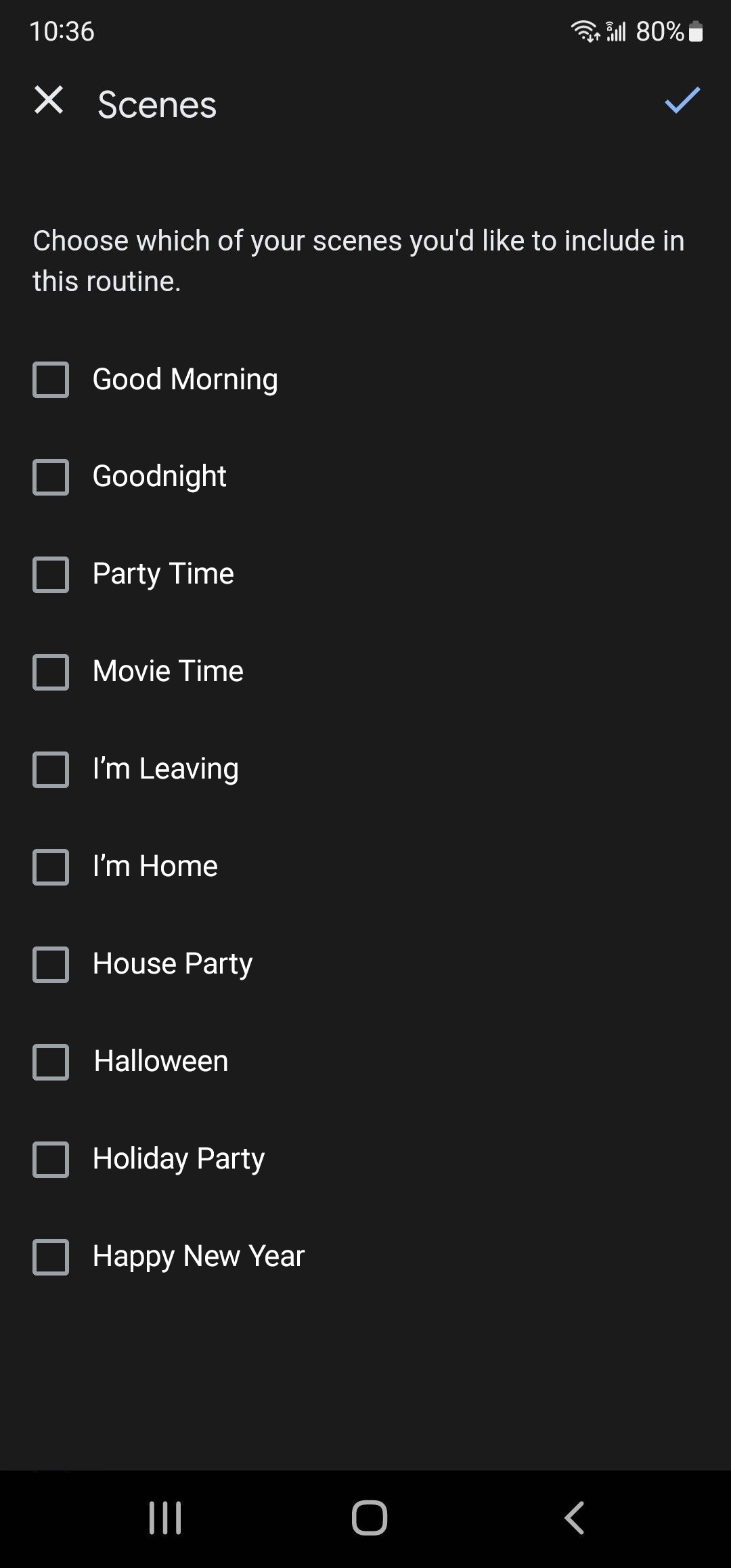
- Select Done.
- Select Save to update the Google Home Routine.
Tip: Once you have linked your Google Home app with the Cync app your Cync Scenes will automatically sync when you add or remove them.
Cync Scenes in Alexa
Import Cync Scenes into Alexa
- From the Cync Home screen, select Settings.
- In the Settings screen, select Voice.
- On the Voice screen choose Alexa and link the Alexa app to your Cync app by tapping the Link Alexa button and following the prompts.
- Once the applications are linked, Alexa will sync your existing scenes, and will add new scenes as you create them within the Cync app.
NOTE: You may need to relink your Alexa app if your Cync Scenes are not appearing.
Using Scenes with Alexa Voice Control
When addressing your Cync Scenes with voice, you can start by saying "Alexa" and the name of the Cync Scene you are trying to initiate. For example:
- "Alexa, activate [scene name]."
- If you have a Cync Scene named Goodnight you can say, "Alexa, activate Goodnight" and the Cync Scene will initiate.
- A starting command must be given to your Alexa before the Scene name is said (i.e., start, begin or activate).
Using Cync Scenes in Alexa Routines
- On the Alexa Home screen, select the More button in the carousel at the bottom of the screen.
- Select Routines from the list to add or modify an Alexa Routine.
- Add a new Alexa Routine using the plus button, or select an existing one.
- Select Add action, then select Smart Home to navigate to your Cync devices.
- On the Smart Home screen tap Control scene to view the list of your imported Cync Scenes.

- Choose a Cync Scene to add to your Alexa Routine, and select Add.

Tip: Once you have linked your Alexa app with the Cync app your Cync Scenes will automatically sync when you add or remove them.
Helpful Hints
- You cannot add/edit/delete Scenes or Schedules out-of-home. Devices require Bluetooth connection in order to perform these actions. Manual execution of scenes, and previously automated schedules will continue to work out-of-home.
- For schedules to work properly, your Cync devices need to maintain constant power. If your devices lose power at any time (power outage, unplugged, etc), then open your Cync app locally, and within range of your Cync devices, to resync them to the correct time.
- In previous versions of the Schedule feature, users frequently created two Scheduled Scenes for ON and OFF states of their scenes. Starting in Cync App v6.7.0, the Scenes and Schedules will be split into their respective categories. (e.g., The Schedules from the Scene will be separated from the Scene itself.) There will now be two Schedules for each of the ON/OFF states that were created. These will still work; however, if you would like to utilize our new feature, simply choose one of the Schedules and add the missing Start or End time and delete the second schedule. Follow the steps below:
- Notice the new Routines tab. This is now where Scenes and Schedules are located. Select Routines.
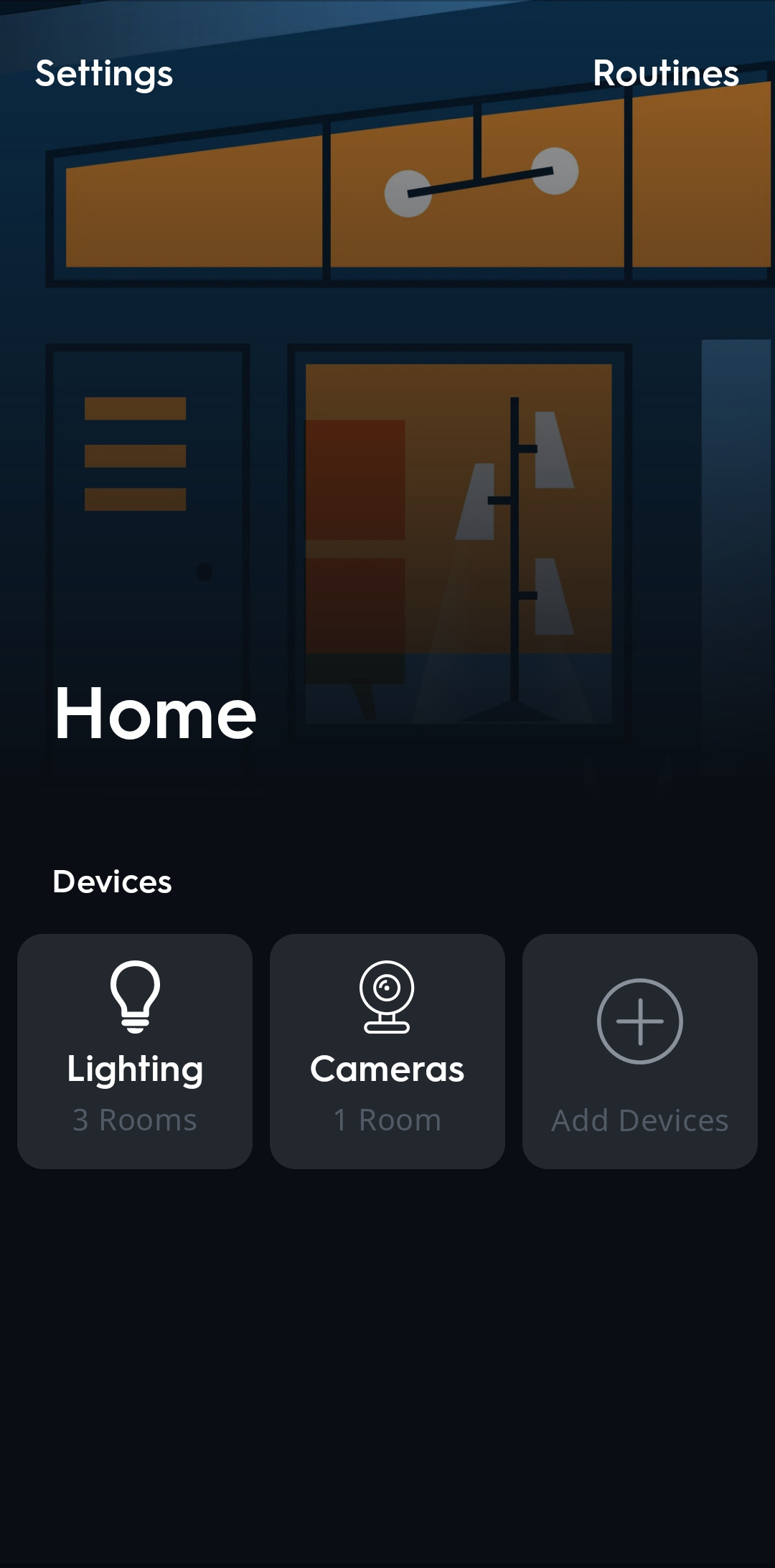
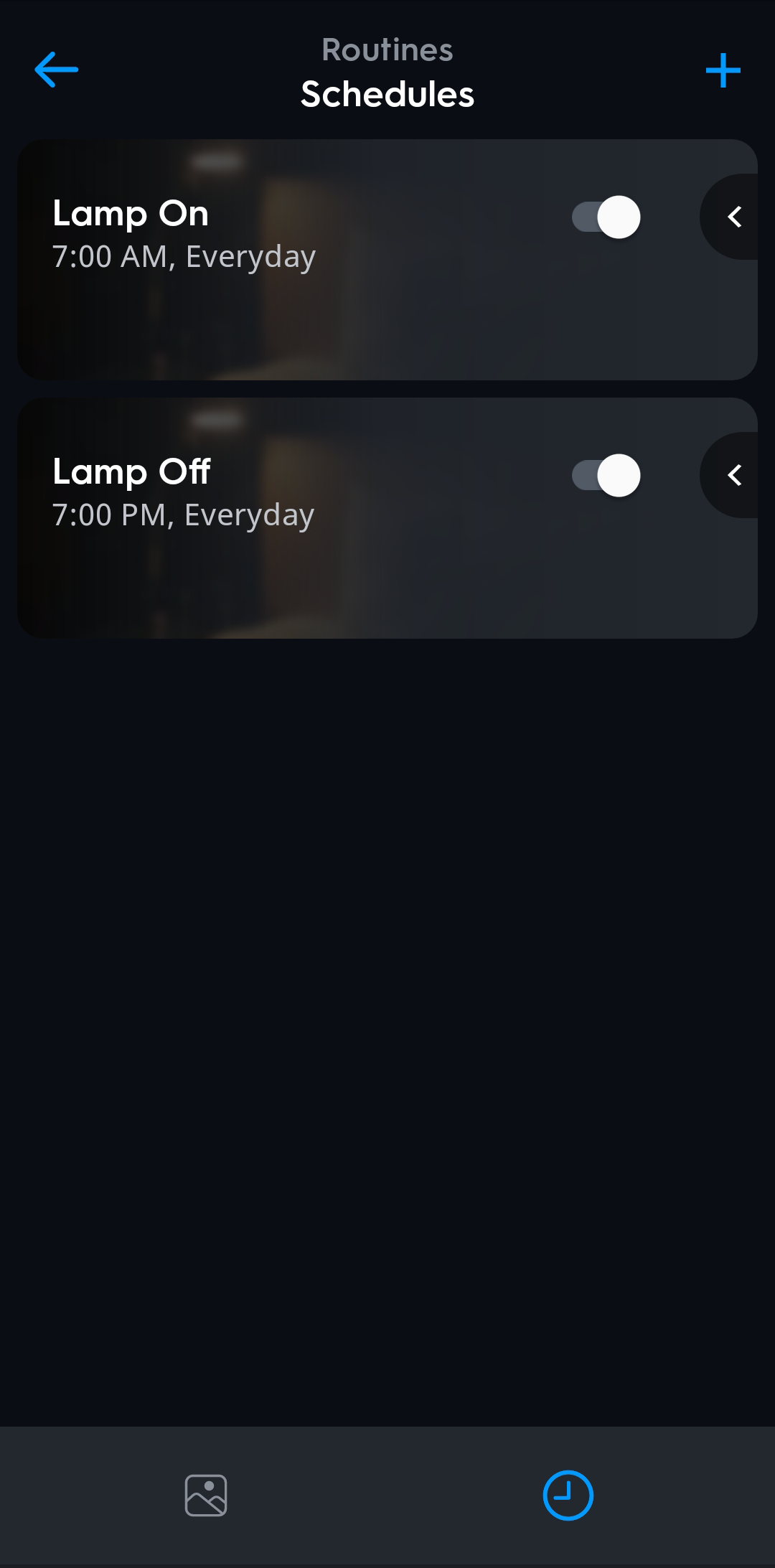
- Locate the Schedules by selecting the Schedules icon in the bottom right-hand corner. In this example, the user had created one Scene to turn ON their lamp at 7am and another Scene to turn OFF their lamp at 6pm.
- Select one of the Schedules. Add the missing Start Time or End Time. You may also rename this scene. In this example, the user selected the LAMP ON Scene and added an End Time to turn their lights off at 6pm and changed the name to LAMP CYCLE. Select Save when finished.
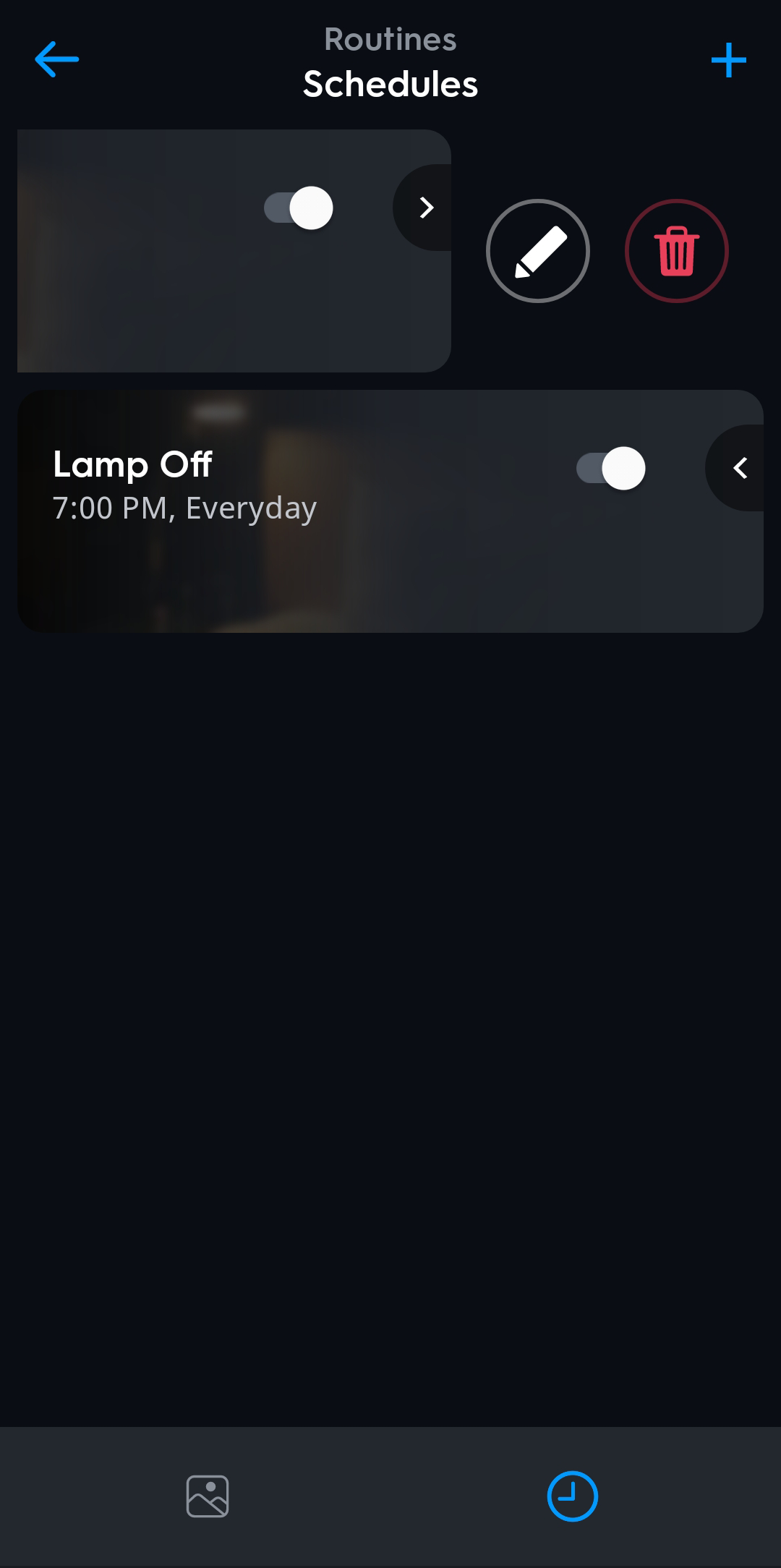
- Go Back to the Schedules page. Delete the now obsolete Schedule. In this example, the user no longer needs the LAMP OFF Scene to turn their lamp off and has deleted it.
- Notice the new Routines tab. This is now where Scenes and Schedules are located. Select Routines.
Troubleshooting
I'm unable to edit or delete a Scheduled Scene in my Cync app. What do I do?
If you are unable to edit or delete a Scheduled Scene in your Cync app, it is most likely because not all of your devices set up for that scene are currently connected:
- Turn on all unavailable Cync devices associated with that Scene OR Delete those Cync devices from the Cync app (Deleting a device from the app will remove it from the scene as well).
- Once all devices for the scene are connected, then you will be able to modify or delete the schedule.
I turned off a Schedule, but it is still triggering for a device.
Toggle the On/Off state for the schedule once again. This will make sure that the devices are accurately set to the correct state.
My schedule is not triggering at the designated day/time.
- Reconnect to the Cync app locally using Bluetooth connection.
- Perform a power cycle on the lights and(or) devices.
- Edit and Resave the Schedule while connected to the Cync app with Bluetooth.
- Delete the Schedule and create a new one while connected to the Cync app with Bluetooth.
- Factory reset your device and recreate the schedule.
- Ensure that all devices within this schedule are on the most recent available firmware version for them.