
Setting Up Cync Neon-Shape Smart Light Strips
How to connect your Cync Neon Light Strip to the Cync app.
If you want to set up your Cync Neon-Shape Smart Light Strips directly to the Google Home app (not using the Cync app) follow these Google Seamless Set Up instructions.
Quickly navigate to a specific section by selecting a link below.
Connecting Neon-Shape Smart Light Strips to Cync App
Helpful Hints
Troubleshooting Tips
Connecting Neon-Shape Smart Light Strips to the Cync App
Follow these steps to set up your light strips in the Cync app:
- Open the Cync app.
- Select Add Devices.
- Select the device type Light Strips then Neon Strips.
- If you haven't already, choose a Neon Light design and mount your Neon Light Strip. Then select Next.
- Unplug and plug your Neon Strip back in, to power cycle and turn it on. The light strip should light up so the Cync app will detect its length. This is important for playing light shows and syncing music to the whole strip. Select Next.
- Tap Enable Bluetooth to start connecting to your device. Select Next.
- The Cync app will now locate your Neon Strip after selecting Next on this next screen. Be sure your device's location has a strong Wi-Fi signal strength during commissioning.
- Once the device starts blinking and the Cync app has located your device, select Set Up. Continue setting up by following the instructions on the app screens.

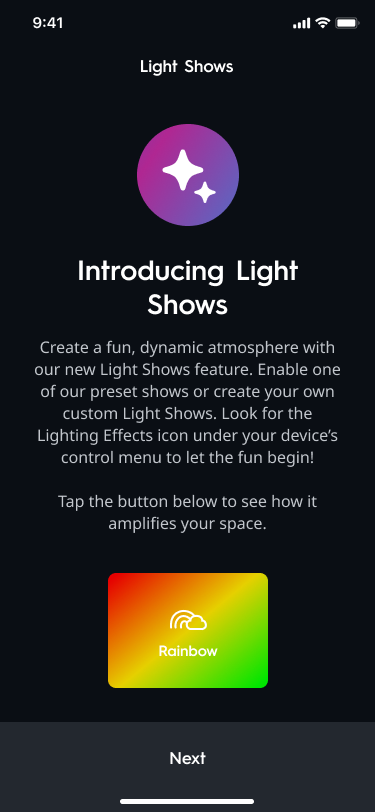
- At the very end of commissioning, you will have the opportunity to test Cync's Light Show and Music Sync features. You will be prompted with a Introducing Light Shows page. Selecting the Rainbow icon at the bottom of the page will give you a preview of just one of the many premade lights shows. For more information on Light Shows, Music Sync and Segment Control see Cync Light Shows and Music Sync.
Helpful Hints
- Confirm your Cync app is on the most recent version by navigating to the App Store or Google Play Store and searching for ‘Cync.’ If there is an update available, tap Update.
- Make sure Bluetooth is enabled on your phone during set up.
- Make sure your internet is connected and properly functioning.
- Cync Neon Light Strips can be used with Alexa and Google voice assistants. For more information on setup and control, please refer to these articles: Using Alexa with Cync or Using Google with Cync.
- For assistance with controlling your Cync Neon Light Strip, refer to this article: Controlling Cync Neon Light Strips.
Troubleshooting Tips
Unable to Connect Neon Light Strips to the Cync App
- Make sure the light strip is powered on.
- Go to Bluetooth within your phone’s Settings and toggle Bluetooth off and then on again.
- In some instances, having other Bluetooth devices (like a Smart Watch, Headphones or Speakers) paired to your phone could cause interference. Disconnect these devices during set up of your Cync lights. You can reconnect after setup is complete.
- Factory reset the light strip.
The Cync App is Unable to Locate My Wi-Fi Network
- Manually type in your SSID and password. If you do not remember your credentials for your Wi-Fi Network, contact your Internet Service Provider.
- Confirm your Wi-Fi Router is powered on and broadcasting. You can check this by going to Settings on your mobile phone and looking for your Wi-Fi network.
- If your router is powered on, but not broadcasting, contact your Internet Service Provider.
- Confirm you are on a 2.4 GHz network. Cync is not compatible with 5 GHz networks. Some routers will combine the 2.4GHz and 5GHz bands into a single SSID. Cync devices are compatible with this situation for most routers.
- Check your Wi-Fi strength at the light location (you can do this by looking at the Wi-Fi signal bars on your phone).
- If you do not have a strong signal strength, move light closer to your router. If you have a Wi-Fi Repeater, move it halfway between the light and your router to improve signal strength.
The Cync App is Unable to Connect to My Wi-Fi Network
- Confirm your Wi-Fi Router is powered on and broadcasting. You can check this by going to Settings on your mobile phone and looking for your Wi-Fi network.
- If your router is powered on, but not broadcasting, contact your Internet Service Provider.
- Confirm you are on a 2.4 GHz network. Cync is not compatible with 5 GHz networks. Some routers will combine the 2.4GHz and 5GHz bands into a single SSID. Cync products are compatible with this situation for most routers.
- Check your Wi-Fi strength at the light location (you can do this by looking at the Wi-Fi signal bars on your phone).
- If you do not have a strong signal strength, move light closer to your route. If you have a Wi-Fi Repeater, move it halfway between the light and your router to improve signal strength.
- Confirm you have the correct Wi-Fi network and password. If you do not remember your credentials for your Wi-Fi Network, contact your Internet Service Provider