
Using Google Home with Cync
Setting up and controlling your Cync devices with Google Home
Quickly navigate to a specific section by selecting a link below.
Setting up Google with Google Seamless Setup
Troubleshooting Tips
Setting up Google with Works with Google
Helpful Hints
Troubleshooting Tips
Controlling Cync Devices with Google
Voice Commands
Cync Scenes in Google Home
Helpful Hints
Troubleshooting Tips
Setting Up Google Home for Automations
Create a Google Automation
Helpful Hints
Troubleshooting Tips
There are three options when deciding how you want to set up and control your Cync devices with Google Home.
Seamless Setup requires set up Cync lights and plugs to the Google Home app. Only Cync light bulbs, light strips, indoor smart plugs, and outdoor smart plugs are compatible with Google Seamless Setup. This option is for iOS users only.
Works with Google allows you to set up Cync devices to your Cync app Home first, then link your Cync account to your Google Home app. If you choose this method and have Bluetooth only lights in your Cync app Home, then you must also add a Cync Wi-Fi enabled device to your Cync app Home to enable voice control. This option is for iOS users only.
Google Home Automations allows you to build your automations from the ground up by incorporating all your smart devices using voice commands to control brightness, color, and trigger scenes. You will be able to link other non-Cync devices to Google Home for advanced automations within the Cync app. This option is for Android users only.
Google Seamless Setup
Setting up Google with Google Seamless Setup
Troubleshooting Tips
Setting up Google - Seamless Setup
If you are only using the Google Home app to set up and control your Cync devices, follow the Seamless Setup instructions.
Troubleshooting Tips
Unable to Pair my Cync device directly to Google Home with Google Seamless Setup
- If you are trying to pair Cync light bulbs, or plugs directly to Google Home (without the Cync app), follow the troubleshooting steps here.
- Ensure you haven’t changed your Wi-Fi network credentials and that the Cync/C by GE device is within range of your Wi-Fi router.
- If you are trying to pair a Cync Switch, Camera or other Cync device, follow the Works with Google setup process.
Works with Google
Setting up Google - Works with Google
Helpful Hints
Setting Up Google - Works with Google
You can set up your Cync devices with the Cync app, then link your Cync account to the Google Home app to enable Google Voice Assistants. There are two scenarios in which you may need to follow based on if this is your first time setting up Cync devices. See the instructions below and choose the method that fits your situation.
Start with Google Home:
- Set up and connect your Cync devices in the Cync app.
- Install and open the Google Home app.
- Tap the Add (+) icon and select Set Up Device.
- Select Works with Google.
- Tap the search icon and type in Cync. Select the Cync app option.
- Enter your Cync login information. This will link your Cync and Google Home account.
NOTE: If you are on Cync app version 6.11 or higher, you will no longer need to enter your login information to link to Google. Instead, you will be asked to Agree and Link. By tapping Agree and Link, you consent to linking your Cync account to Google. You will be giving Google access to control your devices and will be giving data such as device names, Scenes, and Light/Music Shows. You can also unlink your account later in your Google Account settings. For more information, view Google's Privacy Policy. - Google Home will identify and display the Cync devices you have connected to your Cync app. Select the devices to add them to a room.
NOTE: Once the Google Home app is linked, your devices may be displayed in your "Linked Devices" section. From here you can move them to the appropriate rooms in the Google Home app.
Start with Cync:
- Open the Cync app.
- Select Setting on the Cync app homepage.
- Navigate to Voice then select Google Home.
- Select Link Google Home. This will bring you to the Google Home app.
- Enter your Cync login information. This will link your Cync and Google Home account.
NOTE: If you are on Cync app version 6.11 or higher, you will no longer need to enter your login information to link to Google. Instead, you will be asked to Agree and Link. By tapping Agree and Link, you consent to linking your Cync account to Google. You will be giving Google access to control your devices and will be giving data such as device names, Scenes, and Light/Music Shows. You can also unlink your account later in your Google Account settings. For more information, view Google's Privacy Policy. - Google Home will identify and display the Cync devices you have connected to your Cync app. Select the devices to add them to a room.
NOTE: Once the Google Home app is linked, your devices may be displayed in your "Linked Devices" section. From here you can move them to the appropriate rooms in the Google Home app.
Connecting additional Cync devices to Google Home:
- First, set up and connect all Cync devices in the Cync app.
- Install and open the Google Home app.
- Navigate to the Linked to you category in the Google Home app. Your new Cync devices will be listed here.
- Tap on your new devices to set up in Google Home.
Helpful Hints
- Make sure the names you give your Cync devices in the Google Home app matches the names in the Cync app.
- The device name in both apps should be something that can be easily said in a voice command. For example, name the smart plug in your living room, “Living Room Plug” instead of an abbreviation like “LR Plug."
Controlling Cync Devices with Google Home
Voice Commands
Cync Scenes in Google Home
Helpful Hints
Troubleshooting Tips
Voice Commands
When addressing your lights with voice, you can say “lights,” the name of the room your lights are in (for example, Living Room) or the name you assigned your lights. Here are some voice commands you can use with your Google Assistant and Cync lights:
Brightness (all Cync lights)
- Hey Google, dim lights to 50% [options: up to 100%].
- Hey Google, set lights to 25% [options: up to 100%].
- Hey Google, make lights brighter.
- Hey Google, make lights dimmer.
Color Temperature (Cync Tunable White and Full Color lights only)
- Hey Google, change lights to soft white [options: cool white, bright white].
- Hey Google, set lights to candlelight.
- Hey Google, set lights to white.
- Hey Google, change lights to 2700 kelvin [2,000 – 7,000 range].
- Other options: Daylight, Warm White, Incandescent.
Reveal Lighting
- Hey Google, set [room/light name] to reveal.
Scenes
- Hey Google, start [scene name].
- Hey Google, activate [scene name].
- Hey Google, begin [scene name].
Cync Scenes in Google Home
Import Cync Scenes into Google Home
- From the Cync Home screen, select Settings.
- Select Voice.
- Choose Google Home. Select the Link Google Home button and following the prompts. This will link the Google Home app to the Cync app.
- Once the apps are linked, Google Home will sync your existing scenes made in the Cync app. New scenes created within the Cync app will now be added to the Google Home app as well.
NOTE: You may need to relink your Google Home app if your Cync Scenes are not appearing.
Using Cync Scenes with Google Home Voice Control
When addressing your Cync Scenes with voice, start by saying "Hey Google" or "OK Google" and the name of the Cync Scene you are trying to initiate. For example:
- "Hey Google, activate [scene name]."
- If you have a Cync Scene named Goodnight you can say, "OK Google, activate Goodnight" and the Cync Scene will initiate.
- A starting command must be given to your Google Home before the Scene name is said (i.e., start, begin, or activate).
Using Cync Scenes in Google Home Routines
- In the Google Home app Home screen, select the Routines button.
- Select an existing Google Home Routine or create a new Routine by tapping the plus button in the bottom right of your Routines screen.
- Under the "Actions" section of your Google Home Routine select + Add action.
- Choose Adjust Home Devices. From this screen, navigate to the Adjust scenes section and select Edit action.
- Tap the checkbox for "Adjust scenes" to include every scene, or press "Edit action" under Adjust scene in order to see the list of all scenes that you can select.

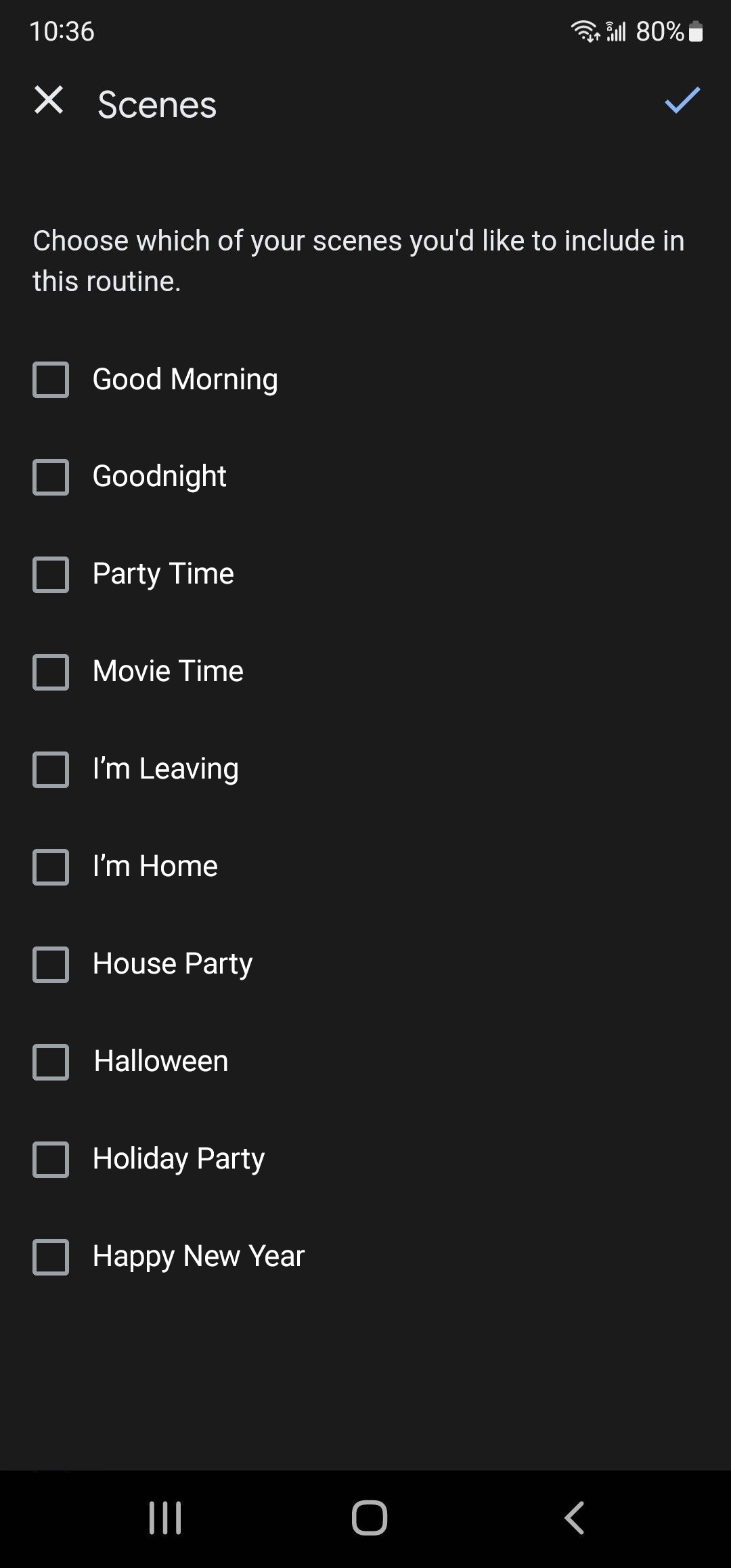
- Select Done.
- Select Save to update the Google Home Routine.
Helpful Hints
- Once you have linked your Google Home app with the Cync app your Cync Scenes will automatically sync when you add or remove them.
Troubleshooting Tips
My Cync devices are not displaying in the Google Home app.
- Confirm your Cync devices are paired with the Cync app.
- IMPORTANT: If you only have Bluetooth light bulbs/strips, one of your other connected Cync devices must be a Cync Wi-Fi device to enable Google control. Our Wi-Fi devices include the Smart Plug, Direct Connect Lights, Wired Switch or C-Reach.
- Confirm you are using the correct Cync login credentials by logging out of the Cync app, then logging back in. Go back to the Google Home app and try setting up your devices again.
- If you have previously set up Cync devices with Google and want to add more, give a voice prompt to your Google Voice Assistant by saying, “Hey Google, sync my devices.” Now check the Google Home app and see if your new Cync/C by GE devices are listed at the bottom of the Google Home app home screen.
My Cync devices are not responding to Google voice commands.
- Confirm your Cync devices are paired with the Cync app.
- Ensure you haven’t changed your Wi-Fi network credentials and that your Cync/C by GE devices are within range of your Wi-Fi router.
- If you have changed your Wi-Fi credentials, or changed providers, you'll need to update your Wi-Fi in the Cync app.
- Confirm you’ve linked your Cync account to the Google Home app.
- Say, “OK Google, sync my devices.”
- Power cycle your Cync/C by GE devices by powering off for 10 seconds, then powering back on.
Google Automations
Setting up a Google Home for Automations
Create a Google Automation
Troubleshooting Tips
Setting up Google Home for Automations
Build your automations from the ground up by incorporating all your smart devices. With Google Automations you will be able to use voice commands to control brightness, color, and trigger scenes. You will be able to link other non-Cync devices to Google Home for advanced automations within the Cync app. This feature is only available for Android users.
- Set up and connect your Cync devices in the Cync app.
- Install and open the Google Home app on your smart device.
- Link your Gmail account to Google Home.
- From the home page in the Cync app, navigate to Routines > Automations > "+" icon in the top right corner > Custom Automation > Link Voice + Home/Rooms.
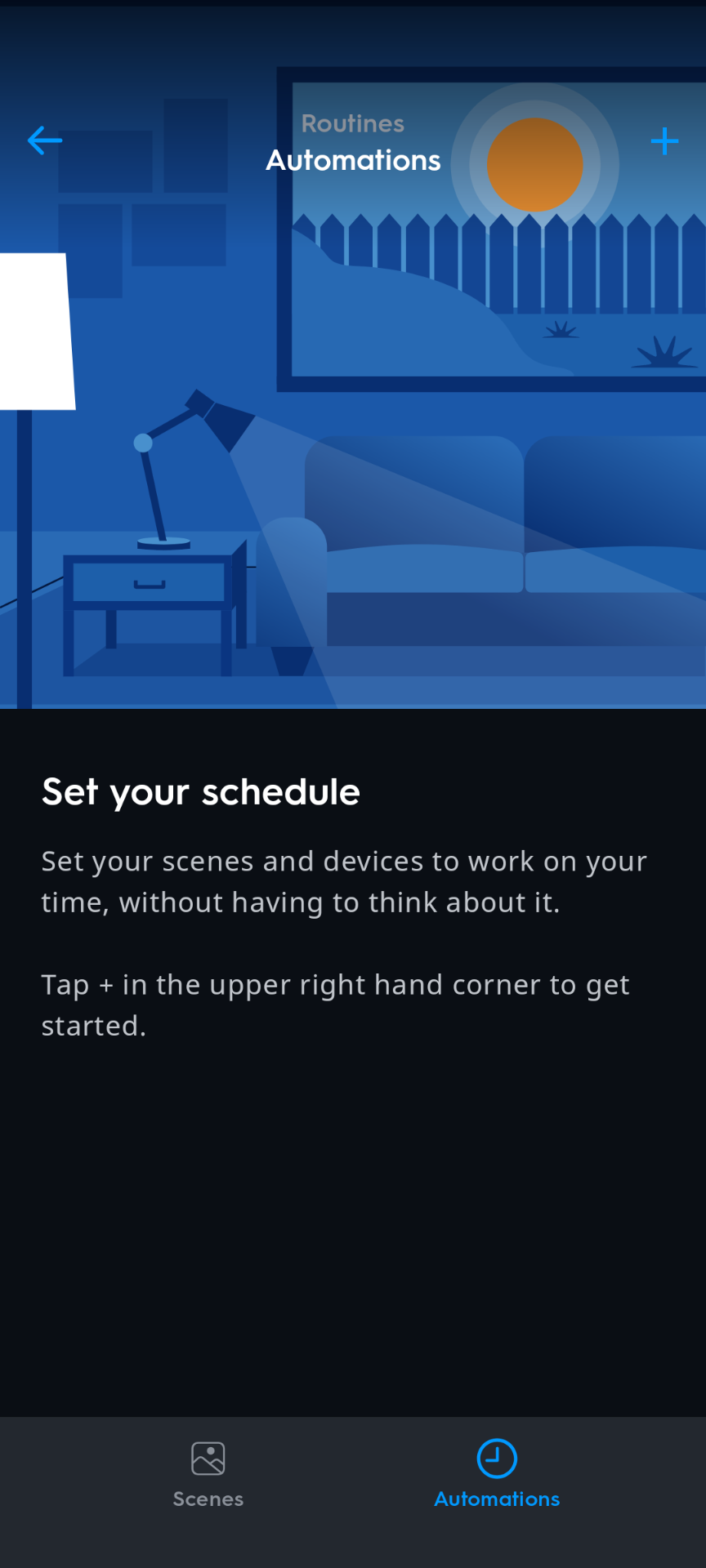
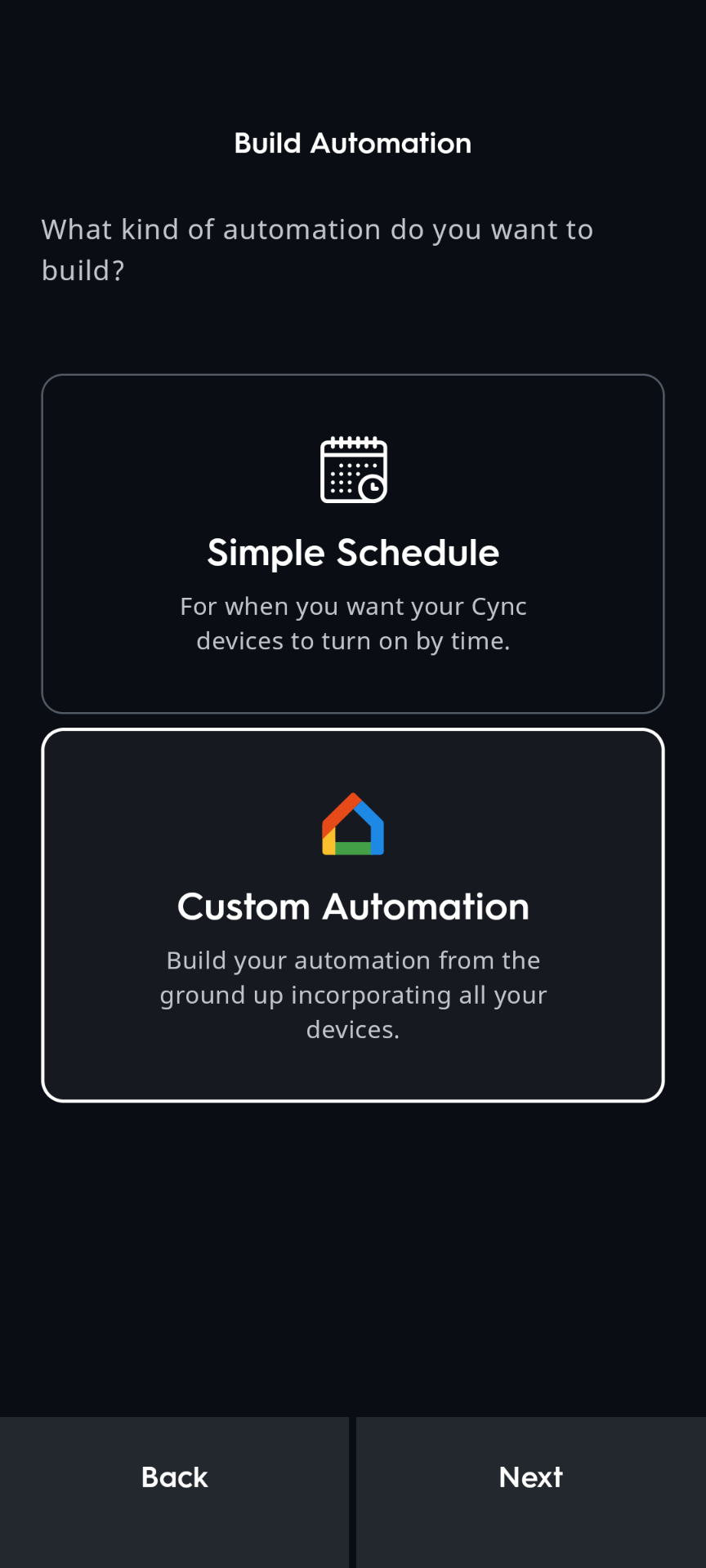
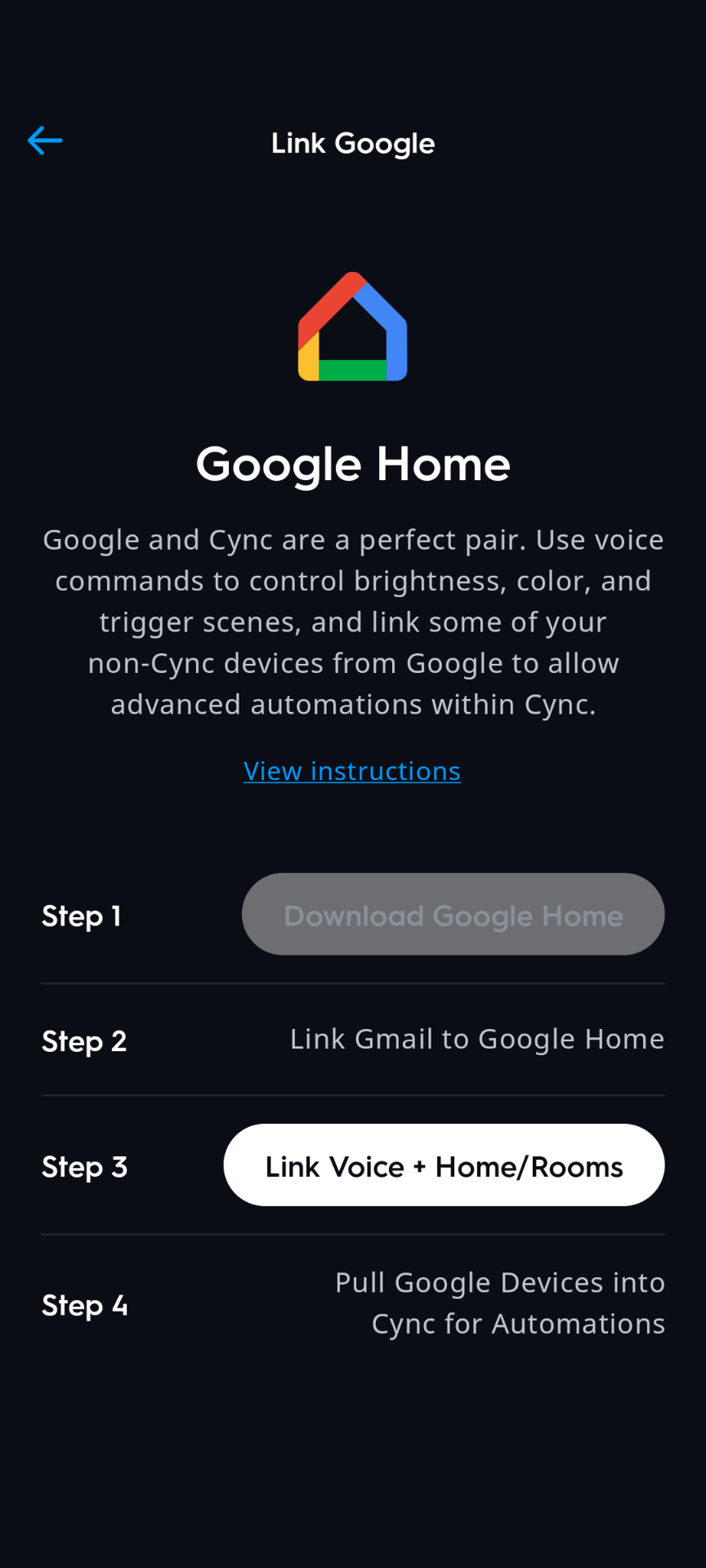
- Link accounts and follow the instructions in the Google Home app to add Cync devices.
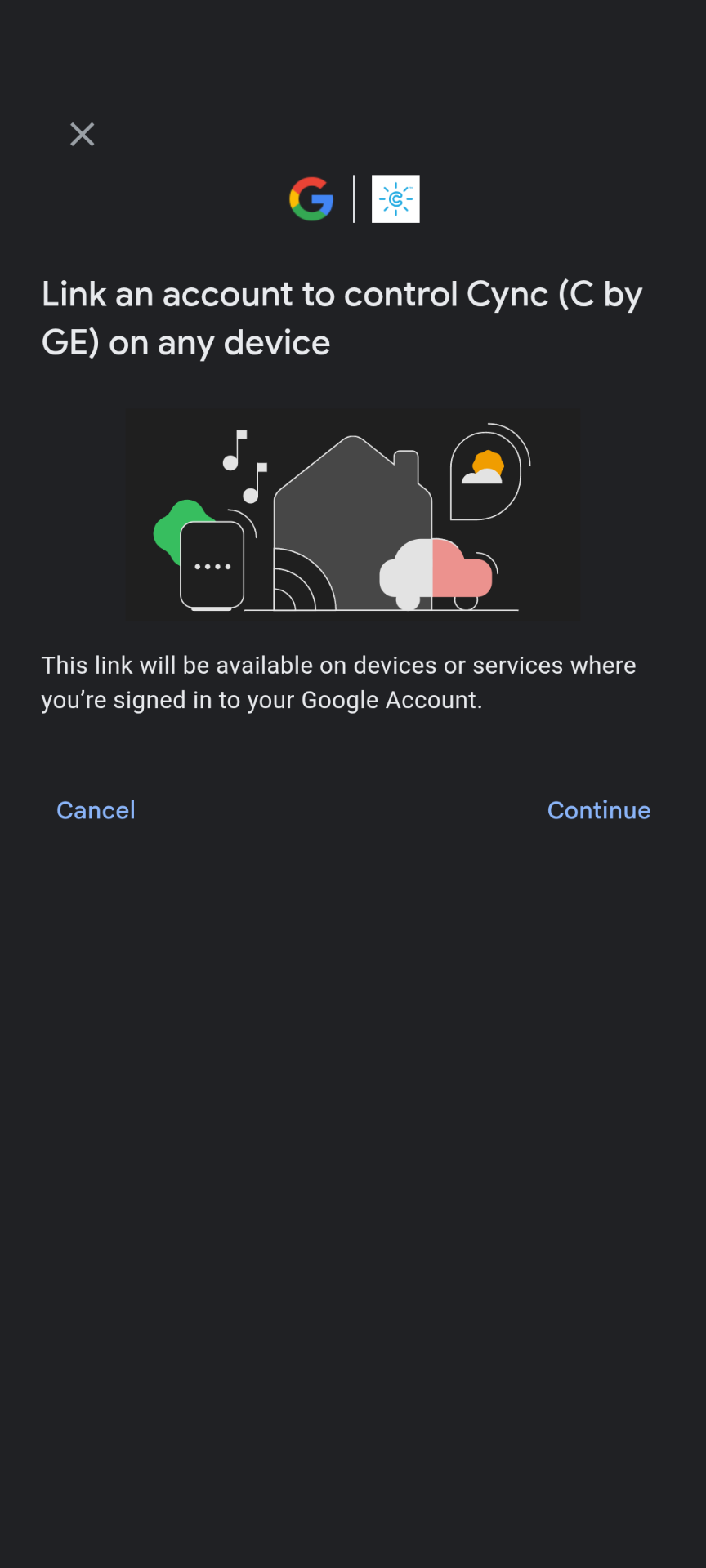
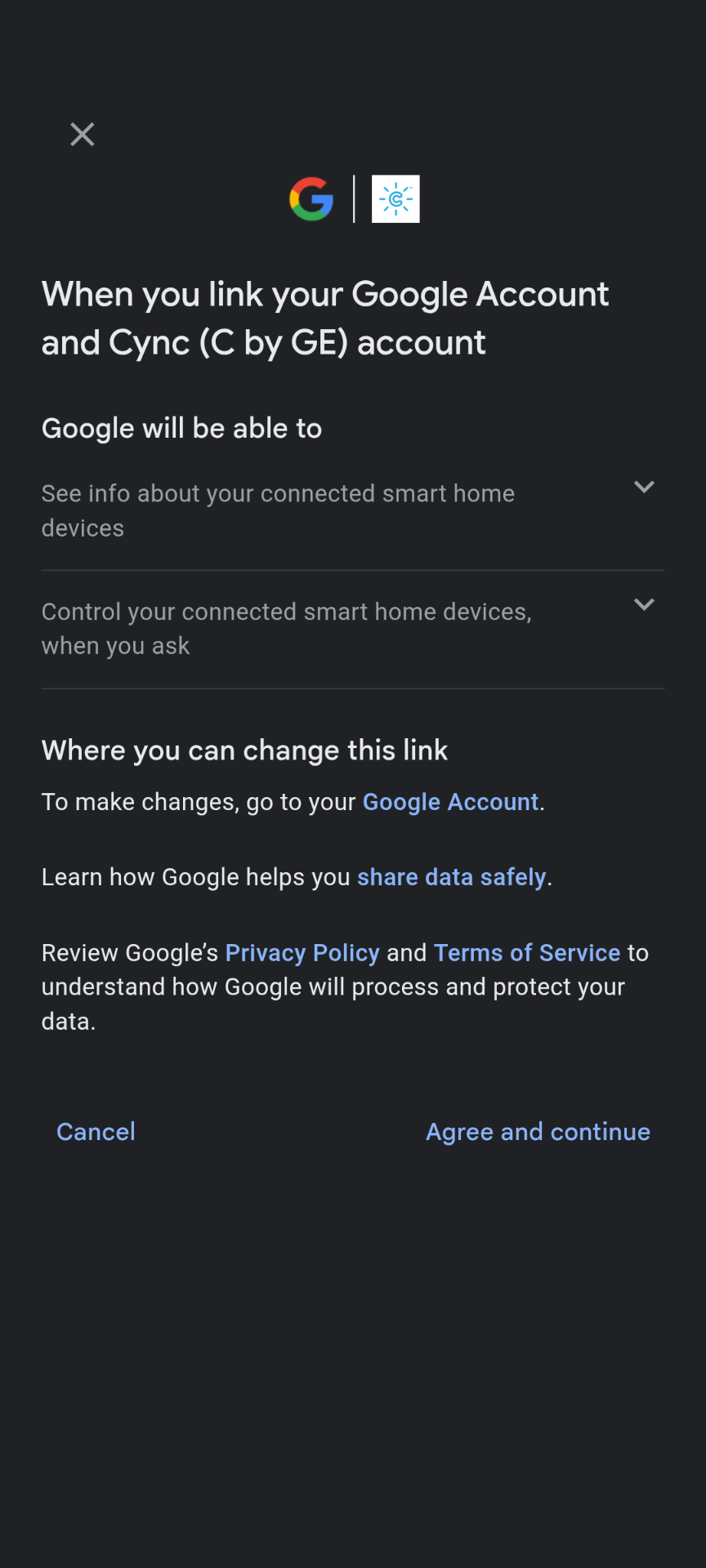
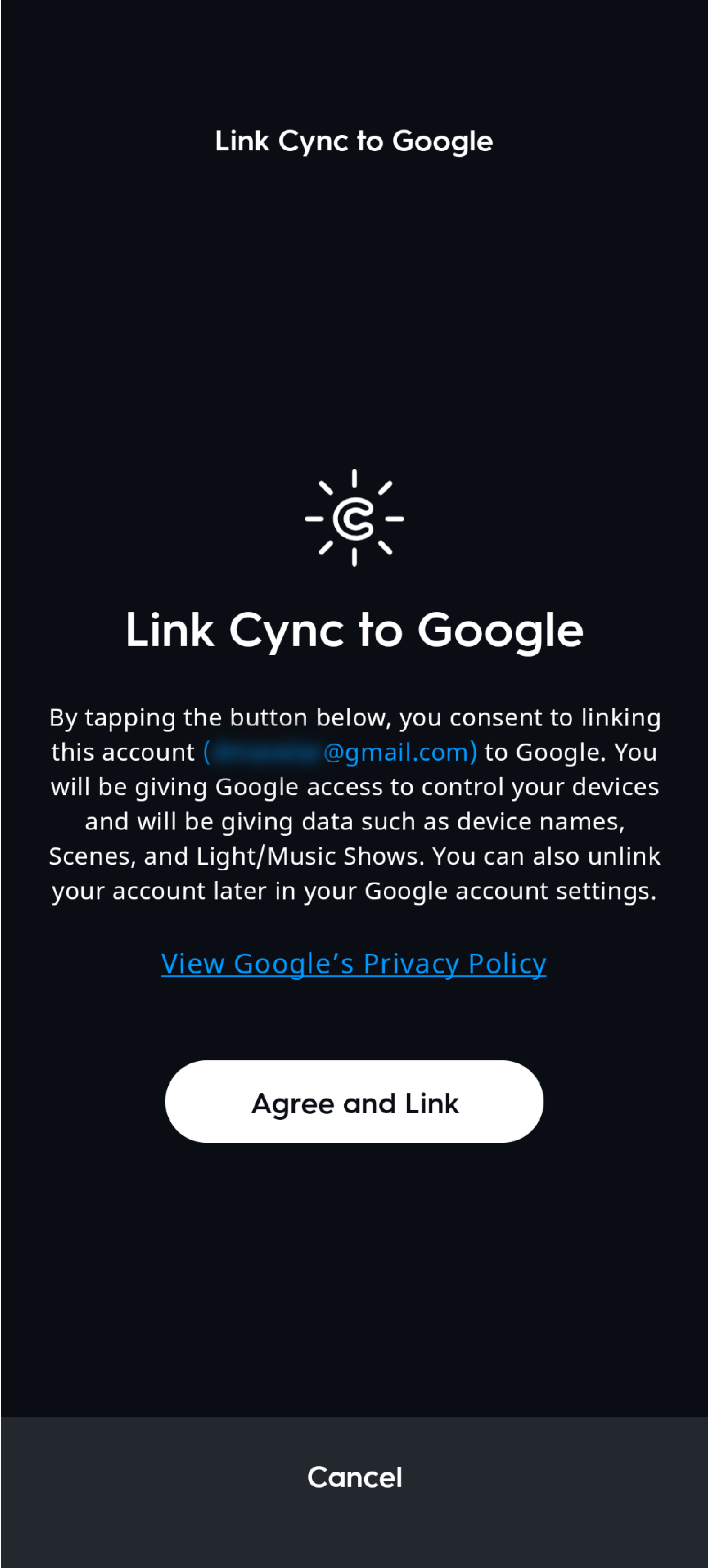
- Return to the Cync app. You will see a Voice + Control is Linked prompt. Select Next and link home to Cync by selecting Allow.
NOTE: You will see a dropdown menu to select which home to be controlled in the Cync app. Cync only supports one home.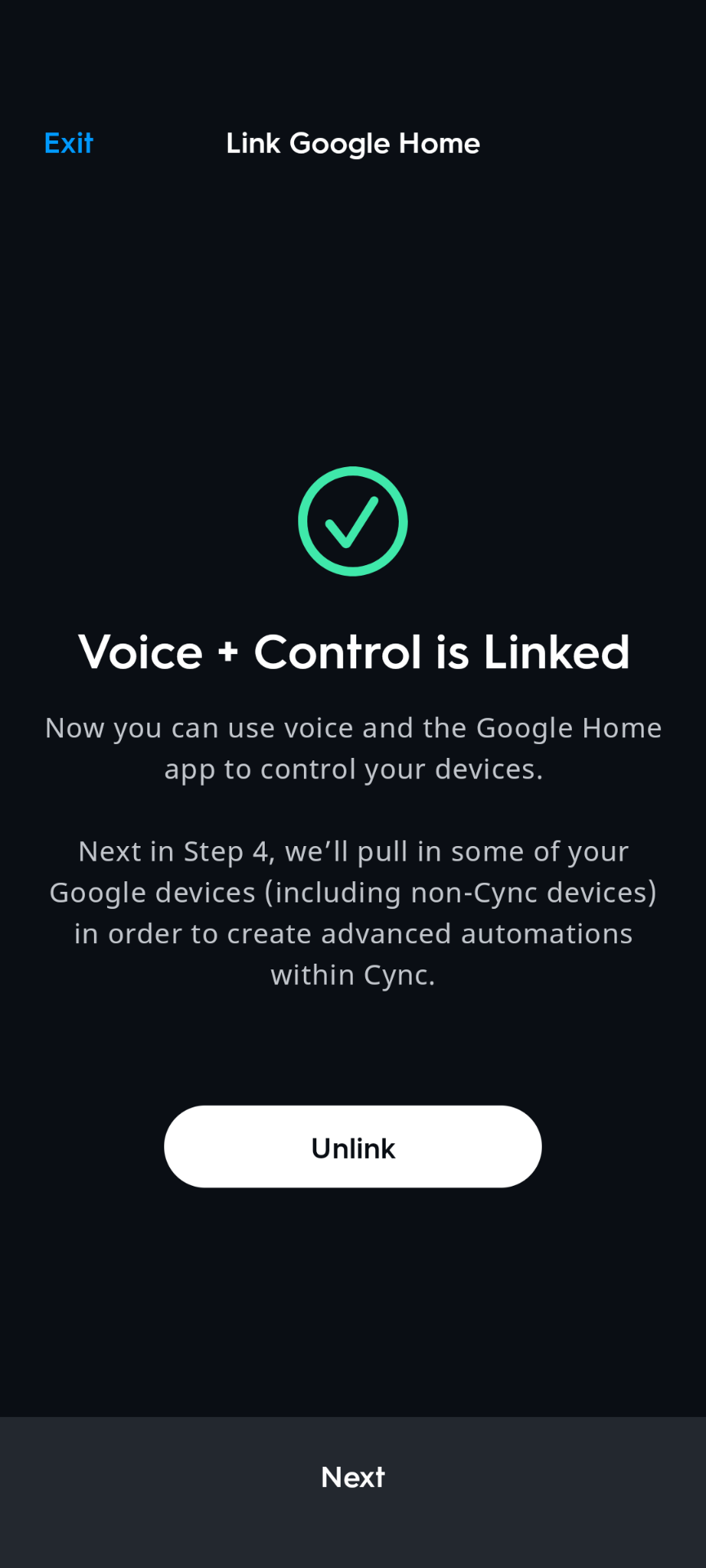

- Once linking is completed you are ready to create Google Automations!
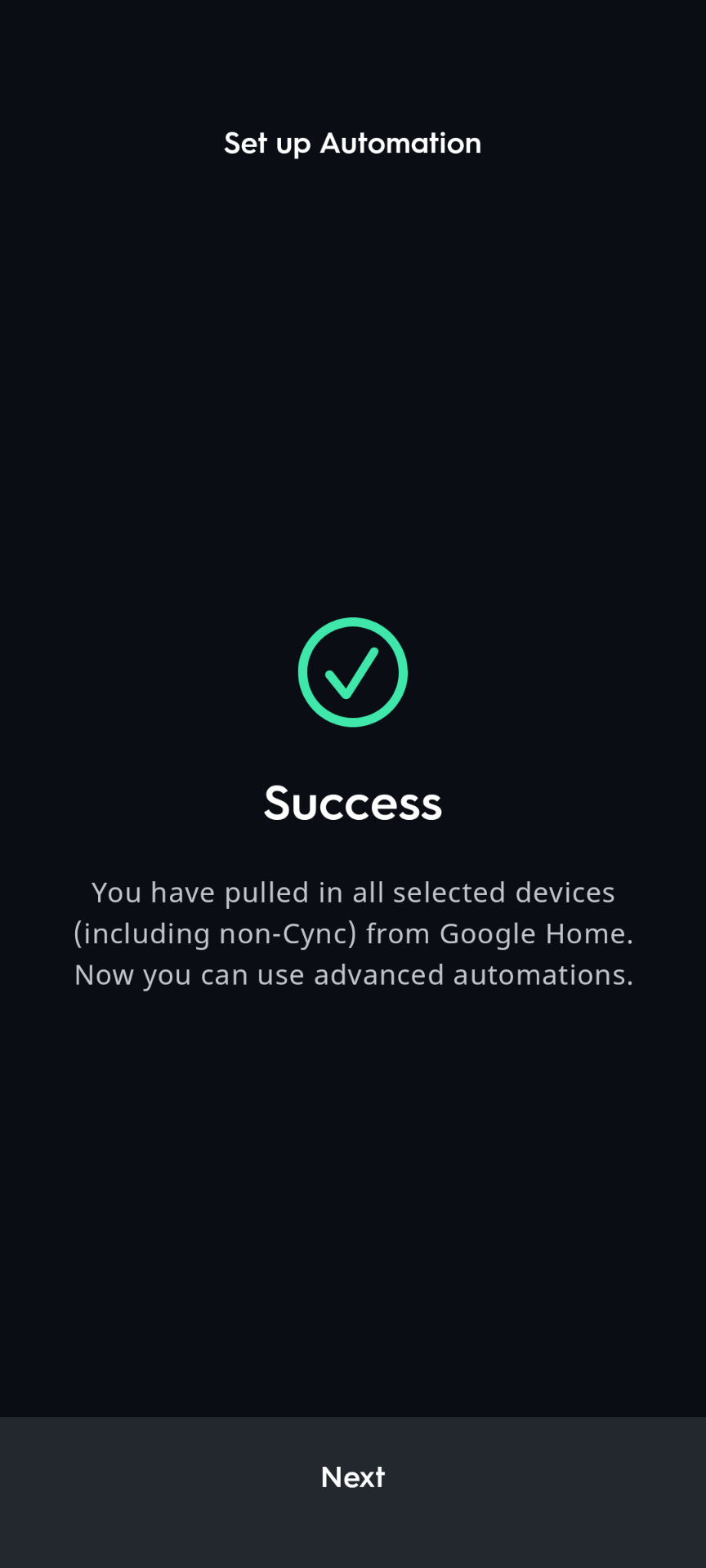
Create a Google Automation
Before you continue onto these steps, be sure that you have successfully linked Google Home to Cync by following the steps described in the section above.
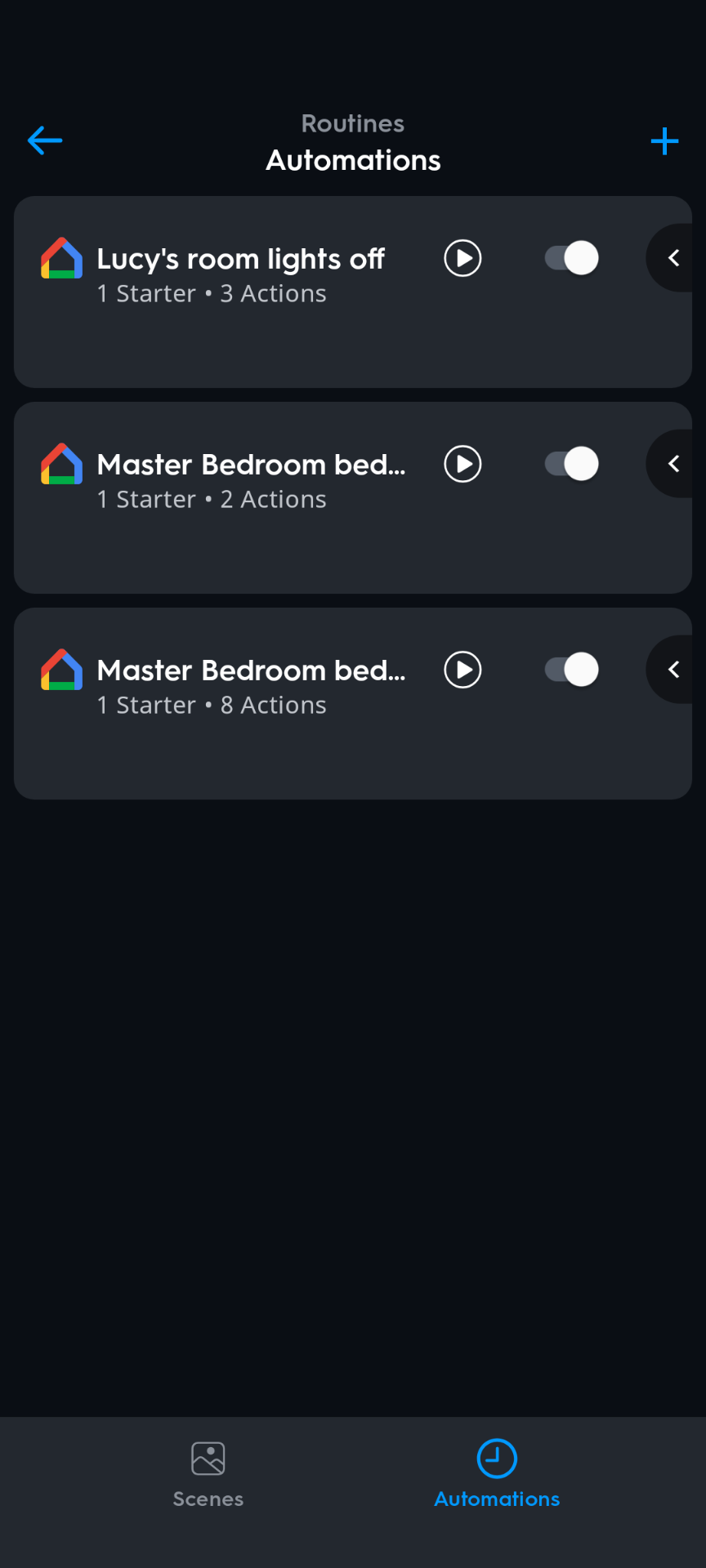
- From the Cync home page, access Google Automations by navigating to Routines > Automations > "+" icon > Custom Automation
- Select the "+" icon to create a new Automation
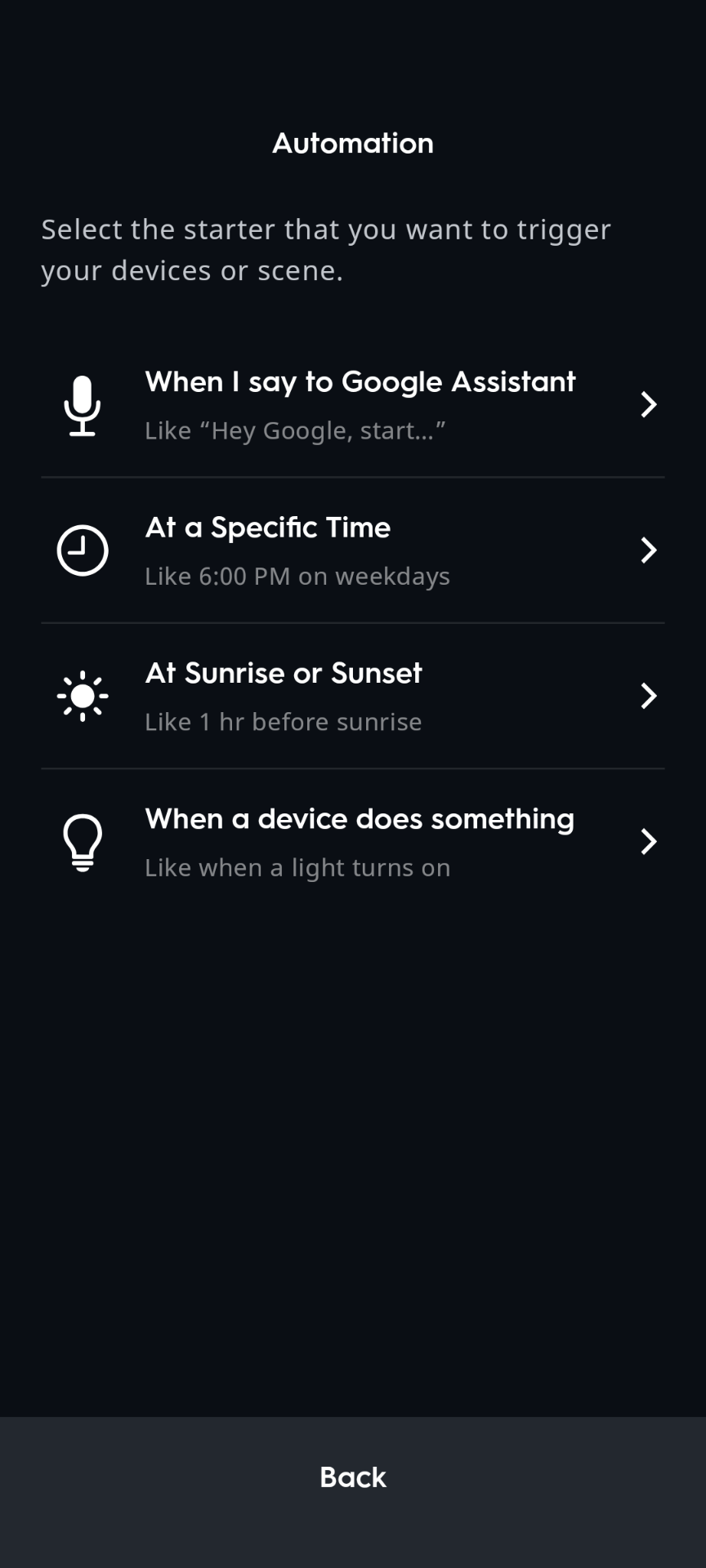
- Select the starter that you want to trigger your device or scene. This could be a voice command, specific time, sunrise/sunset or a device action.
- Name and build your automation by selecting an event, condition, or action for If and Then. If is the event, condition, or action that will activate the Then event, condition, or action.
In the example below, the user chose If to be a Google Assistant voice command action ("Good Morning"), Then to be a Google Assistant event to "Tell me about the weather" and configured to play on their "Office Speaker" device. So if this user says "Good Morning" to their Google Assistant, it will then tell them about the weather through their office speaker!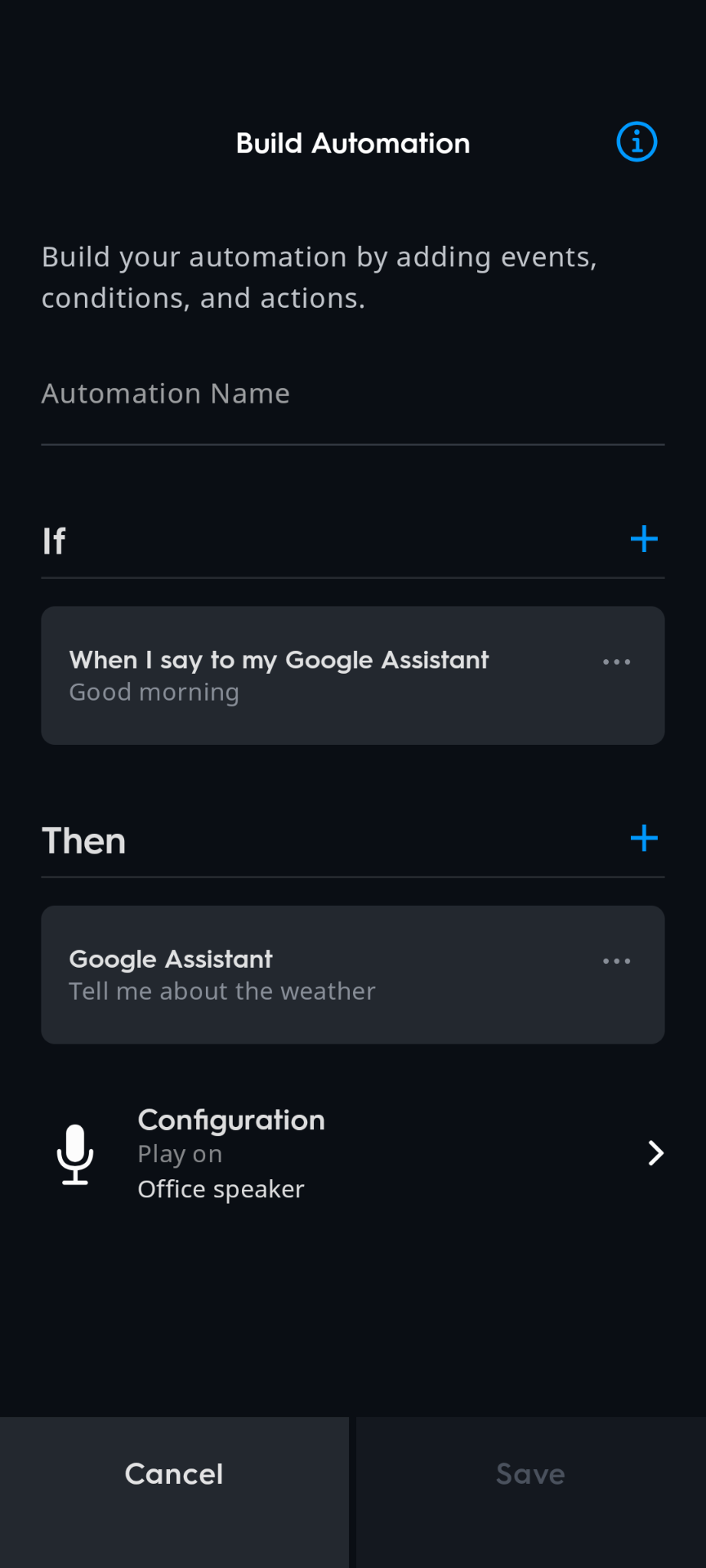
- Select save and your automation is complete!
Helpful Hints
- Make sure the names you give your Cync devices, Rooms, and Groups in the Google Home app match the names in the Cync app.
- The device, Room, or Group name in both apps should be something that can be easily said in a voice command. For example, name the smart plug in your living room, “Living Room Plug” instead of an abbreviation like “LR Plug."
- To check status of devices or unlink Google Home from the Cync app navigate to Settings > Voice > Google Home.
Troubleshooting Tips
Unable to pair my Cync account to Google Home
- Ensure you haven’t changed your Wi-Fi network credentials and that the Cync device is within range of your Wi-Fi router.
- If you are trying to pair a Cync Switch, Camera or other Cync device, follow the Works with Google setup process.
Unable to activate a Google Automation
- If a Google Automation fails to run via the Cync app, test the automation natively from Google Home. If the same error persists, contact Google support.
My Cync devices are not displaying in the Google Home app.
- Confirm your Cync devices are paired with the Cync app.
- IMPORTANT: Some of the Cync devices are Bluetooth only. One of your other connected Cync devices must be a Cync Wi-Fi device to enable Google control. Our Wi-Fi devices include the Smart Plug, Direct Connect Lights, Wired Switch or C-Reach.
- Confirm you are using the correct Cync login credentials by logging out of the Cync app, then logging back in. Go back to the Google Home app and try setting up your devices again.
- If you have previously set up Cync devices with Google and want to add more, give a voice prompt to your Google Voice Assistant by saying, “Hey Google, sync my devices.” Now check the Google Home app and see if your new Cync devices are listed at the bottom of the Google Home app home screen.
My Cync devices are not responding to Google voice commands.
- Confirm your Cync devices are paired with the Cync app.
- Ensure you haven’t changed your Wi-Fi network credentials and that your Cync devices are within range of your Wi-Fi router.
- If you have changed your Wi-Fi credentials, or changed providers, you'll need to update your Wi-Fi in the Cync app.
- Confirm you’ve linked your Cync account to the Google Home app.
- Say, “OK Google, sync my devices.”
- Power cycle your Cync devices by powering off for 10 seconds, then powering back on.