
Controlling Indoor Cameras
You can control your Cync Indoor Camera with the Cync app to monitor your home with ease.
Quickly navigate to a specific section by selecting a link below.
Cync Indoor Camera Controls and Buttons
How To Control Cync Indoor Cameras with the Cync App
Troubleshooting Tips
Cync Indoor Camera Controls and Buttons
Indoor Camera

Indoor Camera Privacy Shutter

Slide the Privacy Shutter up to turn on privacy mode. This will disable the camera and no longer record video or audio. Slide the Privacy Shutter back down to enable video and audio again.
How to Control Indoor Cameras with the Cync app
- The home screen in the Cync app provides a quick view of all of your Indoor Camera's feeds.
- You can control your cameras individually by selecting the desired camera from the home screen. This will bring you to that specific Indoor Camera's screen.
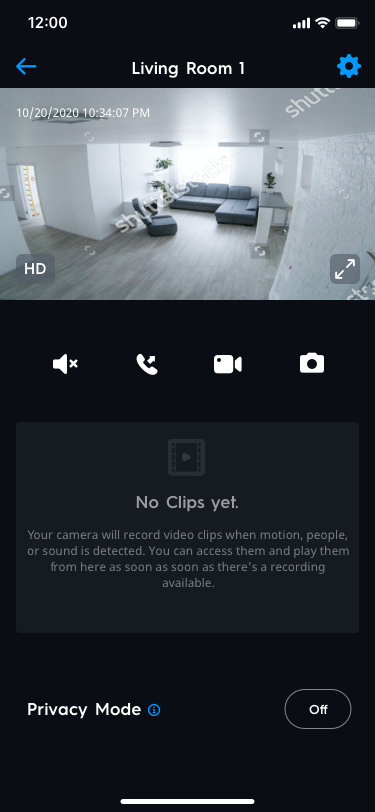

When you've accessed the Indoor Camera screen you will have options to control the camera.
- HD/SD: Select between High Definition or Standard Definition video.
- Full Screen Mode: Expand the camera video to appear across your device's entire screen. This screen will allow you the same control as the previous screen. Select the same button again to minimize.

- Audio: Mute or enable the audio for the video. When muted recordings will not have audio.
- Two-Way Voice: Allows you to use your device to send audio to the camera. Audio can be heard from the camera in the room that it is located in.
- Recording: Select this button to start a recording. Select the same button to end the recording.
- Camera: Take a screenshot of the current video. This will be saved to your camera roll on your device.
- Pinch and Zoom: Use your fingers on the camera to pinch and zoom. This allows you to view certain areas of your feed closer than they normally appear.
- Privacy Mode: Turn Privacy Mode on or off. There will be no audio or video when Privacy Mode is enabled.
Troubleshooting Tips
Unable to scan the QR code in Cync app
- Confirm that your Camera is plugged in and powered on.
- Ensure the Camera is still in setup mode; the LED indicator will be blinking blue.
- Check that the Camera Privacy Shutter is not engaged.
- If you haven't already, remove the plastic film over the camera lens.
- Hold your phone about 6 inches in front of the Camera lens when the QR code is displayed.
- Set your phone brightness to 30%-50%.
- Move the camera to a dark room to reduce ambient lighting.
- Power cycle the Camera by unplugging it, then plugging it back in.
- Clean the camera lens.
- Factory Reset the Camera.
The Cync App is Unable to Locate My Wi-Fi Network
- Manually type in your SSID and password. If you do not remember your credentials for your Wi-Fi Network, contact your Internet Service Provider.
- Confirm your Wi-Fi Router is powered on and broadcasting. You can check this by going to Settings on your mobile phone and looking for your Wi-Fi network.
- If your router is powered on, but not broadcasting, contact your Internet Service Provider.
- Confirm you are on a 2.4 GHz network. Cync is not compatible with 5 GHz networks. Some routers will combine the 2.4GHz and 5GHz bands into a single SSID. Cync devices are compatible with this situation for most routers.
- Check your Wi-Fi strength at the camera location (you can do this by looking at the Wi-Fi signal bars on your phone).
- If you do not have a strong signal strength, move the indoor camera closer to your router. If you have a Wi-Fi Repeater, move it halfway between the camera and your router to improve signal strength.
The Cync App is Unable to Connect to My Wi-Fi Network
- Confirm your Wi-Fi Router is powered on and broadcasting. You can check this by going to Settings on your mobile phone and looking for your Wi-Fi network.
- If your router is powered on, but not broadcasting, contact your Internet Service Provider.
- Confirm you are on a 2.4 GHz network. Cync is not compatible with 5 GHz networks. Some routers will combine the 2.4GHz and 5GHz bands into a single SSID. Cync devices are compatible with this situation for most routers.
- Check your Wi-Fi strength at the camera location (you can do this by looking at the Wi-Fi signal bars on your phone).
- If you do not have a strong signal strength, move the indoor camera closer to your router. If you have a Wi-Fi Repeater, move it halfway between the camera and your router to improve signal strength.
- Confirm you have the correct Wi-Fi network and password. If you do not remember your credentials for your Wi-Fi Network, contact your Internet Service Provider.
Unable to connect to Indoor Camera Live Stream
- Confirm that your Camera is connected to the Cync app.
- Ensure that the Camera Privacy Shutter is not engaged.
- Check the Wi-Fi signal strength. If there is a weak connection, you may have to move the Camera closer to the router.
- Force close the Cync app, and re-open it. Try accessing the live stream again.
- Power cycle the Camera by unplugging it, and then plugging it back in.
Videos are not recording
- Confirm that your Camera is connected to the Cync app.
- Make sure you are getting a feed in the live stream.
- Ensure that Detection Events are enabled. If they are, check if Detection Schedule is disabled.
- Ensure that Motion Events are enabled. If they are, increase the Detection Sensitivity for motion and sound as applicable.
- Power cycle the Camera by unplugging it, then plugging it back in.
- Review storage size used for your Camera, and confirm that the storage is not full.
Video stream is inverted
- You can flip the Camera orientation if it was mounted upside down. From the Cync app Home screen, navigate to Cameras > Settings > Camera Settings and select Flip Video.
Camera recordings are not capturing audio
- Ensure that Record Audio is enabled by navigating to Cameras > Settings > Camera Settings > Record Audio.
- Make sure the audio is up on the phone or tablet.
- Confirm that the phone or tablet is not connected to any Bluetooth devices that it may be broadcasting audio to. If so, disconnect from Bluetooth.