
Controlling Light Bulbs
You can easily control your Cync Smart Lights with the Cync app, a linked voice assistant, or with another Cync smart device - like a smart switch, remote, or wire-free motion sensor.
Quickly navigate to the section you need by following one of the links below.
General Cync App Control
Brightness and Color Control
Voice Control
Motion Control
Remote and Switch Control
Reveal Light Bulbs
Light Shows and Music Sync
General Cync App Control
Controlling Lights with the Cync App
Depending on how many rooms you've created in the Cync app, you will have one of two home screen views: Single Room or Multi Room view. (Refer to the Home Screen Views and App Control Details article for more information).
You can control your lights individually, or assign them to a Room or Group for flexible device control. Based on the home screen view you have, Room, Group and Device controls will be in slightly different locations.
Turning Lights On and Off with the Cync App
Use the ON/OFF toggle button on the Room, Group or Device Tile to turn them ON or OFF or tap the Slider Bar on the Room, Group or Device Tile to turn them ON. Move the Slider all the way to the left to turn them OFF.
Brightness and Color Control
Brightness Control
Use the Slider Bar on the Room, Group or Device Tile to control brightness. Move the Slider to the right to brighten or to the left to dim your lights.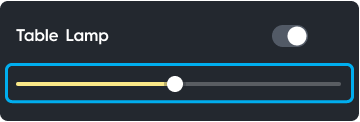
Color Control
Tap the chevron icon  on the Room, Group or Device Tile to display the Color Temperature
  or Full Color
  icons.
- Tap the for Color Temperature options. The color temperature bar allows you to select between the different white color options that are best suited for the time of day. For example, Early Morning is perfect for your wake-up routine, Daylight will energize you during your day, and Warm White will create a relaxing environment for your bedtime routine.
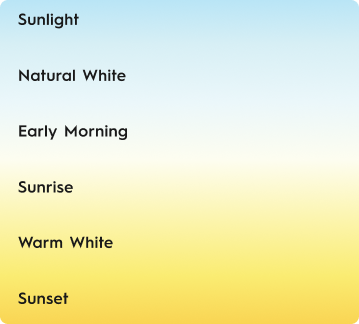
Temperature Kelvin Cool White 6000K Daylight 5500K Sunlight 5000K Natural White 4500K Early Morning 4000K Sunrise 3500K Warm White 3000K Sunset 2600K Candle 2200K
- Tap the for Full Color options. The outer circle allows you to select a hue, and the inner circle allows you to select the saturation of the hue.
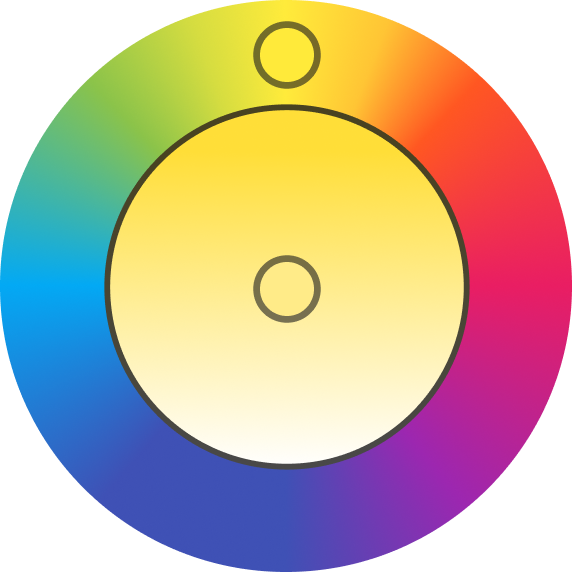
NOTE: Color Temperature and Full Color icons will not display if you only have Soft White lights. Soft White lights can only be dimmed or brightened. Tunable White and Full Color lights offer Color Temperature options like Cool White, Natural White and Warm White. Full Color lights offer 16 million colors.
Save, View and Delete Favorite Colors
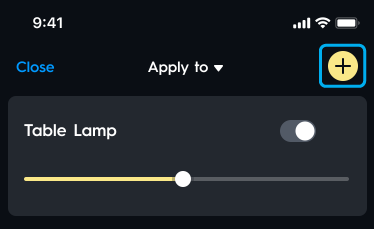
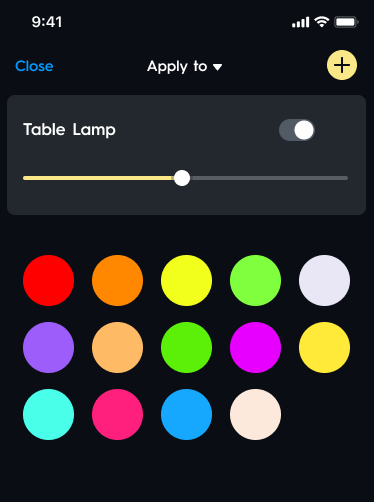
- If you want to save a favorite color, tap the add icon
 in the top right corner of the color control menus to add to your Favorites.
- Tap the heart icon
 in the bottom right corner to view all your Favorites.

- To remove a color from your favorites tap and hold a color and select Delete Favorite.
Voice Control
Controlling Lights with Alexa or Google Voice Assistant
Cync Light Bulbs are compatible with the Amazon Alexa app and voice assistant, and the Google Home app and voice assistant.
Alexa Voice Control
- First, you need to Enable Alexa Control. See Alexa for instructions on setting up Cync devices with Alexa.
- Once you've enabled Alexa Control, make sure the names you give your Cync devices and rooms in the Alexa app matches the names in the Cync app.
- You can control your lights through the Alexa app, or with voice commands to an Alexa voice assistant. A list of compatible voice commands for Alexa can be found here.
Google Voice Control
- First, you need to Enable Google Control. See Google for instructions on setting up Cync devices with Google.
- Once you've enabled Google Control, make sure the names you give your Cync devices and rooms in the Google Home app matches the names in the Cync app.
- You can control your lights through the Google Home app, or with voice commands to the Google voice assistant. A list of compatible commands for Google can be found here.
Motion Control
Cync Smart Light Room and Group Control with Cync Motion Sensor
- Simply assign your lights and Cync Motion Sensor to the same Room or Group in the Cync app.
- If you assign these devices to the same Room, your motion sensor will control all the Cync devices assigned to that Room. If you want to control a select group of devices with a motion sensor, simply move those specific devices into a Group within that app Room.
- Helpful articles:
NOTE: If a motion sensor is assigned to a Room that has one or more Groups, that motion sensor will control all those Groups and the devices assigned to them. Think of it as a master motion sensor for your Room!
Cync Smart Light Temperature Control with Cync Motion Sensor
- You can set the motion sensor to trigger your lights to turn on to specific color temperature and brightness at different times of the day. Set your sensor to only turn on your lights when there isn't enough ambient light in the room.
- Helpful articles:
Remote and Switch Control
Cync Smart Light Room and Group Control with Cync Remotes and Switches
- Simply assign your lights and Cync switch or remote to the same Room or Group in the Cync app.
- If you assign these devices to the same Room, your switch or remote will control all the Cync devices assigned to that Room. If you want to control a select group of devices with a switch or remote, simply move those specific devices into a Group within that app Room.
- Helpful articles:
NOTE: If a switch or remote is assigned to a Room that has one or more Groups, that switch or remote will control all those Groups and the devices assigned to them. Think of it as a master switch or remote for your Room!
Cync Smart Light Color and Brightness Control with Cync Switches and Remotes
You can use your Cync remote or switch to control light temperature and brightness of your Cync Smart Lights. See the table below for dimming and white tone control compatibility.
| Device | Dimmable | White Tones Control |
|---|---|---|
| Cync Wire-Free Dimmer Switch | Yes | No |
| Cync Wire-Free Dimmer and White Tones Control Switch | Yes | Yes |
| No Neutral Dimmer and Motion Sensing Switch | Yes | Yes |
| No Neutral Dimmer Switch | Yes | No |
| Neutral Required Dimmer and Motion Sensing Switch | Yes | Yes |
| Neutral Required Dimmer Switch | Yes | No |
| Wire-Free Dimmer Remote | Yes | No |
| Wire-Free Dimmer and White Tones Control | Yes | Yes |
Reveal Light Bulbs
What is Reveal Lighting?
Reveal Smart Bulbs use advanced technology that produce distinct color contrast, providing high definition light that is perfect for detailed tasks and creating beautiful spaces.
Enabling Reveal in the Cync App
Reveal lighting is available in Full Color and Soft White. These products will display slightly differently in the Cync app. Tap the chevron icon  on the Room, Group or Device Tile to open the device drawer. Soft White Reveal bulbs will display the Reveal
  icon and Full Color Reveal bulbs will display the Full Color icon. Follow the steps below to enable Reveal lighting.
- Tap the Reveal or Full Color icon to open the Control page and select the Reveal button at the bottom of the screen. The Reveal button will be highlighted blue when enabled.

Light Shows and Music Sync
Cync Light shows are a combination of a user-defined palette, an effect, and adjustable settings. Music Sync combines Light Shows with your tunes that respond to the beat of your audio with varying levels of brightness. Music Sync is only compatible with Cync Dynamic Effect lights.
- Tap the chevron icon on the Room, Group or Device Tile to display the Dynamic Effects
 icon.
icon. - For Segment Control, tap the chevron icon on your Dynamic Effects compatible device and select the Segment Control icon
 to open the Segment Control Canvas screen.
 - Visit Light Shows and Music Sync for more information.