
Installing Indoor Cameras
Easily install the Cync Indoor Camera on a flat surface or mounted to a wall.
Setting Indoor Camera on Flat Surface
Mounting Indoor Camera to Wall
Setting Indoor Camera on Flat Surface
If you are setting the camera on a shelf, or flat surface, remove the mounting bracket at the base of the camera.
Mounting Indoor Camera to Wall
If you are mounting your Indoor Camera to a wall, follow the steps below.
- There are two mounting options when installing the Cync Indoor Camera: mounting with screws and mounting with adhesive. Choose which method to mount your camera, and follow the appropriate steps.
- Mounting with Screws
Identify placement of the mounting bracket for the camera, then drill holes. Install the bracket with the provided screws, making sure the cable hook is facing down, as demonstrated below.
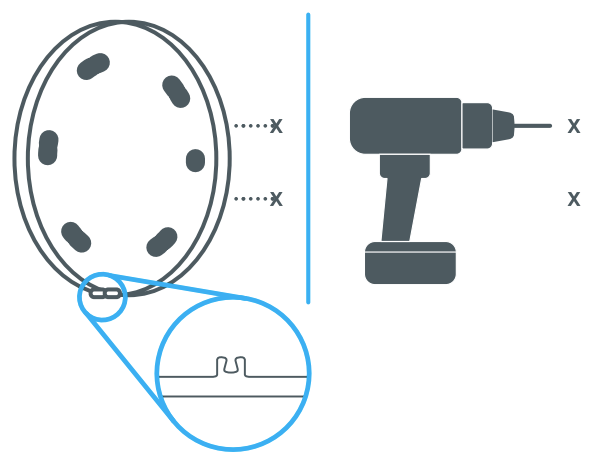
- Mounting with Adhesive
Before installing with adhesive, clean the area of the wall where the camera will be installed. Peel off the protective label to expose the adhesive and adhere to the wall. Be sure install with the cable hook facing down as demonstrated below.
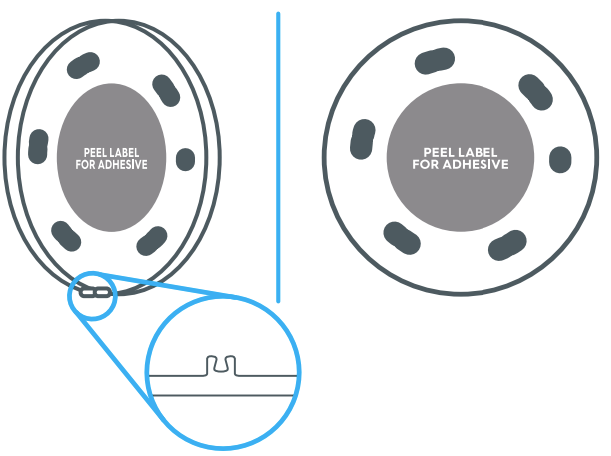
- Mounting with Screws
- Mount the camera on to the mounting bracket. The cable hook on the bracket should be facing down, as shown below. Gently press the camera's wire into the cable hook to stablize it.
NOTE: The camera can be positioned right side up, or right side down. It cannot be positioned sideways.
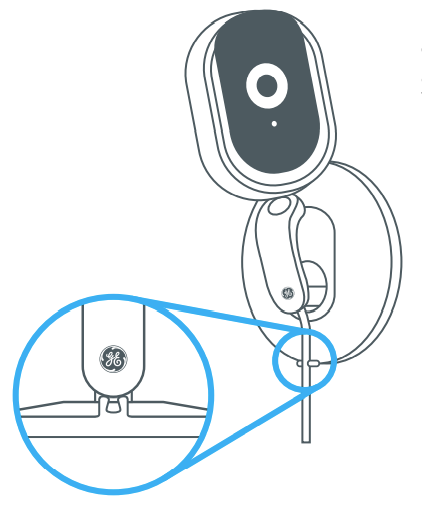
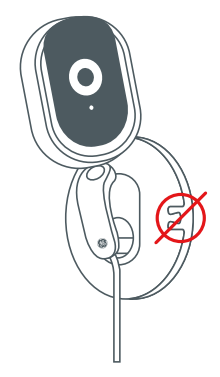
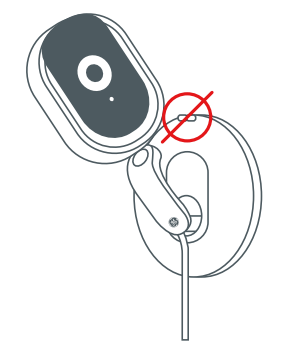
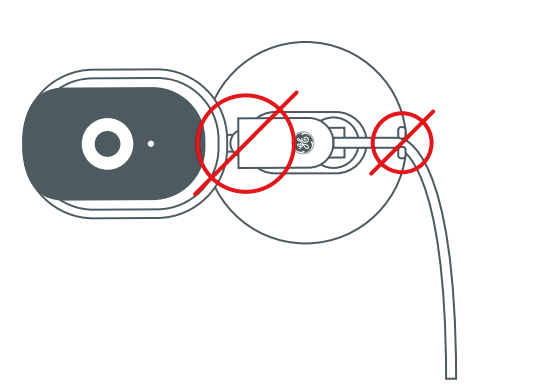
- Optional: If the camera needs to be mounted upside down, you will need the modify the camera settings in the Cync app. This will display the video in the correct orientation. From the home screen in the Cync app, navigate to Cameras > Select the newly installed camera > Settings > Camera Settings. From here select Flip Video.
Helpful Hints
- The camera uses infrared lights for night vision. When night vision is in use, it is best to avoid having the camera looking through a window or other transparent materials as a clear image may not be captured.
- If you are using a Micro SD Card, we recommend inserting the card into the camera before mounting out of reach.