Using Motion to Control Cync Smart Devices
How to use your Cync Smart Devices with Motion Control
Quickly navigate to a specific section by selecting a link below.
Cync Devices with Motion Control
Controlling Cync Devices with Motion
Sensor Settings
Motion Detection Settings
Cync Devices with Motion Control
Cync Devices with Motion Control Capability
- Cync Motion Sensor
- No-Neutral Motion Sensing Dimmer Switch
- Neutral Required Motion Sensing Dimmer Switch
Compatible Cync Devices
Most Cync devices can be controlled with motion.
Devices that cannot be controlled with motion include:
- Cync Wire-Free Switches
- Cync Wire-Free Remotes
- Cync Thermostat and Sensor
- Cync Indoor and Outdoor Cameras
Controlling Cync Devices with Motion
Set Up Devices for Motion Control
Simply assign your Cync smart devices and the Cync Motion Device to the same Room or Group in the Cync app.
NOTE: If you assign your devices to the same Room as your motion sensor, the motion sensor will control all the Cync devices assigned to that Room. If you want to control a select group of devices with a motion sensor, simply move those specific devices into a Group within that app Room.
Sensor Settings
These settings can help optimize the Cync Motion Sensor to meet the needs of your smart home.

Sensor Settings
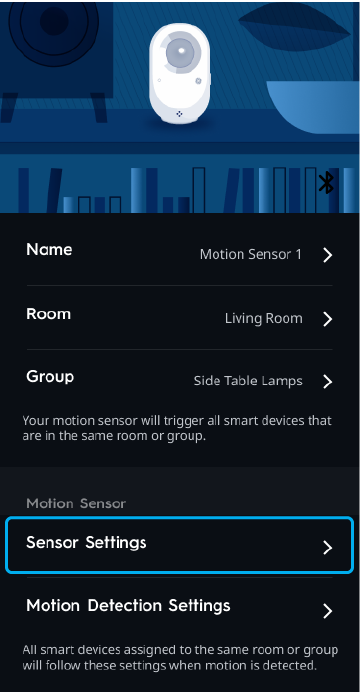
To access the Motion Control Sensor Settings, navigate to your Motion Sensor in the Cync app and select Sensor Settings.
- Select Enable to activate the motion sensor and all of its capabilities.

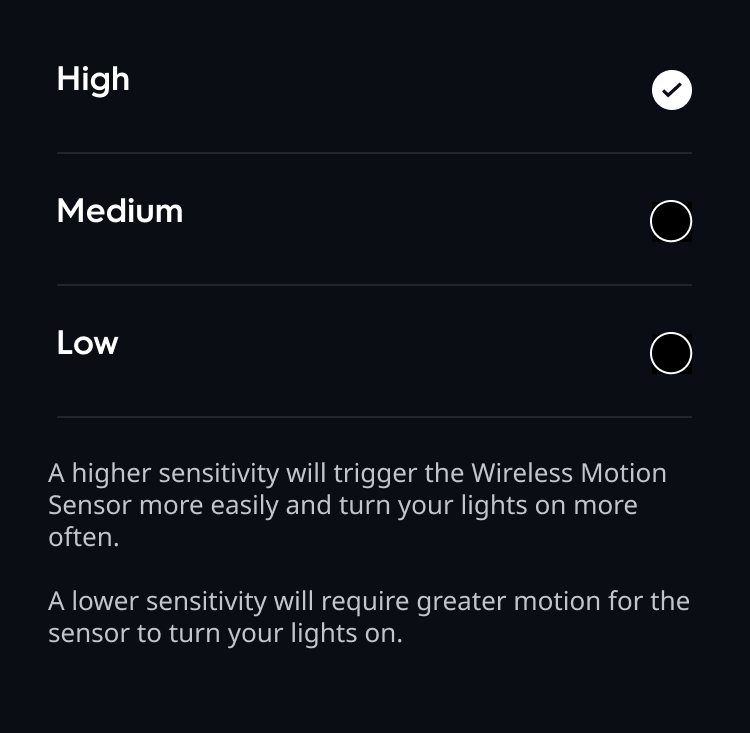
- Tap Sensitivity to customize how much motion is required for your lights to turn on when motion is detected on your Cync Motion Sensor. High sensitivity will trigger the motion sensor more easily and turn your lights on more often, while Low will require greater motion to turn your lights on.
Ambient Light Threshold
Ambient Light Threshold detects how much light is already in the room to ensure your lights only turn on when there isn't enough light already in the room.
- Select Threshold Enabled to enable or disable the Ambient Light Threshold feature.

- Tap Sensitivity to select how much light needs to be in the room to prevent motion from triggering your lights.

Motion Detection Settings
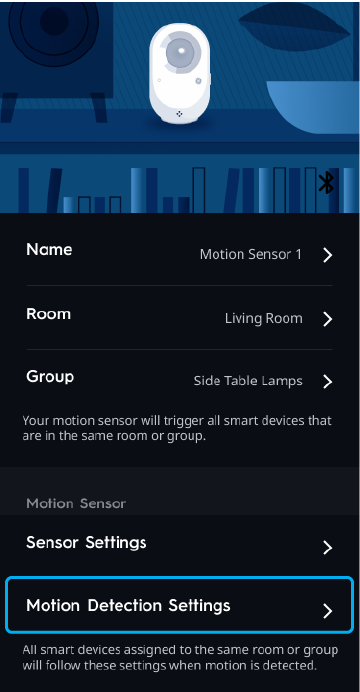
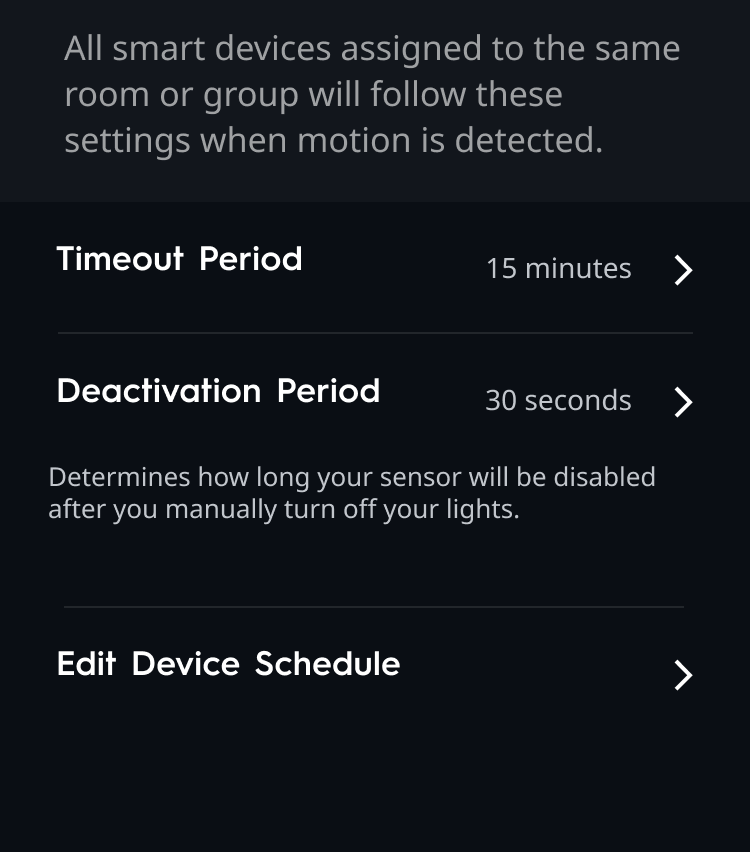
All smart devices assigned to the same room or group will follow these settings when motion is detected by your Cync Motion Sensor.
Timeout Period
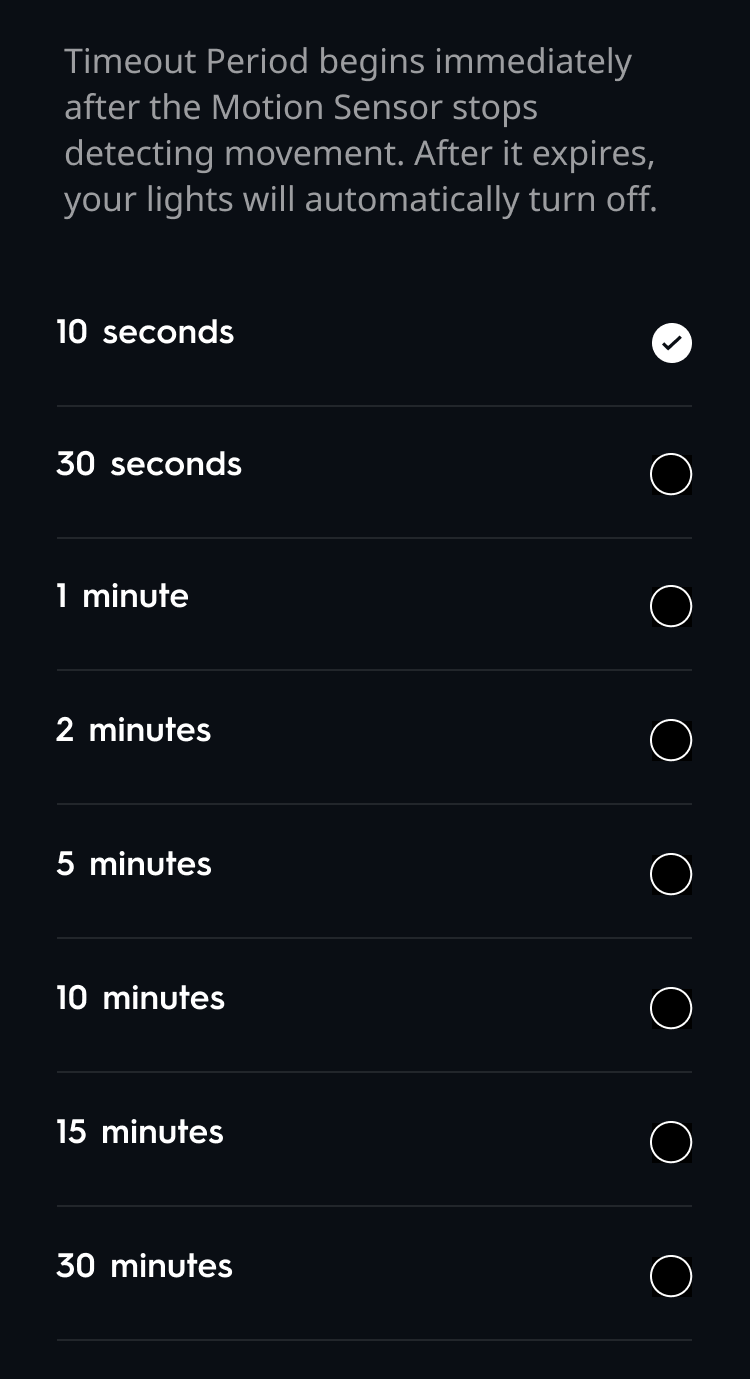
The Timeout Period begins immediately after the Motion Sensor stops detecting movement. After the time expires your lights will turn off automatically. The amount of time from when the motion sensor stops detecting movement and when the lights will turn off can be customized.
- Tap Timeout Period to select the time between the motion sensor stops detecting movement, and when the lights will turn off.
Deactivation Period
The Deactivation Period determines how long your Motion Sensor will be disabled after you manually turn off your lights.
- Tap Deactivation Period to select the amount of time.

Edit Device Schedule
Edit Device Schedule allows you to customize times for when the Motion Sensor should be active.
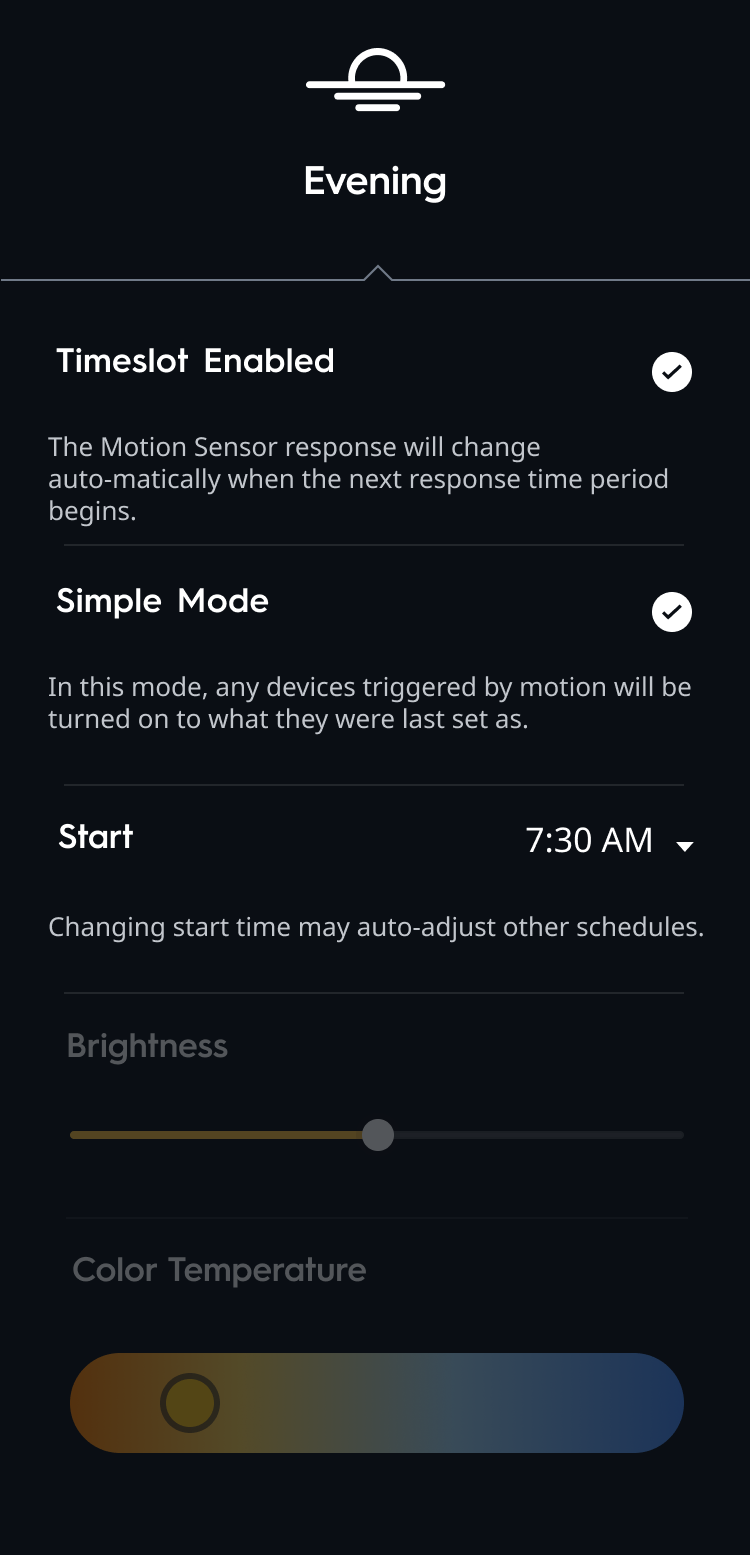
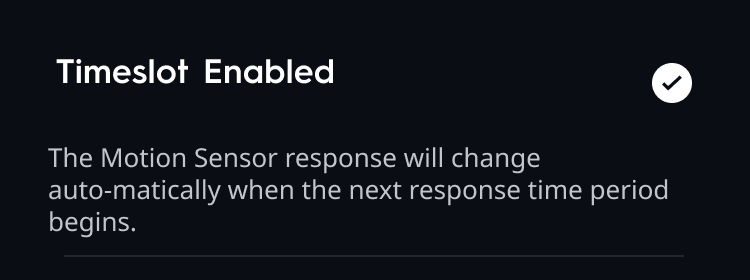
- Select Timeslot Enabled to enable the Motion Sensor to change automatically when the next response time period begins. This will also give you the option to choose a Start time, Brightness, and Color Temperature.
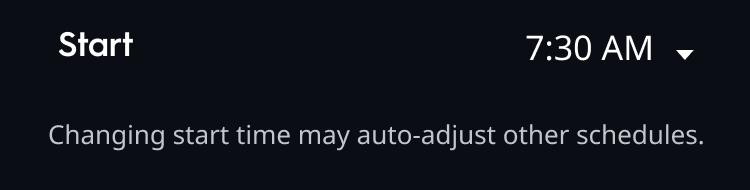
- Start allows you to choose the starting time in which the schedule will begin. Note that changing the Start time here will auto-adjust schedules that were created elsewhere in the Cync app.
- The Brightness slider allows you to adjust the brightness of the lights in this room or group, for this schedule. The Brightness option is only available for Cync devices that have brightness adjustment capabilities.

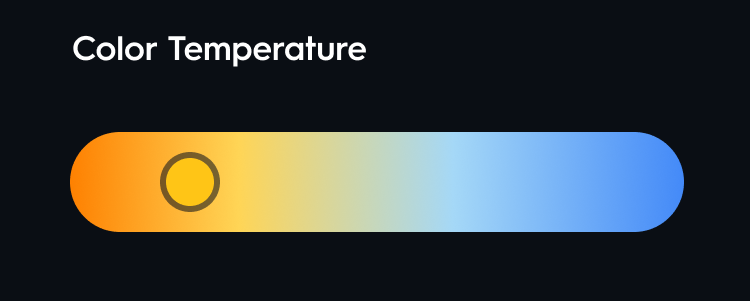
- The Color Temperature slider allows you to adjust the color temperature of the lights in this room or group, for this schedule. The Color Temperature option is only available for Cync devices that have color temperature adjustment capabilities.
- Start allows you to choose the starting time in which the schedule will begin. Note that changing the Start time here will auto-adjust schedules that were created elsewhere in the Cync app.
- Select Simple Mode for devices to turn on with the settings they were last set to when triggered by the Motion Sensor. The Brightness and Color Temperature options are not available when Simple Mode is enabled.