
Light Shows and Music Sync
Light Shows require Cync app version 6.8 or later, and for compatible Cync devices to be on the latest firmware version. Compatible Cync devices include all Full Color light bulbs and light strips.
Music Sync requires Cync app version 6.8 or later, and for compatible Cync devices to be on the latest firmware version.
Quickly navigate to a specific section by selecting a link below.
Light Shows
Music Sync
Segment Control
Light Shows
Cync Light Shows are a combination of a user-defined palette, an effect, and adjustable settings. While the Cync app provides a few default Light Shows, users can create custom Light Shows to be used with Cync full color lighting devices as well.
Accessing Light Shows
- On the Home page of your Cync app choose a room or specific device and tap the arrow to open the slide out drawer.

- In the drawer, select the Light Shows icon
 to open the Light Shows screen.
NOTE: You can access the Light Shows screen from any room with a full color capable Cync device.
Creating Light Shows
Follow the steps below to create your new Light Show.
- To create a new Light Show tap the + button in the upper right hand corner of the Light Shows screen.
- Choose an Effect type. Your Light Show will display with this effect.
NOTE: At any time during the Light Show creation process, you can preview your Light Show by selecting the Preview button in the top right hand corner of the Light Shows screen.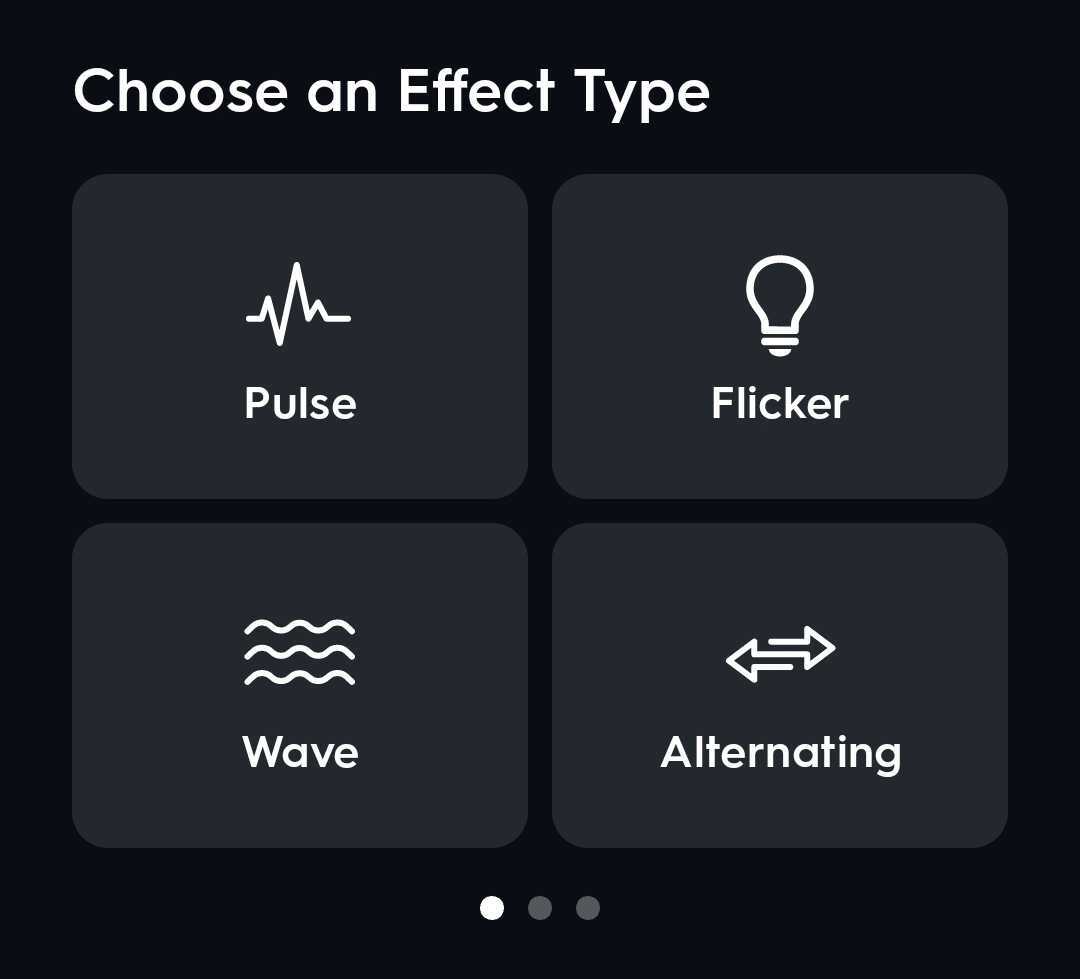
- In the pop up drawer under Adjust Color Palette tap the pencil icon to edit your color palette. If Randomize Order is toggled on, the chosen palette swatches will appear randomly on the device. If this option is toggled off the palette swatches will appear in the order shown.
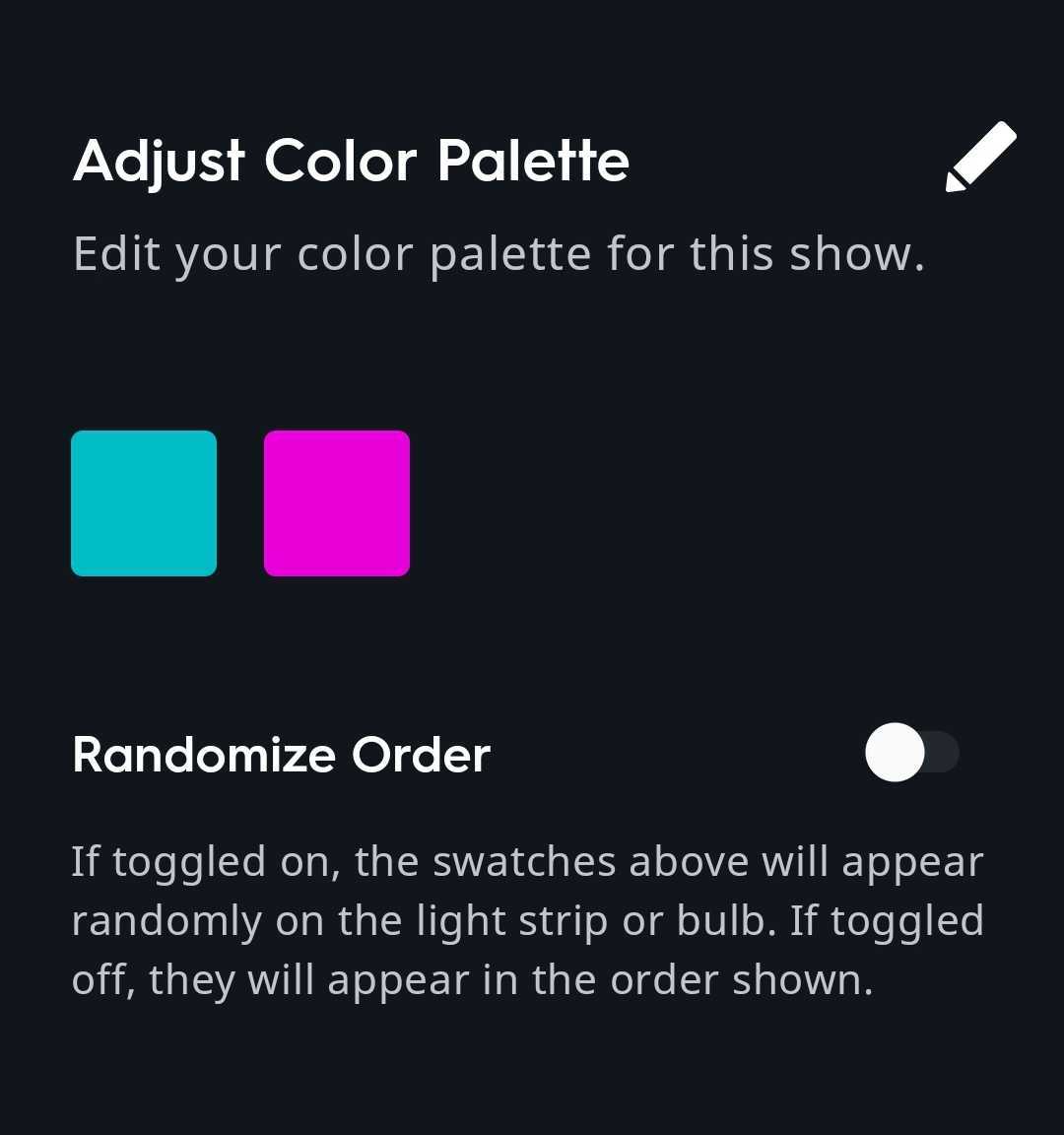
- Select a swatch to edit, and using the color picker choose your color(s). You can add swatches by tapping the + icon. You can move or remove swatches by selecting Move/Delete. Select Save when you are done.
- Scroll down the screen to access other Light Show settings.
NOTE: Not all settings described below will be available for every effect type.
Brightness: Overall brightness will control brightness for the entire device. Min and max brightness will more finely tune the threshold for how low and how high of a brightness the device can be. This will make the Light Show more subtle or more "energetic" depending on how far these values are from each other.
Color Smoothing: Provides smoother transition between colors. Fade Width and Color Width are only available when Color Smoothing is enabled.
Fade: Controls the length of time it will take for the device to transition to each segment to the next color.
- Randomize: This will randomize the amount of time it will take for the device to transition each segment to the next color based on your selected range.
Fade Width: Controls the number of segments that are used for transitioning between colors.
Color Duration: Controls the length of time that one color will be displayed before changing to the next.
Color Width: Controls the number of segments that are used to display each color from your palette.
- Tap Next when you are satisfied with your Light Show effect, palette and settings.
- Name your new Light Show, then tap Next.
- Select an icon for your new Light Show, then tap Next.
- Tap Done when your Light Show has successfully been created.
Using Light Shows on your Cync Lighting Devices
The use of Light Shows on your Full Color Cync Devices can add a fun dynamic to any home setting.
- Open a room or device drawer and select the Light Shows icon .
- Select a preset or created Light Show from the Light Shows screen. You can also create a new Light Show.
- Your Light Show will now be active on your selected device(s). To disable the Light Show, tap the same Light Show again, or select another setting/show for the device(s) to do.
Music Sync
Cync's Music Sync combines Light Shows with your tunes. Music Sync responds to the beat of your audio with varying levels of brightness.
Accessing Music Sync
- On the Home page of your Cync app choose a room or device and tap the arrow to open the slide out drawer.
- In the drawer, select the Light Shows icon to open the Light Shows screen.
- At the bottom of the Light Shows screen select the Music Sync icon
 to open the Music Shows screen.
Creating Music Shows
Follow the steps below to create your new Music Show.
- Tap the + button in the upper right hand corner of the Music Shows screen.
- Choose an Effect type. Your Music Show will display with this effect.
NOTE: At any time during the Music Show creation process, you can preview your Music Show by selecting the Preview button in the top right hand corner of the Music Shows screen.
- In the pop up drawer under Adjust Color Palette tap the pencil icon to edit your color palette.
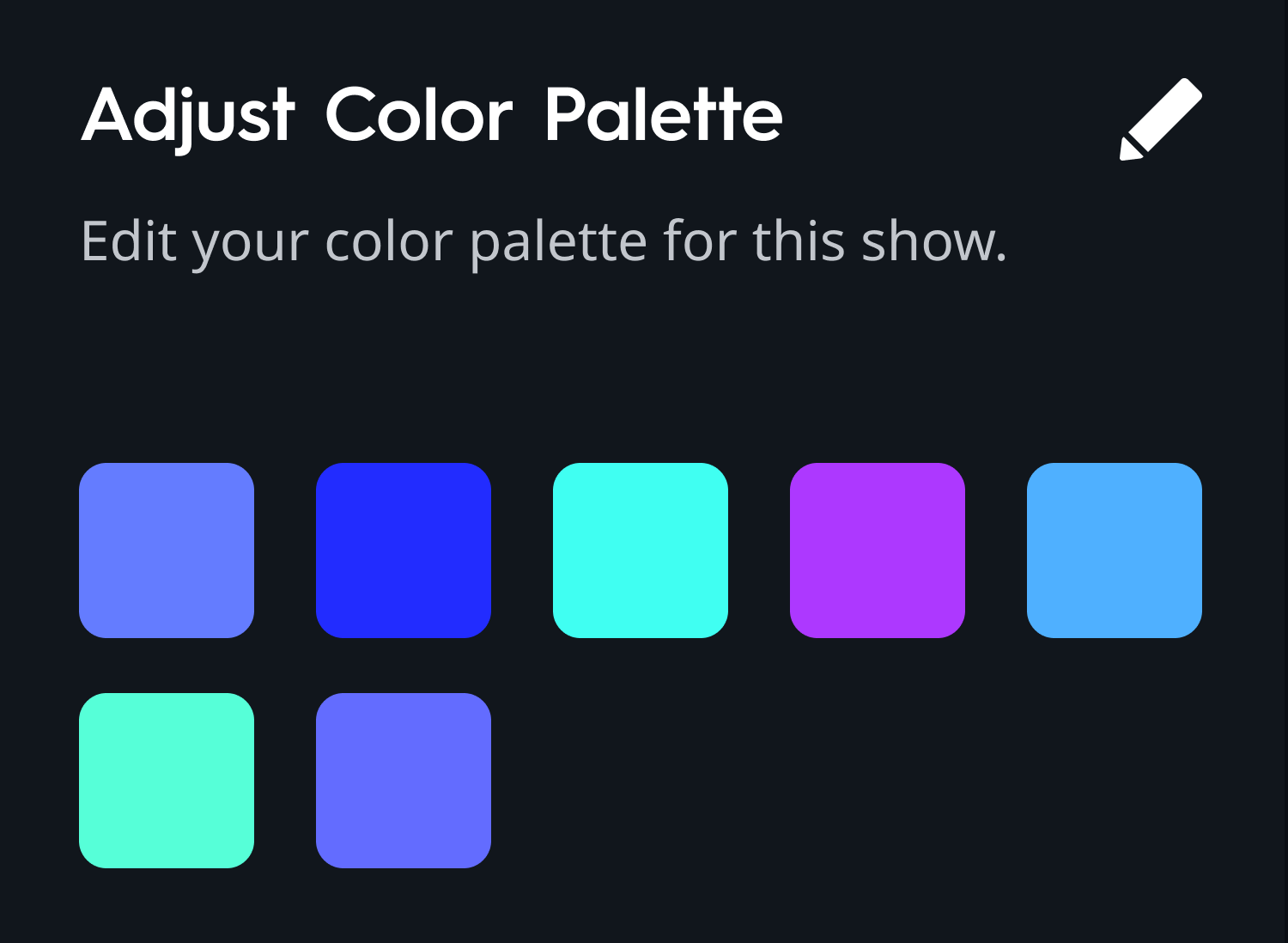
- Select a swatch to edit, and using the color picker choose your color(s). You can add swatches by tapping the + icon. You can move or remove swatches by selecting Move/Delete. Select Save when you are done.
- Scroll down the screen to access other Music Show settings.
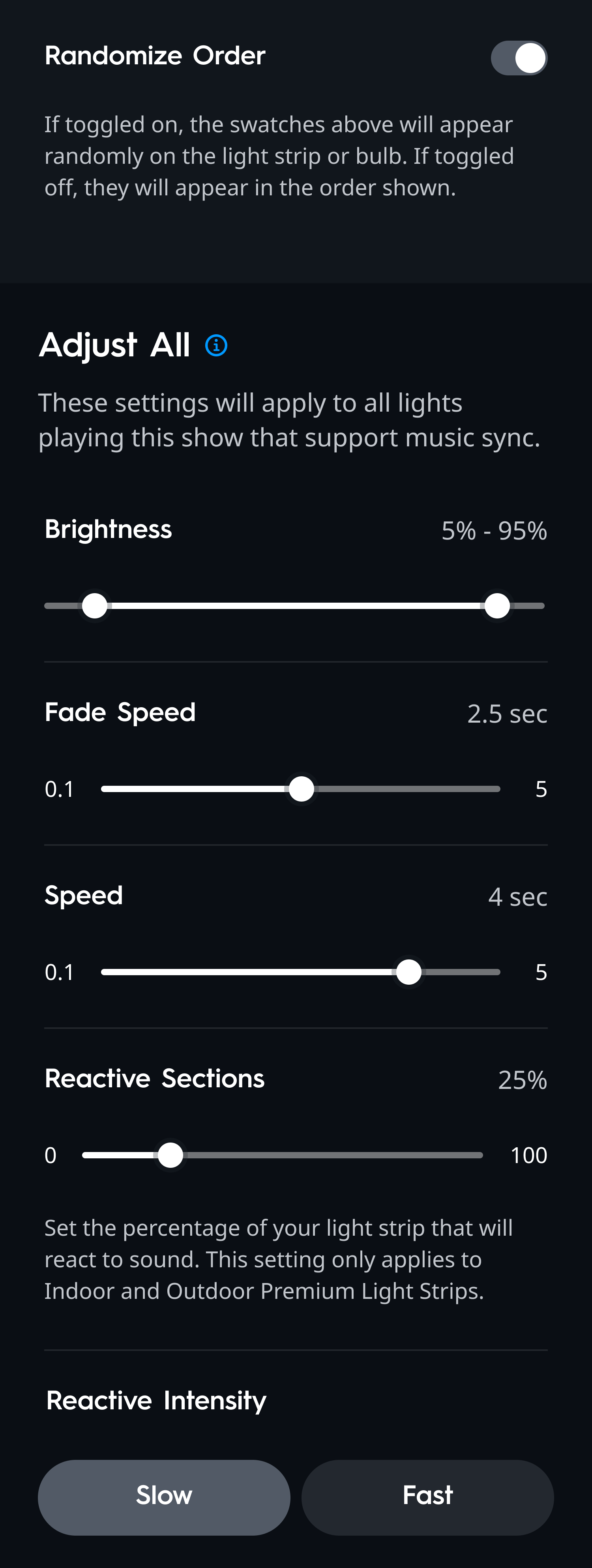
Randomize Order: If this option is toggled on, the chosen palette swatches will appear randomly on the Light Show. If this option is toggled off the palette swatches will appear in the order shown.
Brightness: Overall brightness will control brightness for the entire device. Min and max brightness will more finely tune the threshold for how low and how high of a brightness the device can be. This will make the Light Show more subtle or more "energetic" depending on how far these values are from each other.
Fade Speed: Fade speed controls the amount of time it will take for the device to transition to the next color.
Speed: Speed controls the amount of time that one color will be displayed before transitioning to the next.
Reactive Sections: Set the percentage of your light strip that will react to sound. This setting only applies to Indoor and Outdoor Dynamic Effects Light Strips.
Reactive Intensity: The speed at which your device will respond to sound. Slow will gradually react to sound, while fast will be more instantaneous. This setting only applies to Indoor and Outdoor Dynamic Effects Light Strips.
- Tap Next when you are satisfied with your Music Show effect, palette and settings.
- Name your new Music Show, then tap Next.
- Select an icon for your new Music Show, then tap Next.
- Tap Done when your Music Show has successfully been created.
Using Music Sync with your Cync Dynamic Effects Lighting Devices
Give your music a little more flare when you activate Music Sync with your Cync Dynamic Effects devices.
- Open a room or device drawer and select the Light Shows icon .
- Select the Music Sync icon at the bottom of the Light Shows screen.
- Select a preset or custom Music Show from the Music Shows screen. You can also create a new Music Show.
- Your Music Show will now be active on your selected device(s) and reactive to the music and sounds around it. To disable the Music Show, tap the same Light Show again, or select another setting/show for the device(s) to do.
- To edit an already created Music Show, tap to highlight the Music Show you wish to edit, then select the elipses.
- The pencil icon allows you to edit the Music Show settings, such as effect type, color palette, brightess, etc.
- The plus icon on the top right of the screen will duplicate the Music Show selected. It will promptly allow you to edit the duplicated Music Show.
- Microphone Sensitivity allows you to adjust sensitivity of the microphone on your device when displaying a Music Show. (e.g. 100% will make your device very sensitive to music and sound, where 0% will not be reactive at all). This will affect all devices currently playing the selected Music Show.
- Apply Devices allows you to edit which devices the currently selected Music Show will be applied to.
- The pencil icon allows you to edit the Music Show settings, such as effect type, color palette, brightess, etc.
Segment Control
Individual segments of the Dynamic Effects Light Strips and Bulbs can be customized for a personalized lighting experience.
Accessing Dynamic Effect Segment Control
- On the Home page of the Cync app, navigate to your Dynamic Effects Light Strip or Dynamic Effects Bulb tap the arrow to open the slide out drawer.
- In the drawer select the Segment Control icon
 ,
,  , or
, or  to open the Segment Control Canvas screen.
- From here, you may customize Color Palette, save Layouts and Favorites.
Dynamic Effects Light Strip Segment Control
The Dynamic Effects Light Strip Segment Control screen allows you to set Relative Brightness, and enable Full Segment Control and Gradient Mode. The Canvas shows a visual of your light strip and each customizable segment. You can navigate and select individual segments on the Canvas by using two fingers to pinch to zoom in and out, or by using one finger move and to expand or collapse the Canvas with the arrow.
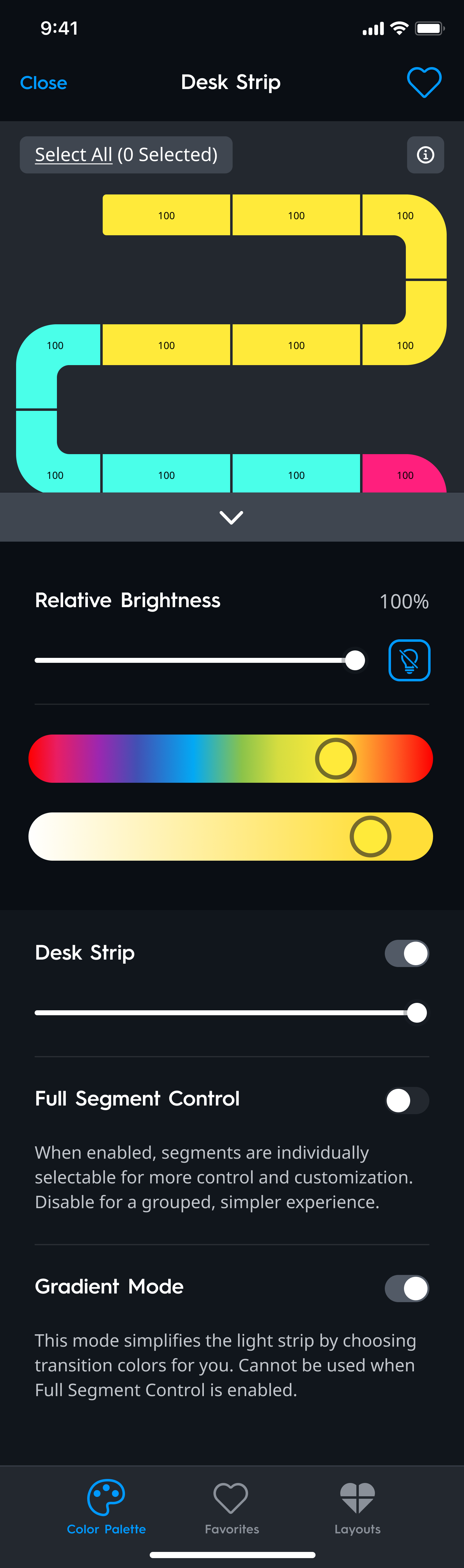
- To access Segment Control select the Color Palette icon
 at the bottom of the screen.
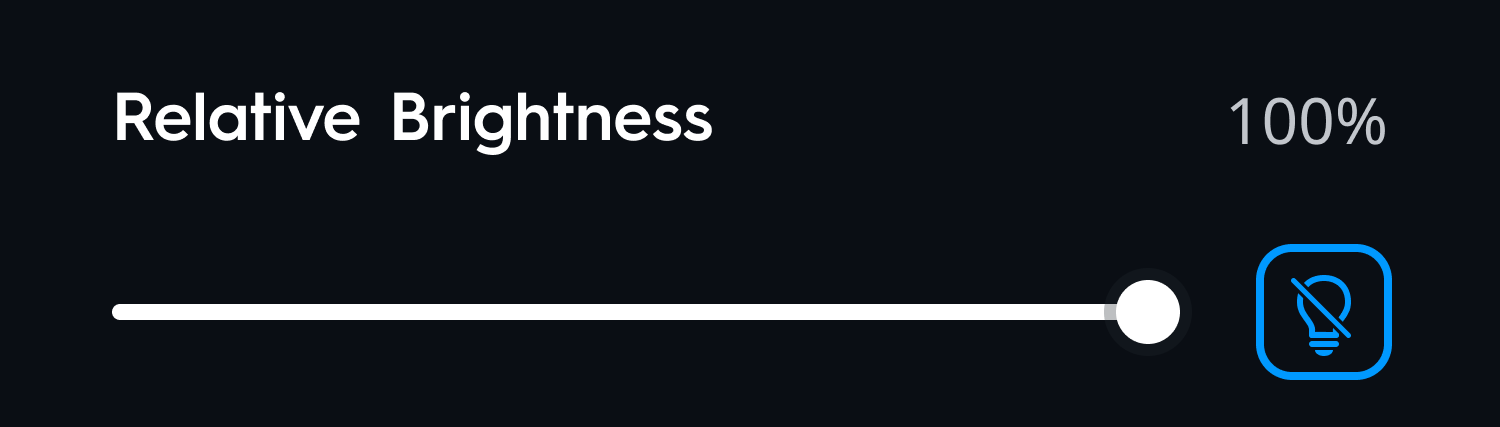
- Relative Brightness: Changes the overall brightness for the segment(s) seelcted.
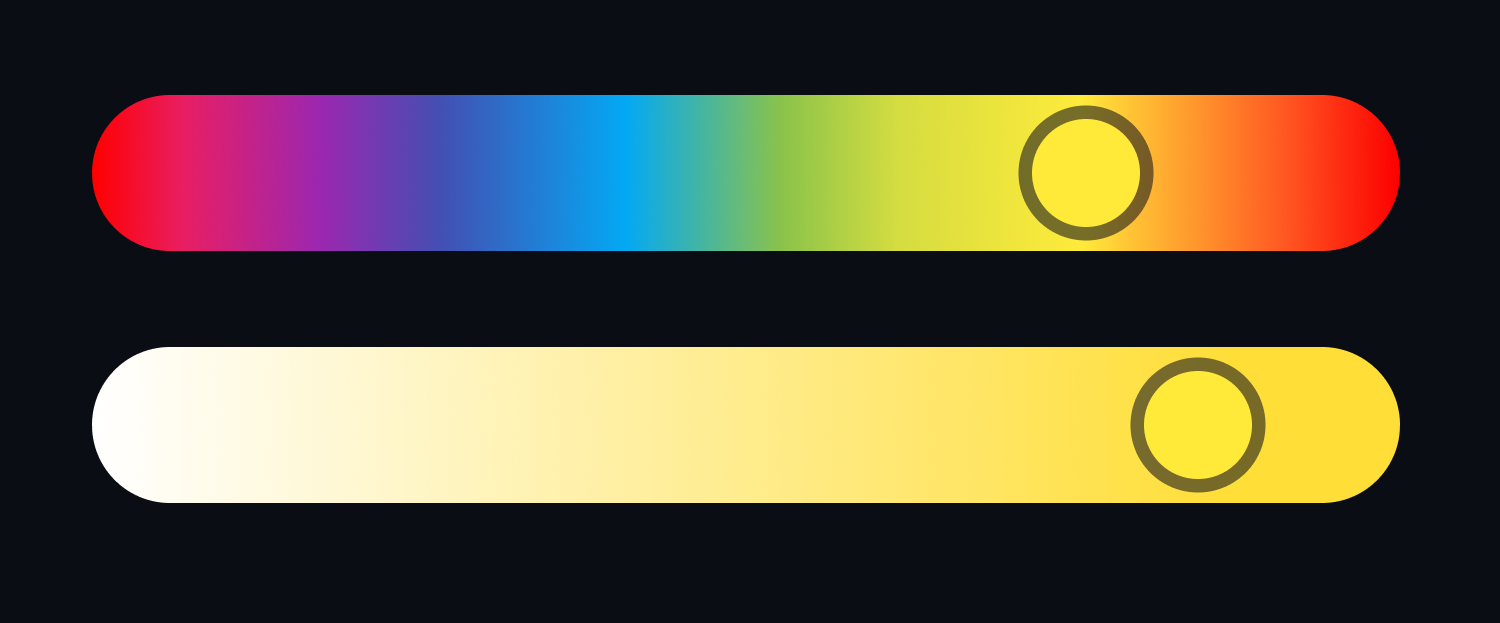
- Full Segment Control: When enabled, segments are individually selectable for more control and customization. Disable for a grouped, similar experience. Use the sliders to customize the colors for the segment(s).
NOTE: White Tones cannot be applied to segments.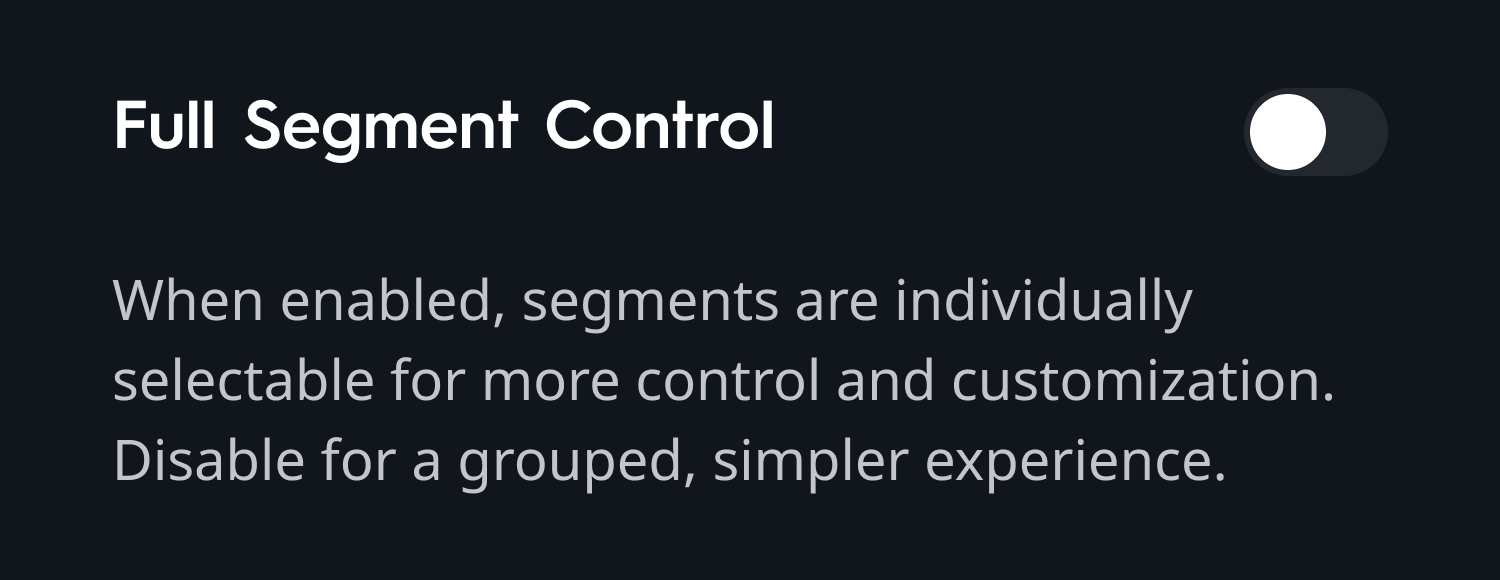
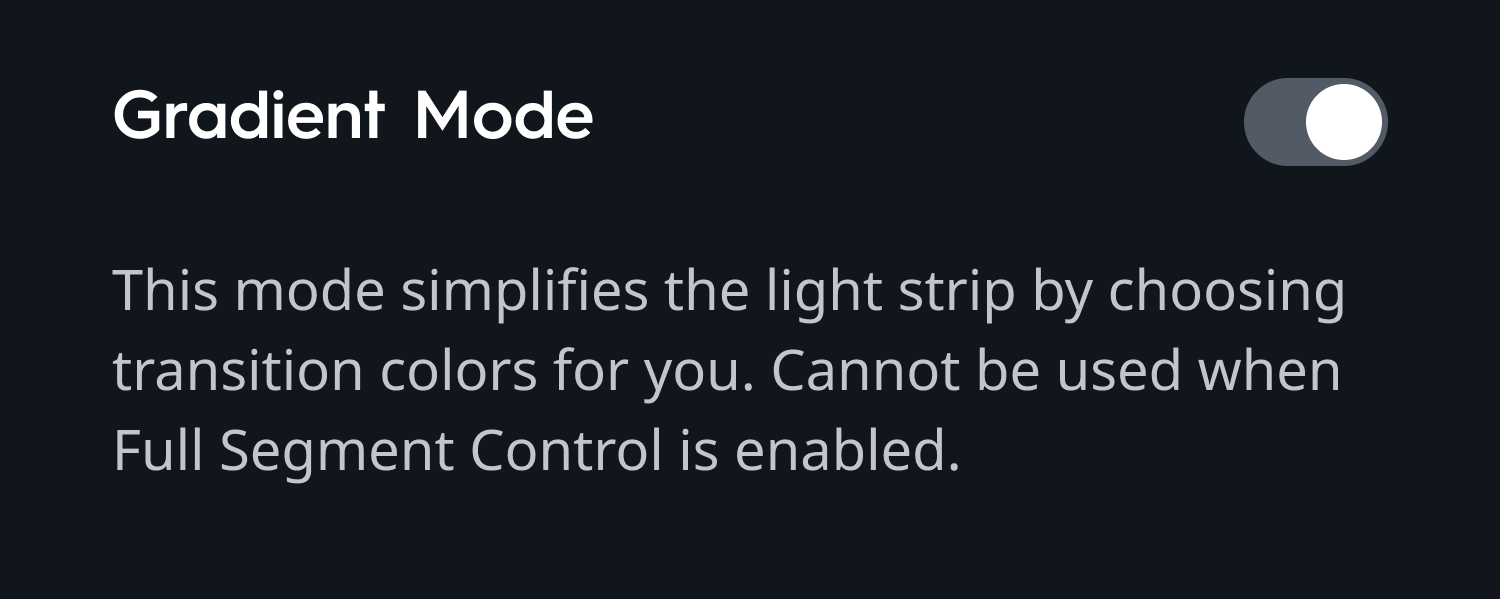
- Gradient Mode: This mode simplifies the light strip by choosing transition colors for you. Cannot be used when Full Segment Control is enabled.
Dynamic Effects Smart Bulb Segment Control
The Dynamic Effects Smart Bulb Segment Control screen allows you to choose Relative Brightness and the ability to customize color for the four segments of the bulb. The Canvas shows a visual of your light bulb and each customizable segment. Simply tap on the segment(s) within the bulb Canvas to select it. Change the color and brightness by using the sliders.

- To access Segment Control, select the Color Palette icon at the bottom of the screen.
- Selecting individual or multiple segments will allow you to change the color of the segment(s) using the sliders.
- Relative Brightness: Changes the overall brightness for the segments selected.
Dynamic Effects Smart Hexagon Panels Segment Control
The Dynamic Effects Smart Hexagon Panel Segment Control screen allows you to choose Relative Brightness and Illumination Type; whole or segment. The Canvas shows a visual of your hexagon panel layout and each customizable segment. Simply tap on the segment(s) within the hexagon panel Canvas to select it. Change the color and brightness by using the sliders.
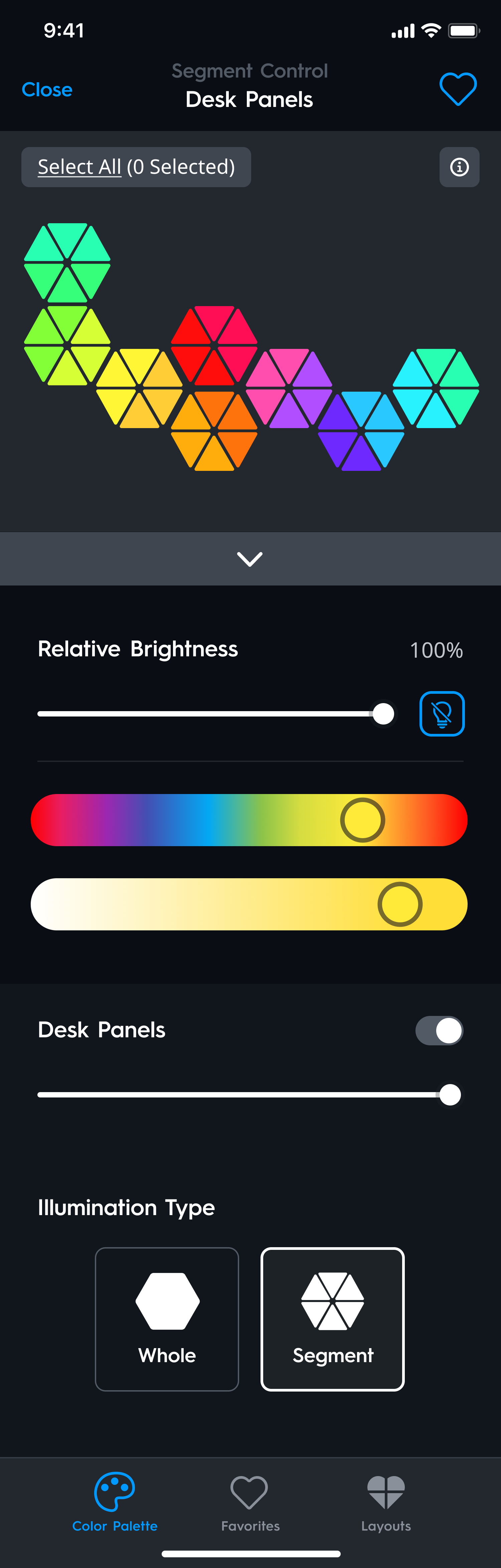
- To access Segment Control, select the Color Palette icon at the bottom of the screen.
- Selecting individual or multiple segments will allow you to change the color of the segment(s) using the sliders.
- Relative Brightness: Changes the overall brightness for the segments selected.
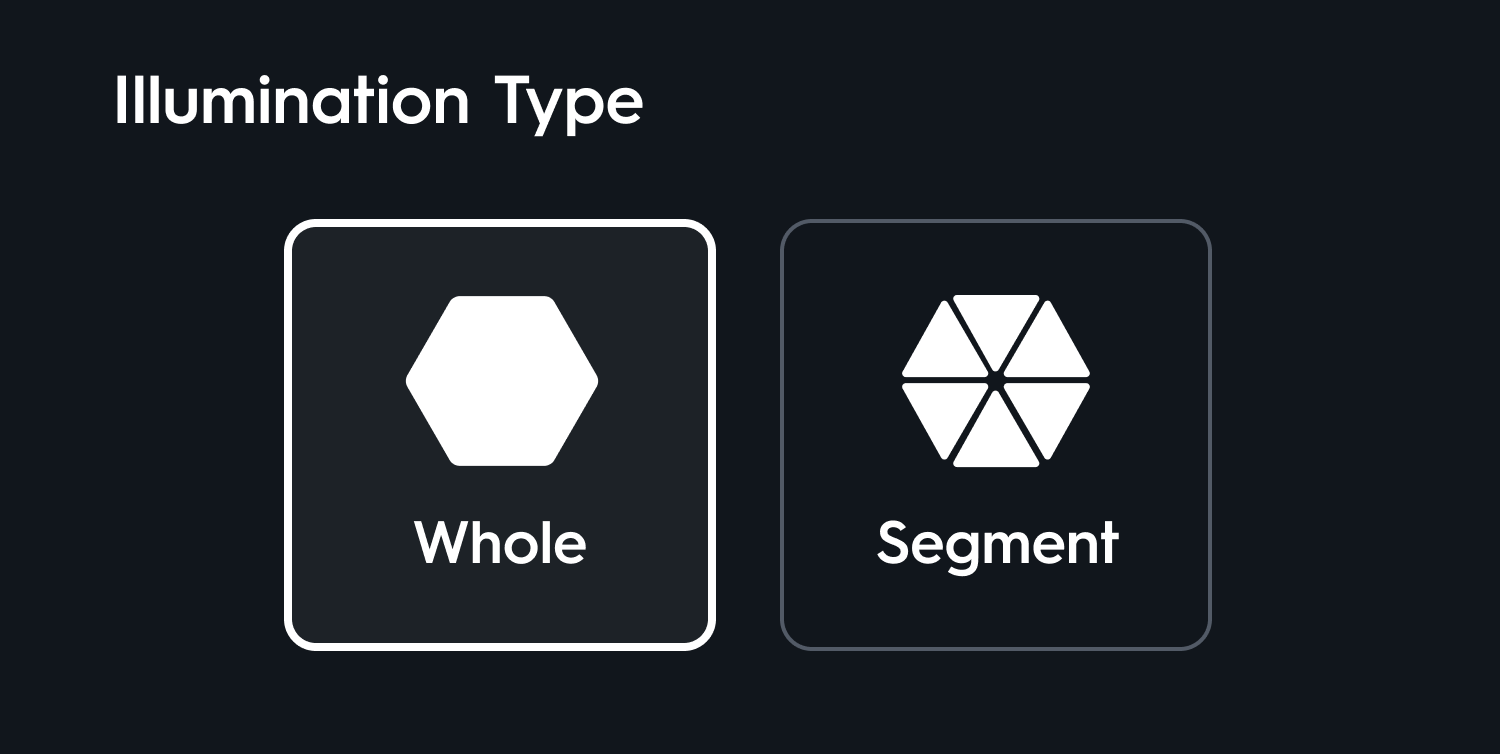
- Illumination Type: Select to customize each whole panel or each individual panel segment.
Saving Color Favorites
- Select the color segment you want to save as a favorite.
- Select the heart icon
 to save the selected color as a favorite.
- To access previously saved favorites, select the heart icon at the bottom of the screen.
Saving a Segment Layout as a Favorite
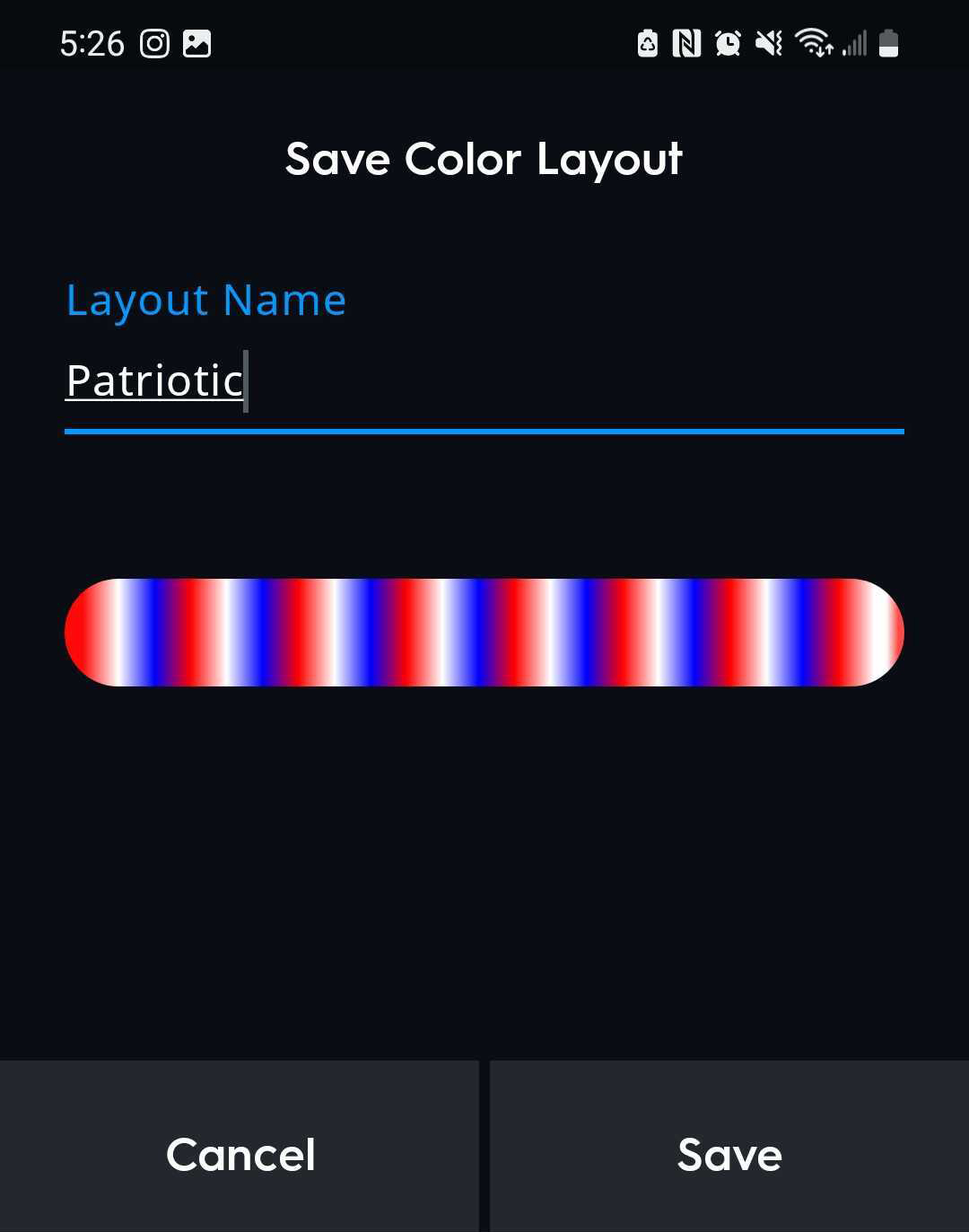
- When you are finished customizing the segments on your neon light strip layout, select the heart icon on the top right of the screen.
- Select Save Layout.
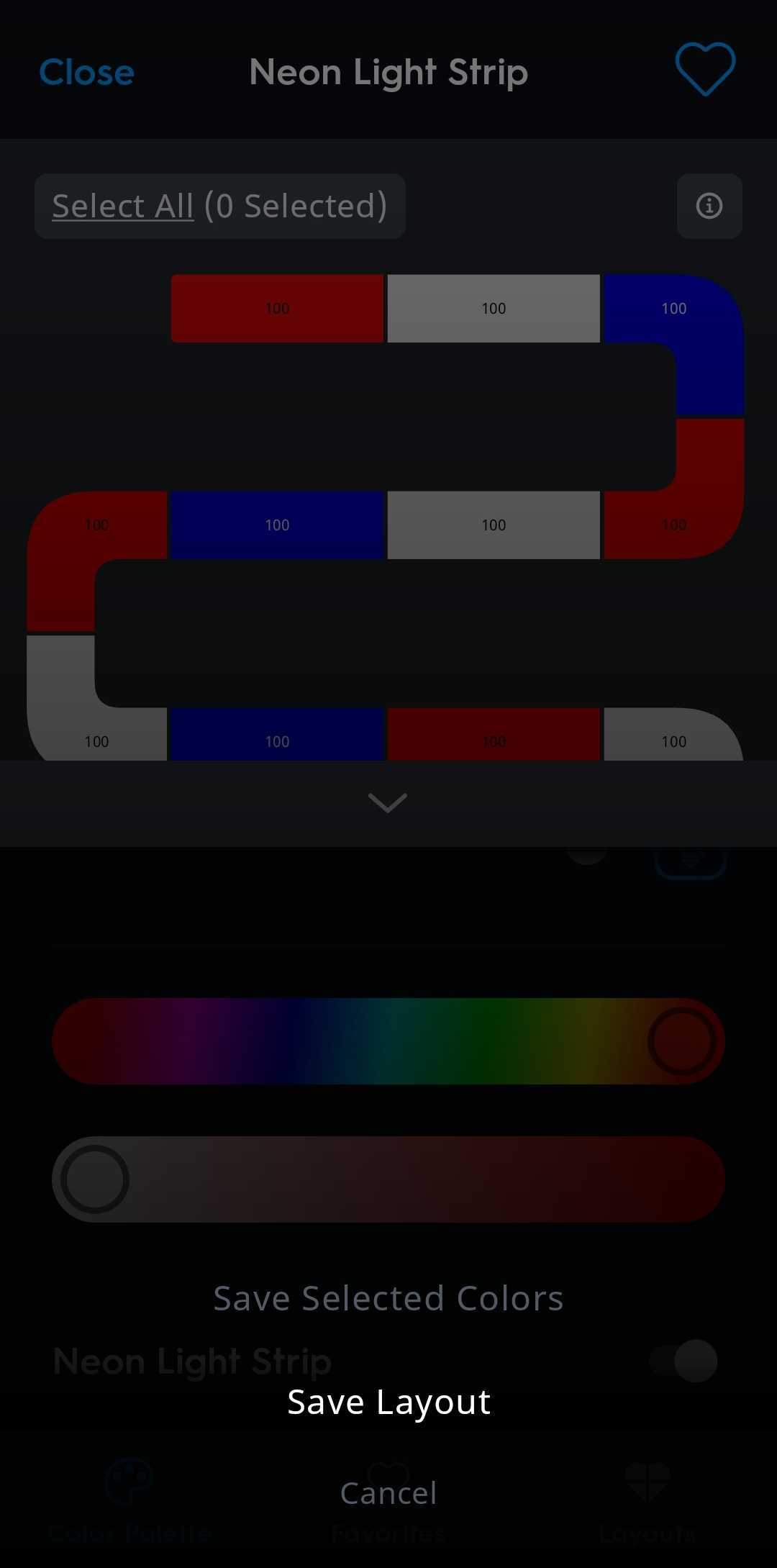
- Name your saved layout and select Save.
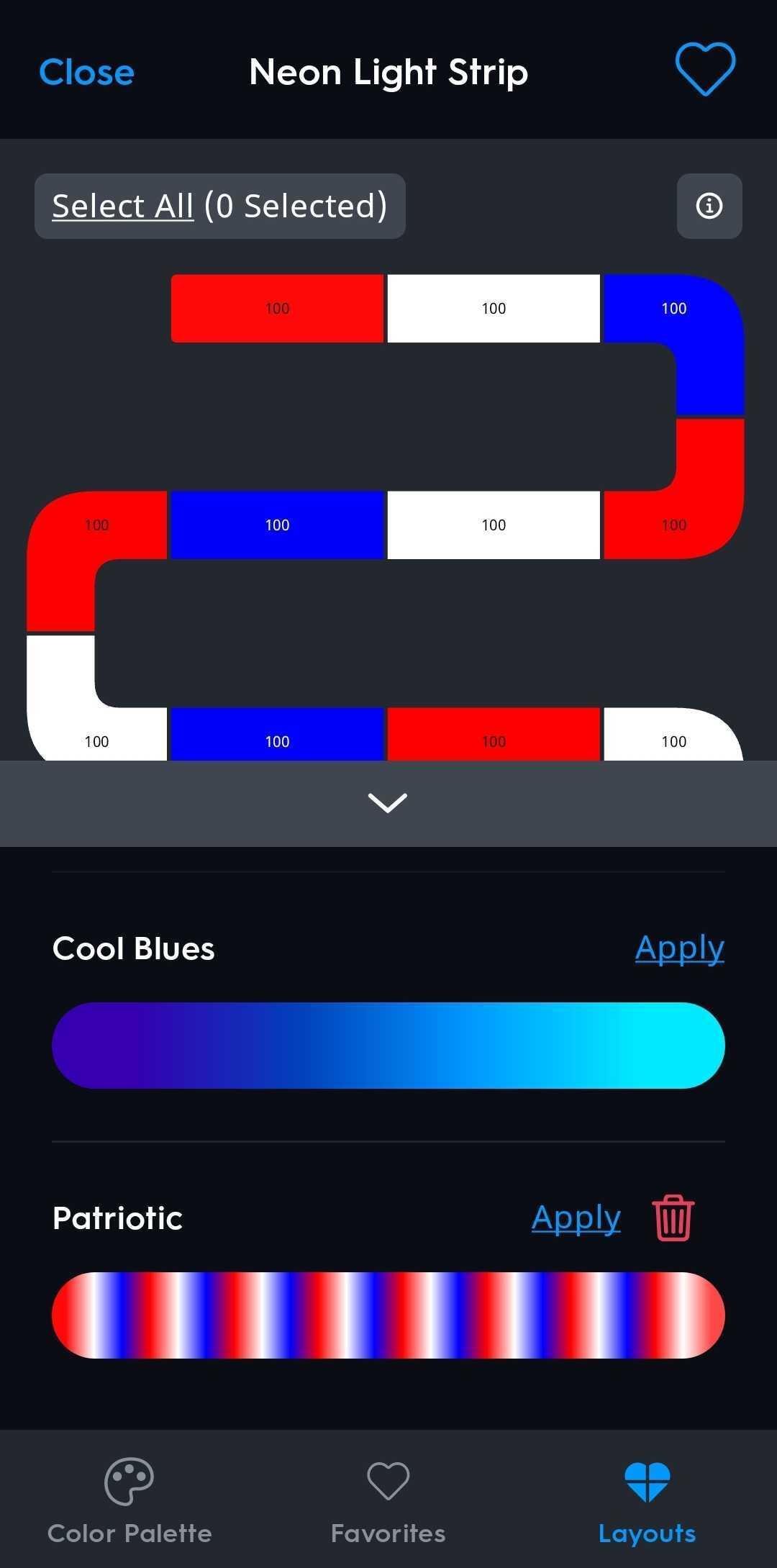
Accessing Segment Layout Favorites
Cusomized segment layouts can be saved for later use or for other dynamic effect compatible devices. To access your segment favorites, select the layout favorites icon  on the bottom of the page.
For full functionality of segment control, after initially setting up your Dynamic Effects device within the Cync App, please remember to perform a full power cycle before navigating into this section. This will help your Dynamic Effects device detect its full length.