
Setting Up Outdoor Cameras
How to Set Up your Cync Outdoor Camera in the Cync App
Quickly navigate to a specific section by selecting a link below.
Connecting Outdoor Cameras to the Cync app
Ways To Save Battery Life
Troubleshooting Tips
Connecting Outdoor Cameras to the Cync app
- Plug in and power on your Outdoor Camera indoors within range of your Wi-Fi router.
- Open the Cync App.
- Select Add Devices in the Cync app.
- Select the device type Outdoor Cameras and follow the instructions on the app screens.
- After pairing your Outdoor Camera to the Cync app, you will move the camera outdoors to install and mount.
Review, save and share clips with a Cync cloud storage subscription or microSD card (sold separately).
Helpful Hints
- Make sure you are connecting to the 2.4GHz band on your Wi-Fi router. The Outdoor Camera is not compatible with 5GHz networks. iOS users will need to connect their phone to a 2.4GHz Wi-Fi network during setup.
- Verify that the light on the front of the camera is blinking blue. If it is not blinking blue, uncover the reset pinhole located at the bottom or top of the camera. Insert a paper clip into the pinhole and hold for 3 seconds to reset the camera. Verify the light is now blinking blue.
Ways To Save Battery Life
The Cync Battery Outdoor Camera is designed to last several months on a full charge. However, camera settings, app settings, and the user's home environment can all affect the battery's life. For tips on improving battery performance, see the factors below.
-
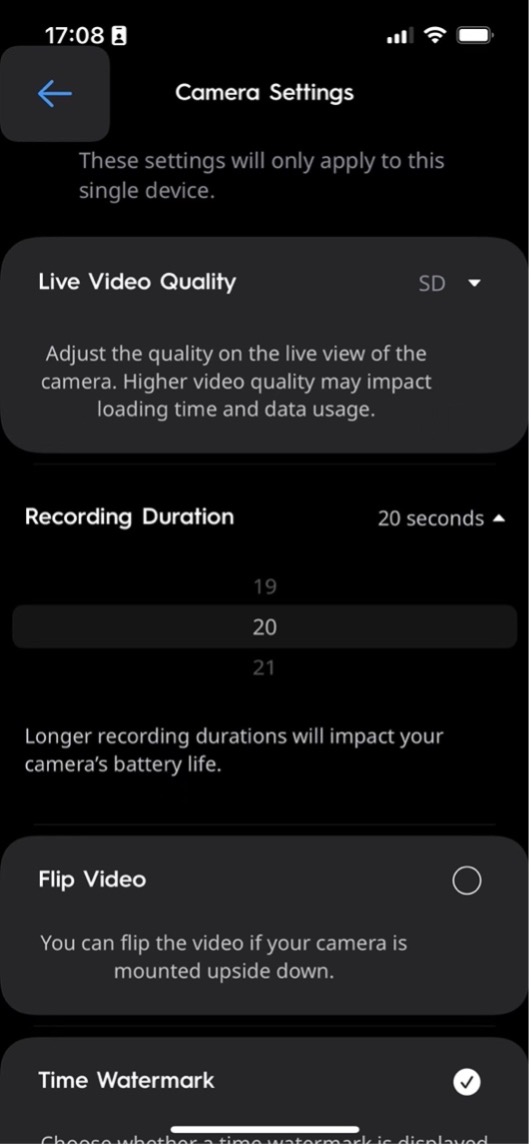
Recording Duration
The default Recording Duration is 30s. You can reduce the value to save battery life.
- Select your Device
- Select Setting in the top right corner.
- Select Camera Setting.
- Select Recording Duration.
-
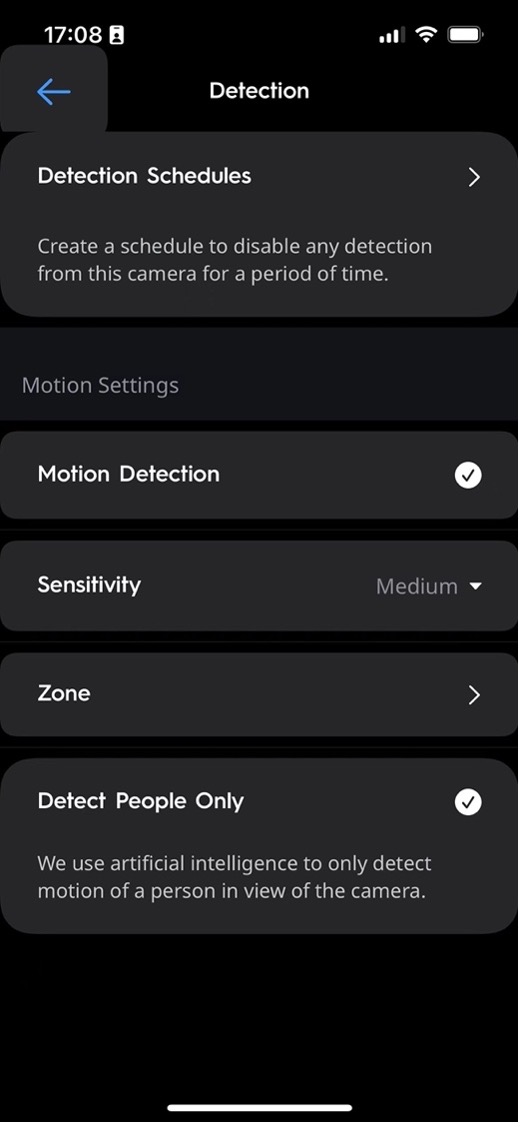
Detection Settings
The more events captured/recorded by your battery camera, the more battery life is used. To prevent excessive activity, you can:
- Use Live View/Playback sparingly
- Adjust Sensitivity to a lower setting
- Enable Zone detection
- Enable Detect People Only
- Add Detection Schedules to disable any detection for specific time period
- Adjust deactivation time setting to a higher value (future app feature)
To access these settings:
- Select your Device in the Cync app
- Select Settings in the top right corner
- Select Detection Settings
-
Wi-Fi Connectivity
Poor Wi-Fi connection will quickly drain the battery life.
Symptoms of poor Wi-Fi connection:
- Frequent offline notifications
- Trouble connecting to live stream
- Poor video/audio quality
- Delayed notifications
- Missed motion detection events
Resolutions:
- Reinstall the battery to reboot camera
- Reboot router
- Remove physical barriers between battery camera and router
- Move the router and battery camera closer together
- Replace the router
- Check RSSI (future app feature), recommend RSSI -50
-
Temperature Considerations
Since the Cync Outdoor Battery Camera uses lithium-ion batteries, cold weather can reduce battery performance.
- Exposure to cold temperatures will lower the battery's life capacity, causing it to run out of power faster than expected
- The battery will not be able to charge with temperatures below 32° F (0° C)
Resolutions:
- Bring the battery pack inside and charge with USB cord.
- Make sure your battery is charged to 100% before remount.
- Keep the battery pack within operational temperatures
- The operation temperature range: -4° F ~ 122° F (-20°C ~ 50°C)
- The charging temperature range: 32° F ~ 144° F (0°C ~ 50°C)
Troubleshooting Tips
Unable to scan the QR code in Cync app
- Confirm that your Camera is plugged in and powered on.
- Ensure the Camera is still in setup mode; the LED indicator will be blinking blue.
- If you haven't already, remove the plastic film over the camera lens.
- Hold your phone about 6 inches in front of the Camera lens when the QR code is displayed.
- Set your phone brightness to 30%-50%.
- Move the camera to a dark room to reduce ambient lighting.
- Power cycle the Camera by unplugging it, then plugging it back in.
- Clean the camera lens.
- Factory Reset the Camera.
The Cync App is Unable to Locate My Wi-Fi Network
- Manually type in your SSID and password. If you do not remember your credentials for your Wi-Fi Network, contact your Internet Service Provider.
- Confirm your Wi-Fi Router is powered on and broadcasting. You can check this by going to Settings on your mobile phone and looking for your Wi-Fi network.
- If your router is powered on, but not broadcasting, contact your Internet Service Provider.
- Confirm you are on a 2.4 GHz network. Cync is not compatible with 5 GHz networks. Some routers will combine the 2.4GHz and 5GHz bands into a single SSID. Cync devices are compatible with this situation for most routers.
- Check your Wi-Fi strength at the camera location (you can do this by looking at the Wi-Fi signal bars on your phone).
- If you do not have a strong signal strength, move the outdoor camera closer to your router. If you have a Wi-Fi Repeater, move it halfway between the camera and your router to improve signal strength.
The Cync App is Unable to Connect to My Wi-Fi Network
- Confirm your Wi-Fi Router is powered on and broadcasting. You can check this by going to Settings on your mobile phone and looking for your Wi-Fi network.
- If your router is powered on, but not broadcasting, contact your Internet Service Provider.
- Confirm you are on a 2.4 GHz network. Cync is not compatible with 5 GHz networks. Some routers will combine the 2.4GHz and 5GHz bands into a single SSID. Cync devices are compatible with this situation for most routers.
- Check your Wi-Fi strength at the camera location (you can do this by looking at the Wi-Fi signal bars on your phone).
- If you do not have a strong signal strength, move the outdoor camera closer to your router. If you have a Wi-Fi Repeater, move it halfway between the camera and your router to improve signal strength.
- Confirm you have the correct Wi-Fi network and password. If you do not remember your credentials for your Wi-Fi Network, contact your Internet Service Provider.
Unable to connect to Outdoor Camera Live Stream
- Confirm that your Camera is connected to the Cync app.
- Ensure that the Camera Privacy Shutter is not engaged.
- Check the Wi-Fi signal strength. If there is a weak connection, you may have to move the Camera closer to the router.
- Force close the Cync app, and re-open it. Try accessing the live stream again.
- Power cycle the Camera by unplugging it, and then plugging it back in.
Note: Live streams will not appear on the Cync app until you select the video.
Videos are not recording
- Confirm that your Camera is connected to the Cync app.
- Make sure the Micro SD card is fully inserted and seated properly in the slot.
- Make sure that the Wi-Fi signal is strong.
- Force close the Cync app, and re-open it. Try accessing the live stream again.
- Power cycle the Camera by unplugging it, and then plugging it back in. (For battery operated cameras, remove and then replace the battery.)
Note: Recorded clips can only be viewed via the Cync app. You will not be able to view clips saved onto the SD card on other devices.
Video stream is inverted
- You can flip the Camera orientation if it was mounted upside down. From the Cync app Home screen, navigate to Cameras > Settings > Camera Settings and select Flip Video.
Camera recordings are not capturing audio
- Ensure that Record Audio is enabled by navigating to Cameras > Settings > Camera Settings > Record Audio.
- Make sure the audio is up on the phone or tablet.
- Confirm that the phone or tablet is not connected to any Bluetooth devices that it may be broadcasting audio to. If so, disconnect from Bluetooth.