Thermostat Settings
These settings can help optimize the Cync Smart Thermostat to meet the needs of your smart home.
Quickly navigate to a specific section by selecting a link below:
Edit This Thermostat
Thermostat Settings
Sensors Settings
Schedules
History
Edit This Thermostat
Tap on the gear icon  in the thermostat's device page in the Cync app to access Thermostat Settings, Sensor Settings and Edit this Thermostat.

Name
Edit the Smart Thermostat name to fit your smart home's needs. This will help identify your thermostat easily.
Wi-Fi
Displays the currently connected network. A network connection is required in order to update to another network. If the SSID of the current network is modified, the Cync Thermostat must be factory reset to connect to a new network.
Thermostat Info
Find general information about your Smart Thermostat.
- Model: Displays the model of your Smart Thermostat.
- Firmware Version: Shows what version of firmware your Smart Thermostat is currently on.
- System Type: Displays which type of HVAC system your smart home has.
- Changeover: Displays the current changeover status (heat / cool).
- Furnace Type: Displays the furnace type of your smart home HVAC system.
- Relay Status: Lists the HVAC system's relay status labels.
- Heat/Cool Stage Status: Displays the active heat or cool stage of the HVAC system.
- Fan Status: Indicates whether the status of your fan is on or idle.
Thermostat Settings
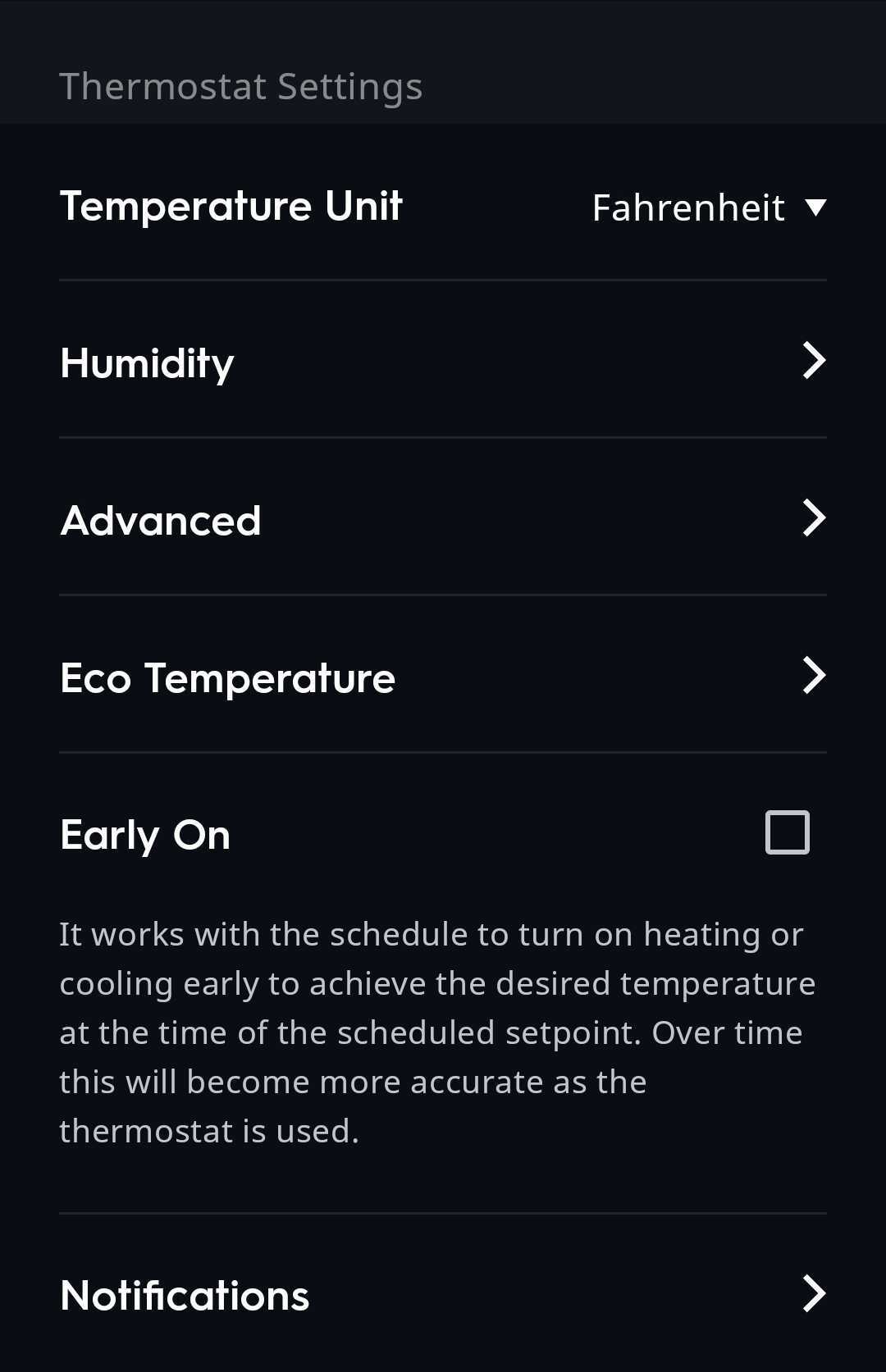
Temperature Unit
Select the desired unit of measurement (Celsius or Fahrenheit) your Smart Thermostat will display temperature.
Humidity

- Dry Mode: Enabling Dry Mode extends cooling cycles to dehumidify your home and achieve the humidity setpoint.
- Humidity Setpoint %: Use the slider to select the desired humidity setpoint in your home.
Advanced
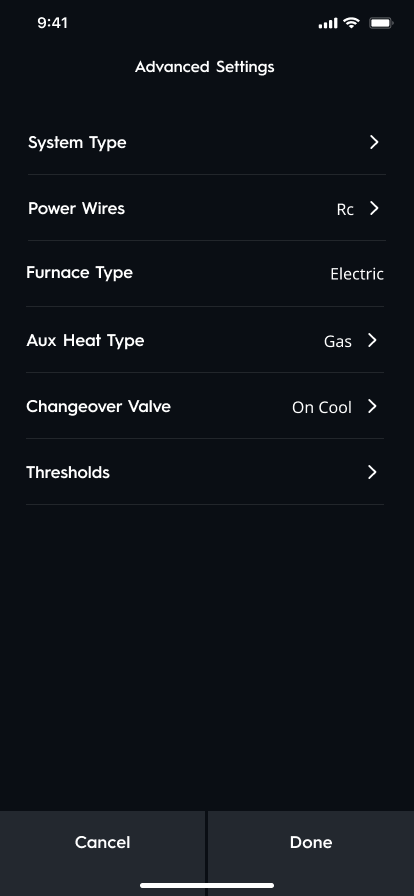
The advanced settings screen may appear differently based on your home's system. Below is the conventional system type (left), and the heatpump system type (right).

- System Type:
- Select the type of HVAC system that is within your home. If you are unsure of which type of HVAC system you have, please contact an HVAC technician.
- Cync will automatically set this for you during commissioning based on your wire selections.
- NOTE: For oil heating systems, select the Gas option.
- Select the type of HVAC system that is within your home. If you are unsure of which type of HVAC system you have, please contact an HVAC technician.
- Power Wires: Allows you to select the power wires currently connected to your thermostat. Selecting the incorrect power wires can damage or cause your equipment to function incorrectly.
- Furnace Type: Select between gas, electric or boiler furnace types. For oil, select the Gas option.
- Aux Heat Type: Select between gas, electric or boiler aux heat types. This setting is only available to homes with a heatpump system type.
- Changeover Valve: Select whether the changeover valve is On Cool or On Heat. This setting is only available to homes with a heatpump system type.
- Thresholds: These parameters can be modified to affect how frequently your HVAC system cycles on and off. Some thresholds may not be usable if your system does not support multiple stages.
- On Threshold: This is the amount of degrees above the cool or heat setpoint that will initiate the stage to turn on.
- Off Threshold: This is the amount of degrees below (or on) the cool or heat setpoint that will deactivate the stage.
- Restore to Default: This will reset your thresholds to the default values.
- On Threshold: This is the amount of degrees above the cool or heat setpoint that will initiate the stage to turn on.
Eco Temperature
Configure setpoints that will be automatically set when Eco Mode is activated.
Early On
When Early On is selected, it will work with a set Schedule to turn on heating or cooling early, so the desired temperature is reached at the time of the scheduled setpoint.

Notifications
Determine when a notification will be sent to your email based on specific events in your HVAC system.
NOTE: Thermostat notifications are delivered via email only and are not application notifications.
- Min / Max Temp: When enabled this will send out a notification when the temperature exceeds one of these setpoints.
- Min / Max Humidity: When enabled this will send out a notication when the humidity exceeds one of these setpoints.
- Filter Replacement: When enabled a notification will be delivered to remind you the filter requires replacement.
- Filter Replacement can be configured to trigger a notification based on runtime hours of the HVAC system or a specified time period.
- This menu will also display the remaining time or runtime hours before a filter replacement event.
- Filter Replacement can be configured to trigger a notification based on runtime hours of the HVAC system or a specified time period.
- Sensor Offline: When enabled a notification will be sent if a wireless sensor stops communicating. The sensor may need to be moved closer to the Thermostat or require a new battery.
Sensors
Access the Sensors Settings from the Thermostat settings page.

Manage Sensors
Edit, Add or Delete Wireless Sensors from your Smart Thermostat.

Sensor Schedule
Create or modify an existing schedule for sensor(s) attached to your Thermostat. For more information on Schedules, see the Controlling Cync Thermostats article.
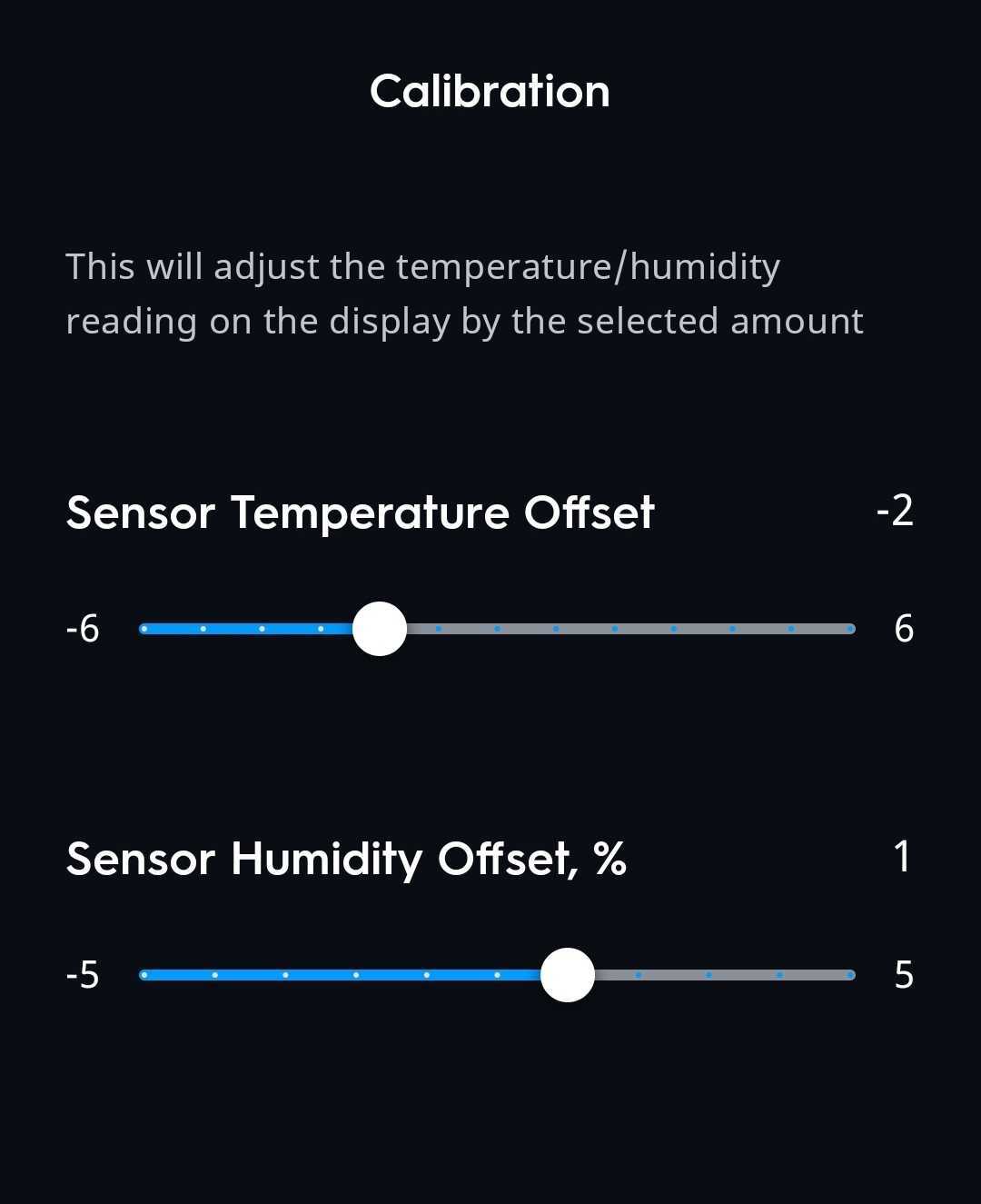
Calibration
Adjust the temperature and humidity reading on the display by the selected amount, using the sliders.
Delete Thermostat
Select the Delete Device button to remove your Smart Thermostat. This button is located at the bottom of the Thermostat Settings screen.

Schedule
Access your Thermostat Schedule by selecting the calendar icon  at the bottom of the Thermostat device page. Schedules can be set to be active based on these settings.

- Scheduling for Auto mode only activate the schedule when you have your thermostat set to Auto mode.
- Scheduling for Heat mode only activate the schedule when you have your thermostat set to Heat mode.
- Scheduling for Cool mode only activate the schedule when you have your thermostat set to Cool mode.
For more information on schedules with your Cync Smart Thermostat, see the Controlling a Thermostat article.
History
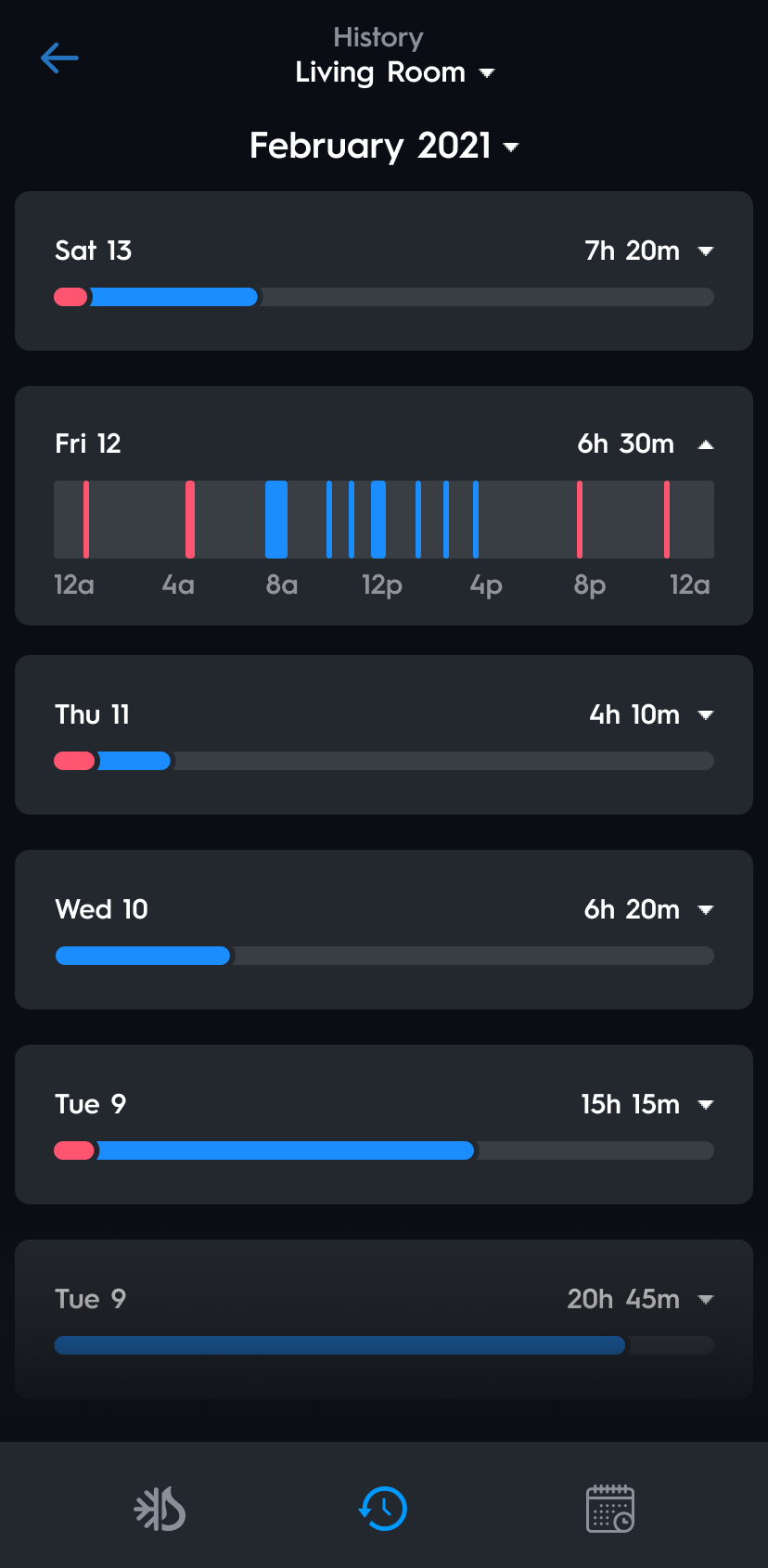
Access Thermostat History by selecting the history icon at the bottom of the Thermostat device page. This page displays the amount of time the home was being heated or cooled, with red representing heating and blue representing cooling.