
Controlling Neon Light Strips
Easily control and enjoy dynamic effects on your Cync Neon Light Strips with the Cync app.
Quickly navigate to the section you need by following one of the links below.
Button Controls
General App Controls
Color Control
Light Shows, Music Sync, and Segment Control
Motion Control
Button Controls
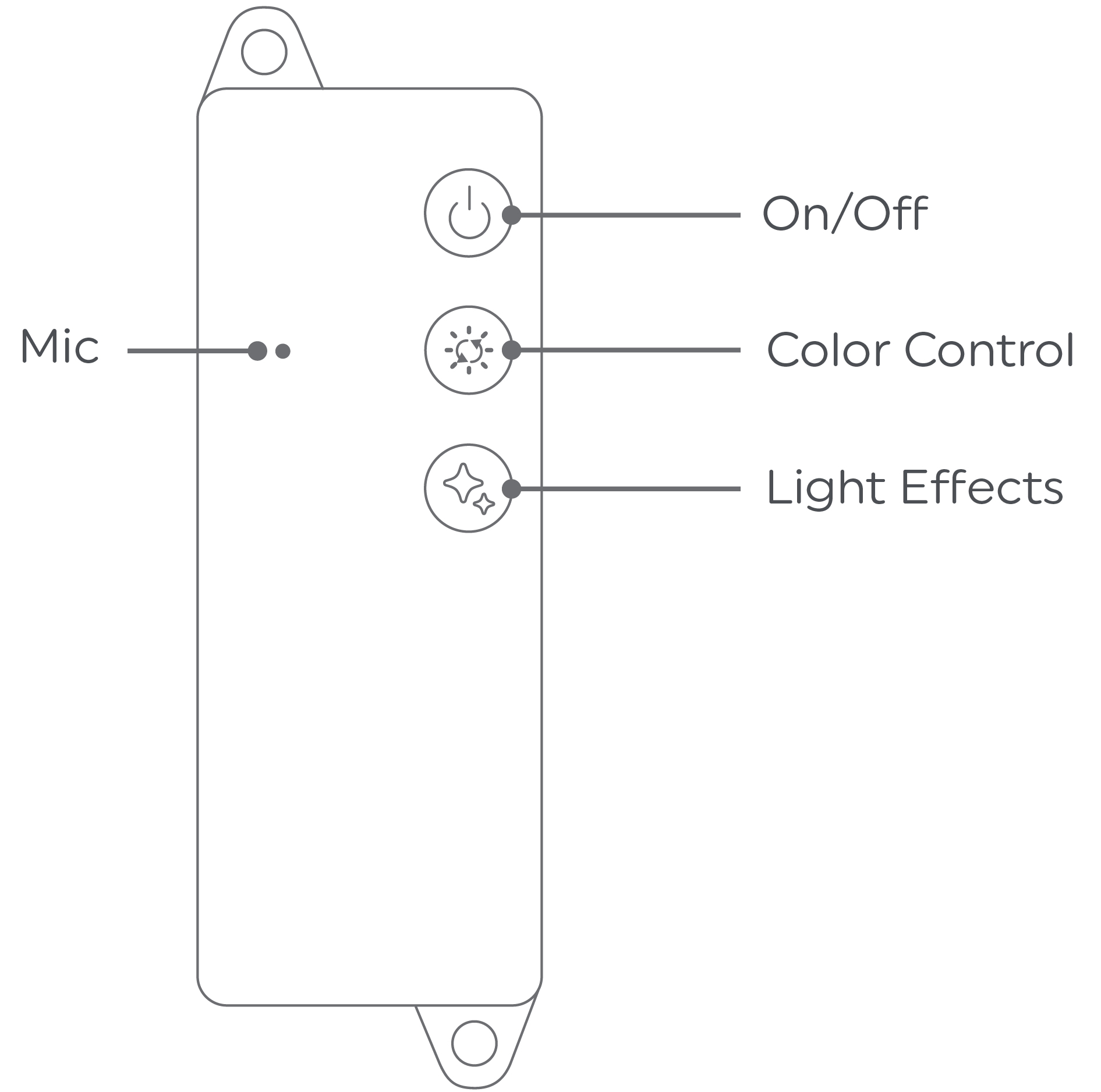
| On/Off | Turns the Neon Light Strip on or off. Hold for 10 seconds to factory reset the light strip. |
| Color Control | Cycles through colors. |
| Light Effects |
Cycles through preset Light Shows. |
| Mic |
Used for Music Sync feature. |
General App Controls
Depending on how many rooms you've created in the Cync app, you will have one of two home screen views: Single Room or Multi Room view. (Refer to the Home Screen Views and App Control Details article for more information). You can control your lights individually, or assign them to a Room or Group for flexible device control. Based on the home screen view you have, Room, Group and Device controls will be in slightly different locations.
Turning Neon Light Strips On/Off
Use the ON/OFF toggle button on the Room, Group or Device Tile to turn light strips ON or OFF or tap the Slider Bar on the Room, Group or Device Tile to turn them ON. Move the Slider all the way to the left to turn them OFF.

Brightness Control
Use the Slider Bar on the Room, Group or Device Tile to control brightness. Move the Slider to the right to brighten or to the left to dim your lights.
Settings
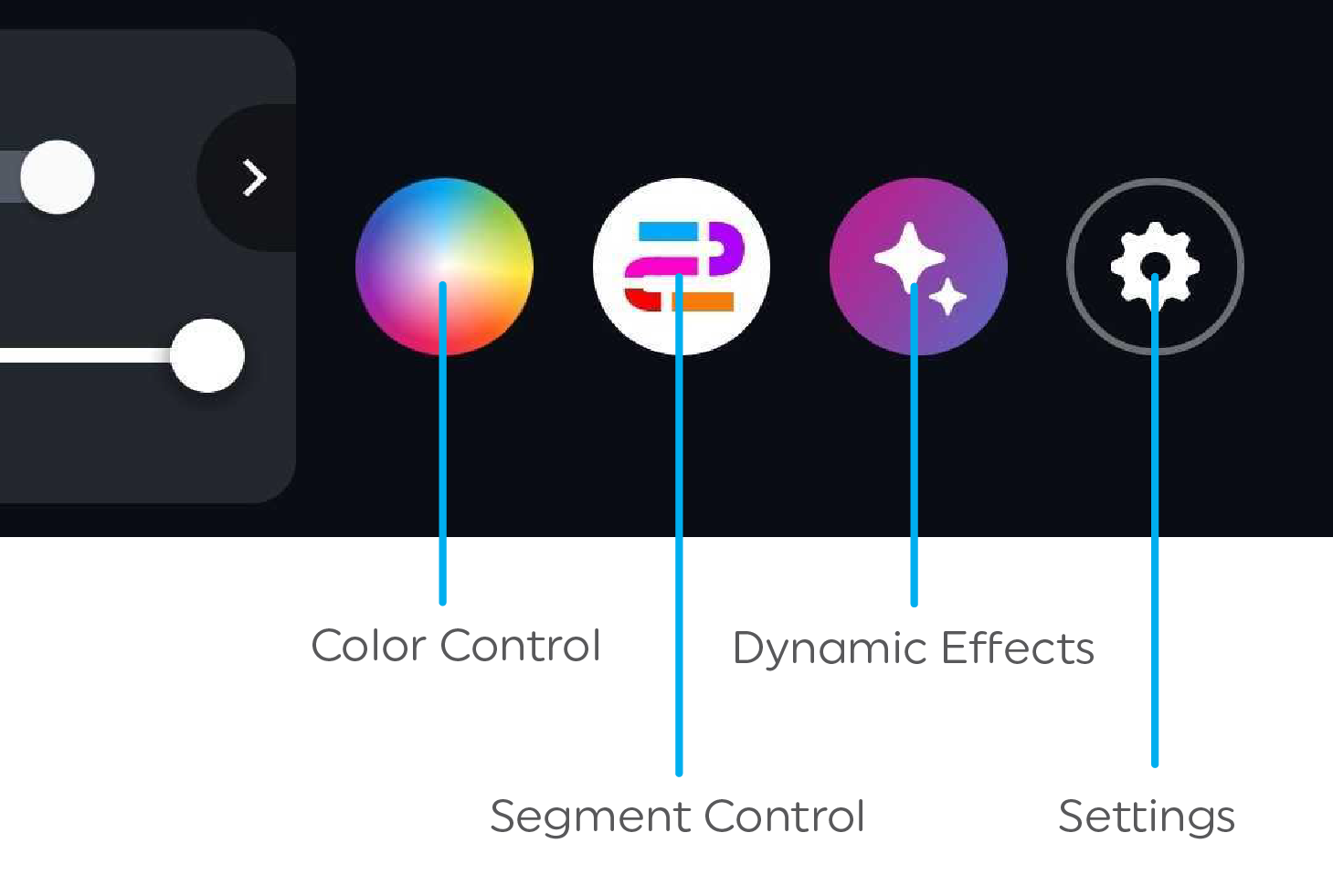
Color Control

Tap the chevron icon  on the Room, Group or Device Tile and select the
  Color icon. This setting will change the overall Neon Light Strip to a single color. For individual segment control, see the Light Shows, Music Sync and Segment Control article.
- Tap the
 color selector icon at the botton of the screen for Full Color options. The outer circle allows you to select a hue, and the inner circle allows you to select the saturation of the hue.
- Tap the
 color temperature selector at the bottom of the screen for Color Temperature options. The color temperature bar allows you to select between the different white color options that are best suited for the time of day. For example, Early Morning is perfect for your wake-up routine, Daylight will energize you during your day, and Warm White will create a relaxing environment for your bedtime routine.
- Tap the
 heart icon at the bottom of the screen to view all your color Favorites.
- To save a favorite color, tap the add icon
 in the top right corner of the color control menus to add to your Favorites.
 - To remove a color from your favorites tap and hold a color and select Delete Favorite.
- To save a favorite color, tap the add icon
Light Shows, Music Sync and Segment Control
Cync Light shows are a combination of a user-defined palette, an effect, and adjustable settings. Music Sync combines Light Shows with your tunes that respond to the beat of your audio with varying levels of brightness.
- For Light Shows and Music Sync, tap the chevron icon on the Room, Group or Device Tile and select the Dynamic Effects
 icon.
icon.
- For Segment Control, tap the chevron icon on your Neon Light Strip and select the Segment Control
 to open the Segment Control Canvas screen.
- Visit Light Shows, Music Sync, and Segment Control for more information.
Motion Control
Cync Smart Light Room and Group Control with Cync Motion Sensor
- Simply assign your lights and Cync Motion Sensor to the same Room or Group in the Cync app.
- If you assign these devices to the same Room, your motion sensor will control all the Cync devices assigned to that Room. If you want to control a select group of devices with a motion sensor, simply move those specific devices into a Group within that Room.
- Helpful articles:
NOTE: If a motion sensor is assigned to a Room that has one or more Groups, that motion sensor will control all those Groups and the devices assigned to them. Think of it as a master motion sensor for your Room!
Cync Smart Light Temperature Control with Cync Motion Sensor
- You can set the motion sensor to trigger your lights to turn on to specific color temperature and brightness at different times of the day. Set your sensor to only turn on your lights when there isn't enough ambient light in the room.
- Helpful articles: