Programming Traveler + Neutral Wire Smart Keypad Switch
Program the buttons on a Cync Traveler + Neutral Wire Smart Keypad Switch.
Quickly navigate to a specific section by selecting a link below:
Access Device Settings
Button Customization
Trim Customization
Multi-Way Mode
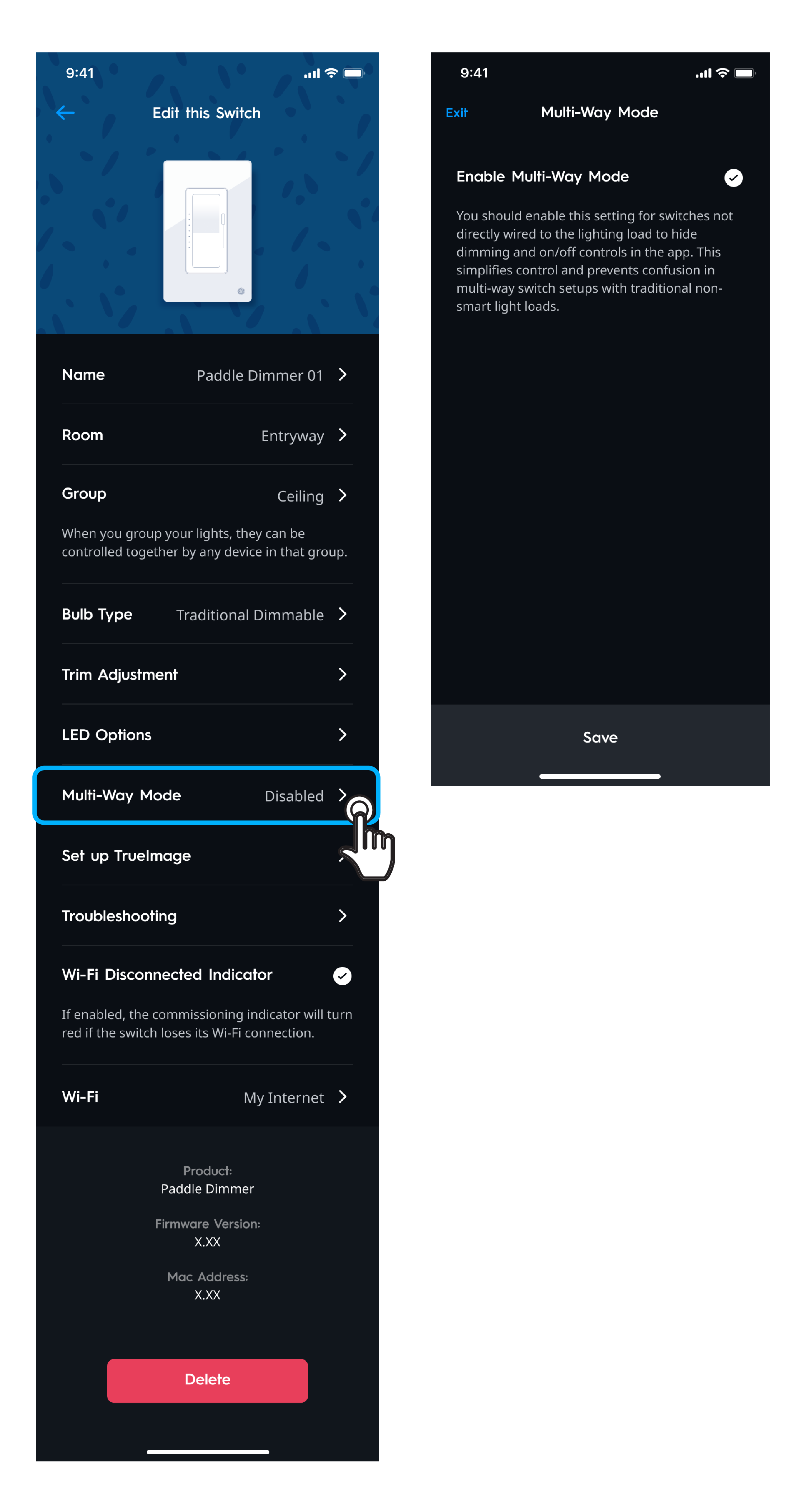
Access Device Settings
- Tap Settings in the top left corner of the Cync app homescreen.
- Select Room and Devices.
- Select the Room your device is assigned to.
- Select Devices.
- Swipe through the devices assigned to that room until you find the device you want to edit.
- Tap Edit this Switch button under the device image.
- Tap Switch Customization.
Tip: You can also access settings from by selecting the gear icon in the upper right corner of the Room and Group control screens. This will take you directly to that Room or Groups settings section.
Button Customization
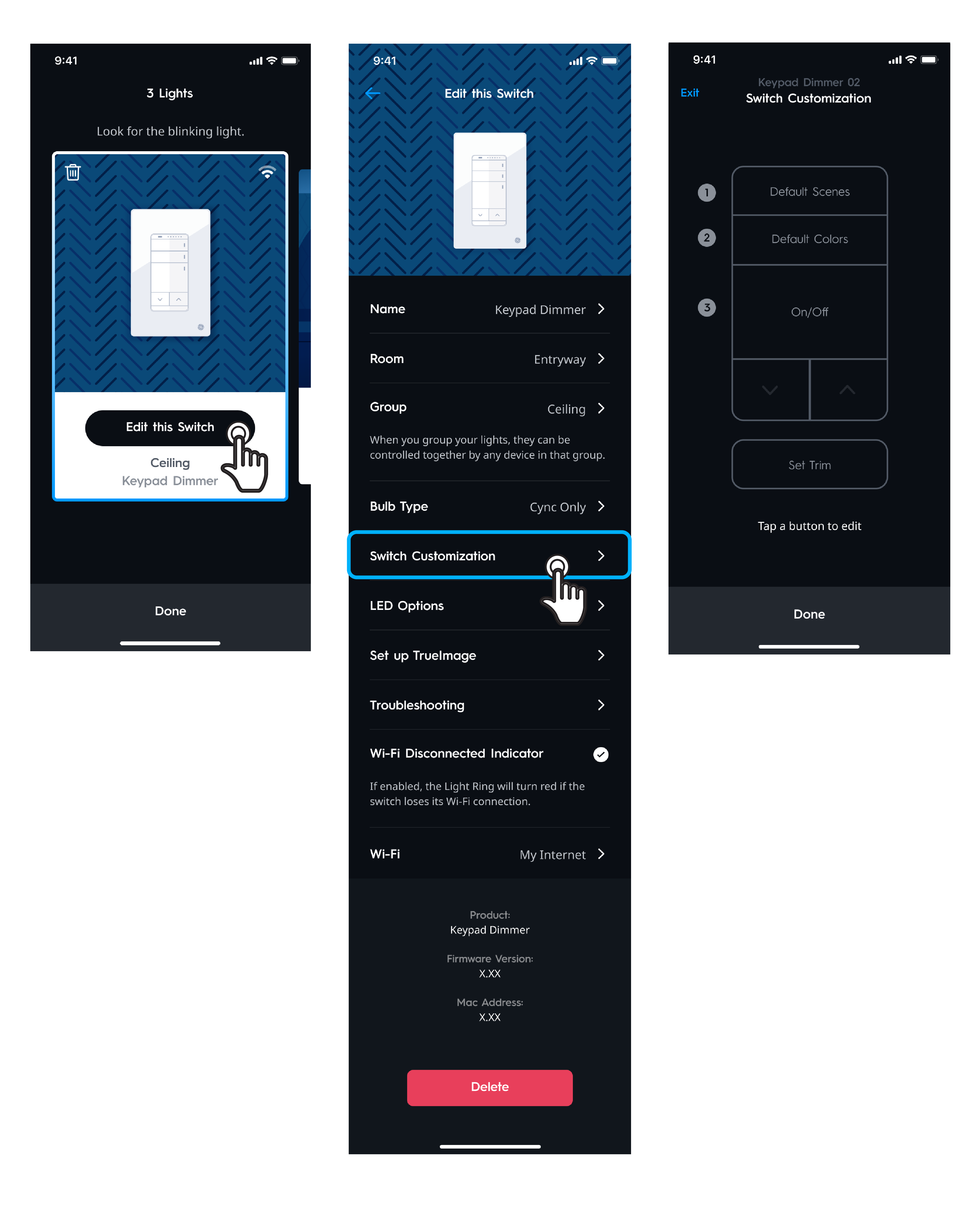
- From the Switch Customization screen, select the button you wish to customize.
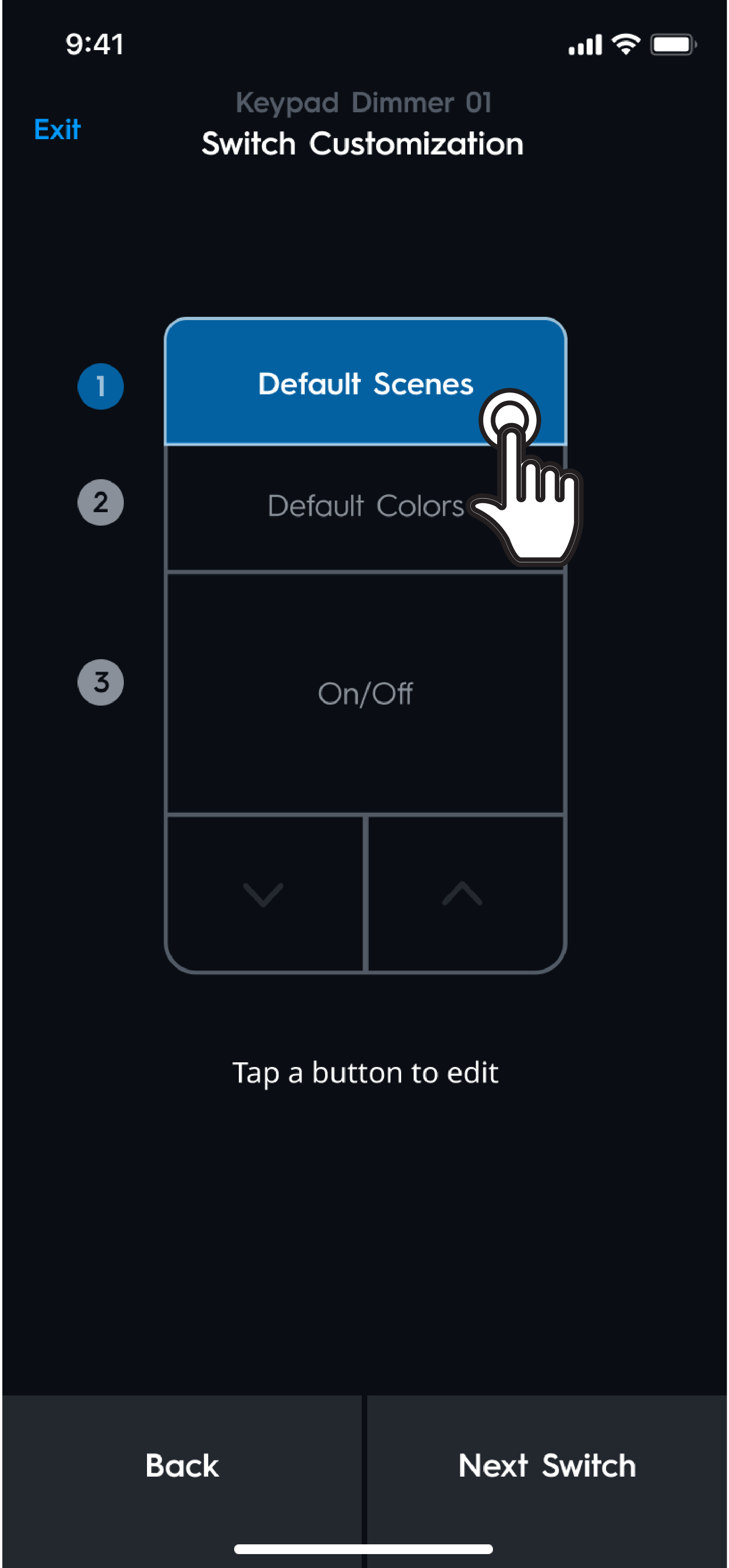
- From the dropdown menu select an option to determine what the button will do when it is pressed. Select Apply when finished. See below for a list of option descriptions.
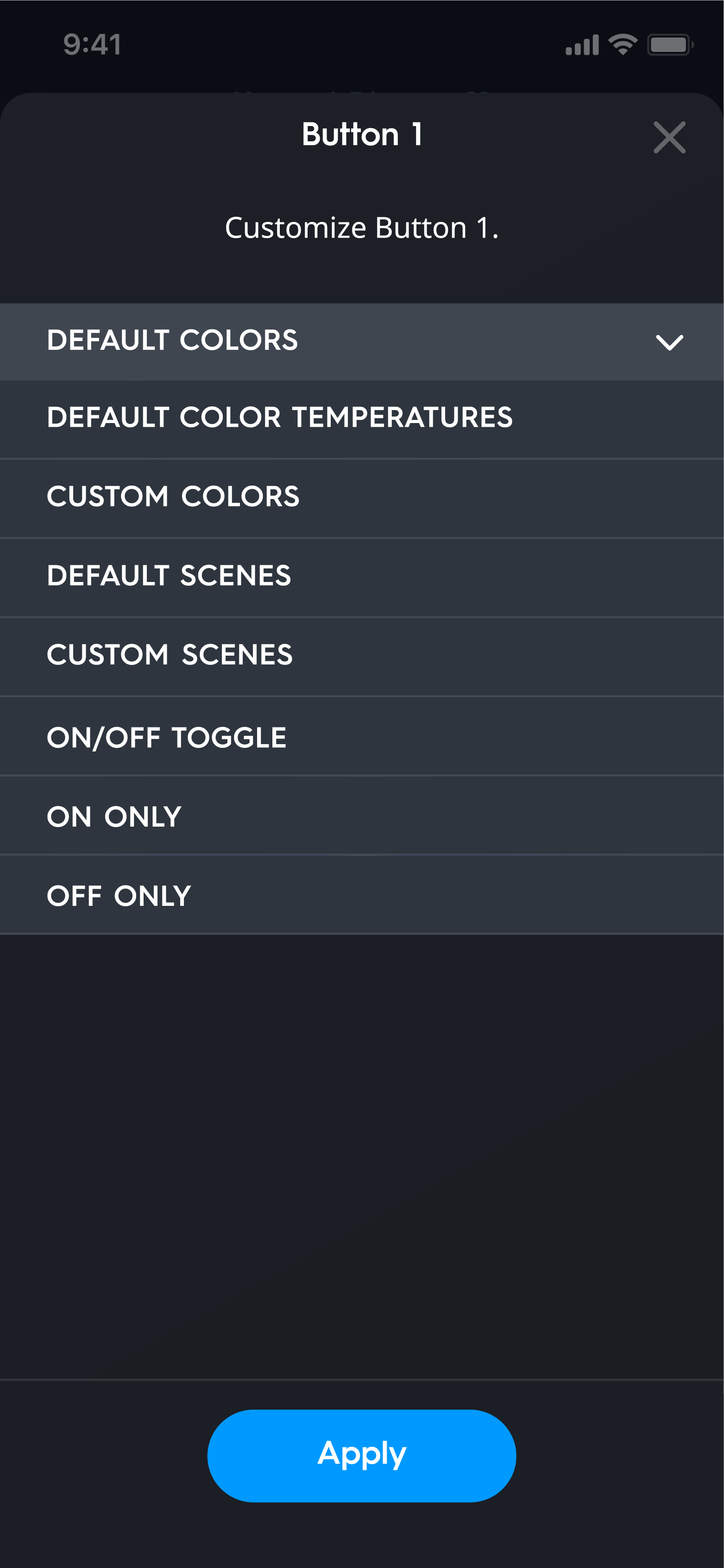
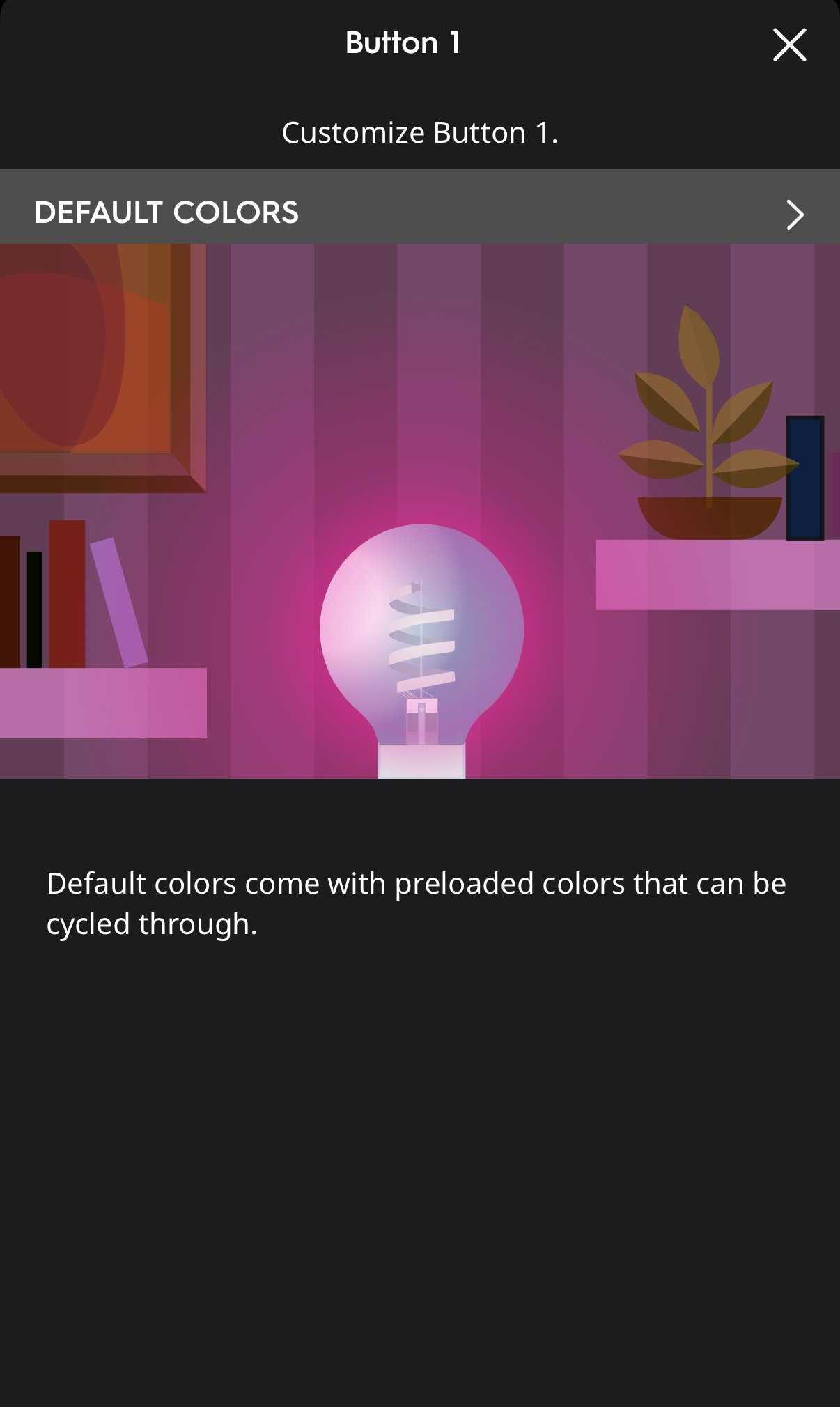 | Default Colors | Preloaded colors that can be cycled through with each press of the button. Colors include: 2000K, 3000K, 4000K, 5000K, Red, Orange, Yellow, Pink, Green, Blue, and Teal |
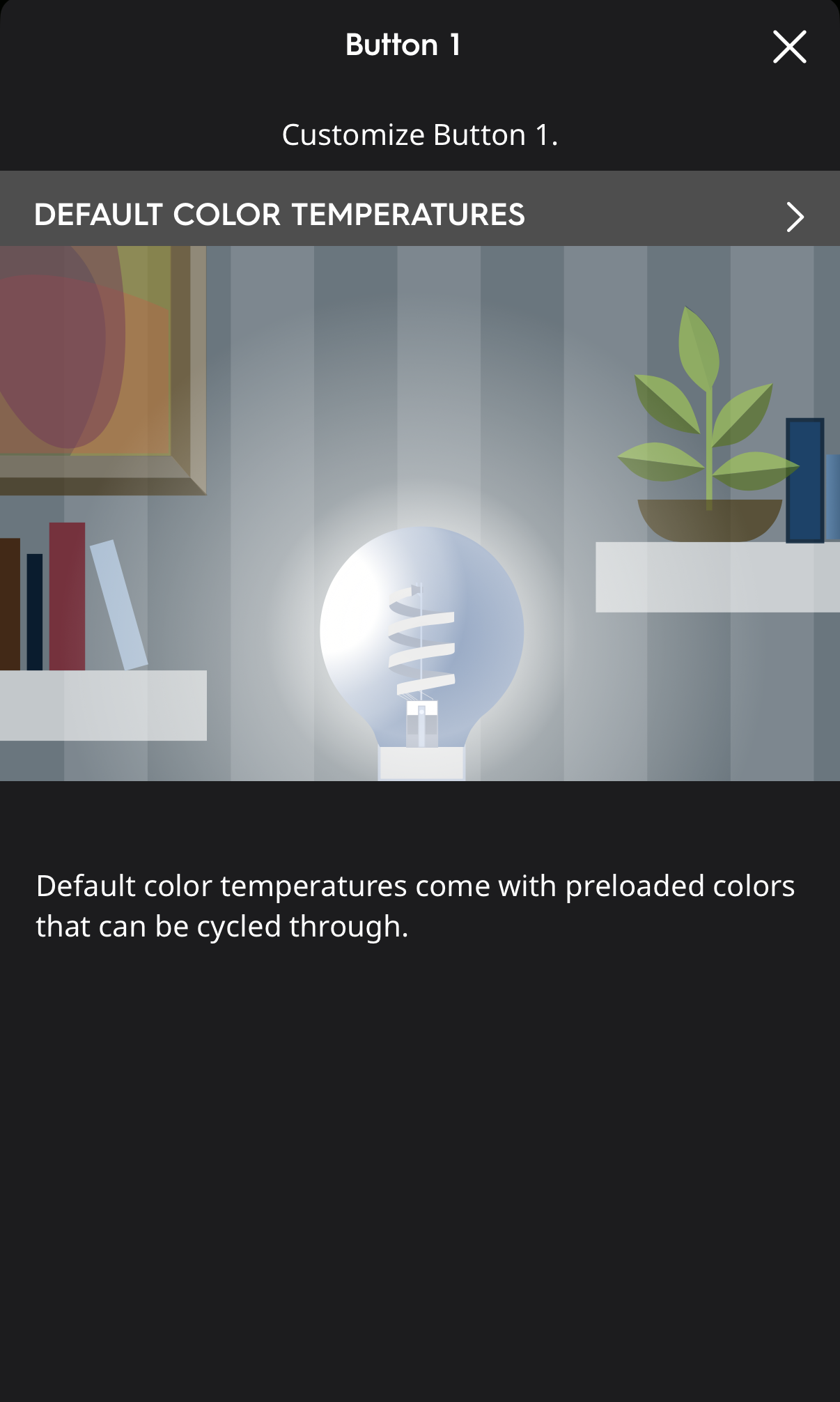 | Default Color Temperature | Preloaded colors ranging from cool to warm that can be cycled through with each press of the button. Color Temperatures include: cool white, daylight, sunlight, natural white, early morning, sunrise, warm white, sunset, and candle. |
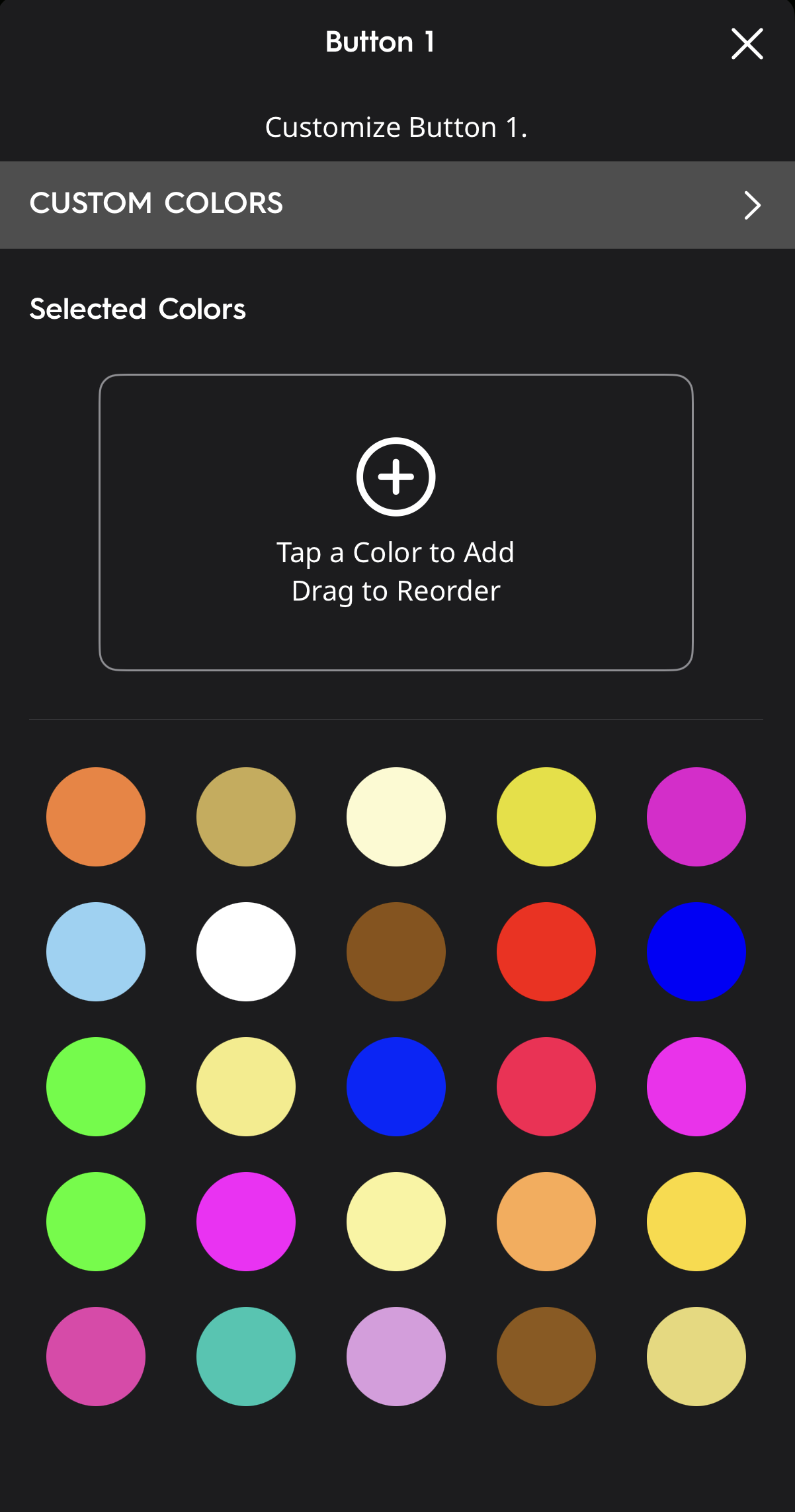 | Custom Colors | Add and order custom colors to cycle through with each press of the button. Tap the "+" icon to add a color to your list. Drag to reorder the colors. |
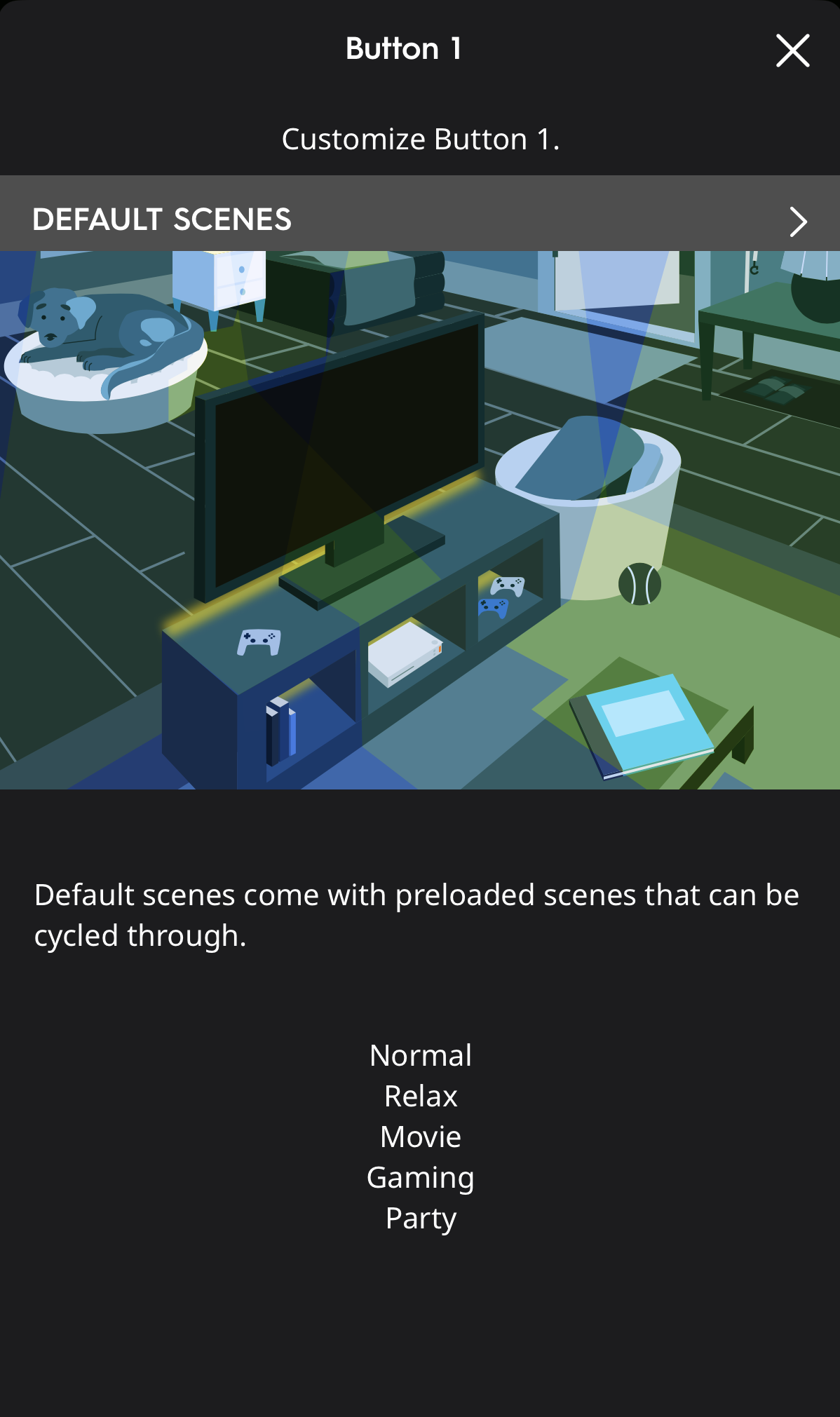 | Default Scenes | Preloaded scenes that can be cycled through with each press of the button. Scenes include: Normal (4000K @ 100% brightness), Relax (2700K @ 20% brightness), Movie (All devices blue @ 1% brightness), Gaming (all devices set to Cyber Preset), and Party (All devices set to Rainbow Preset). |
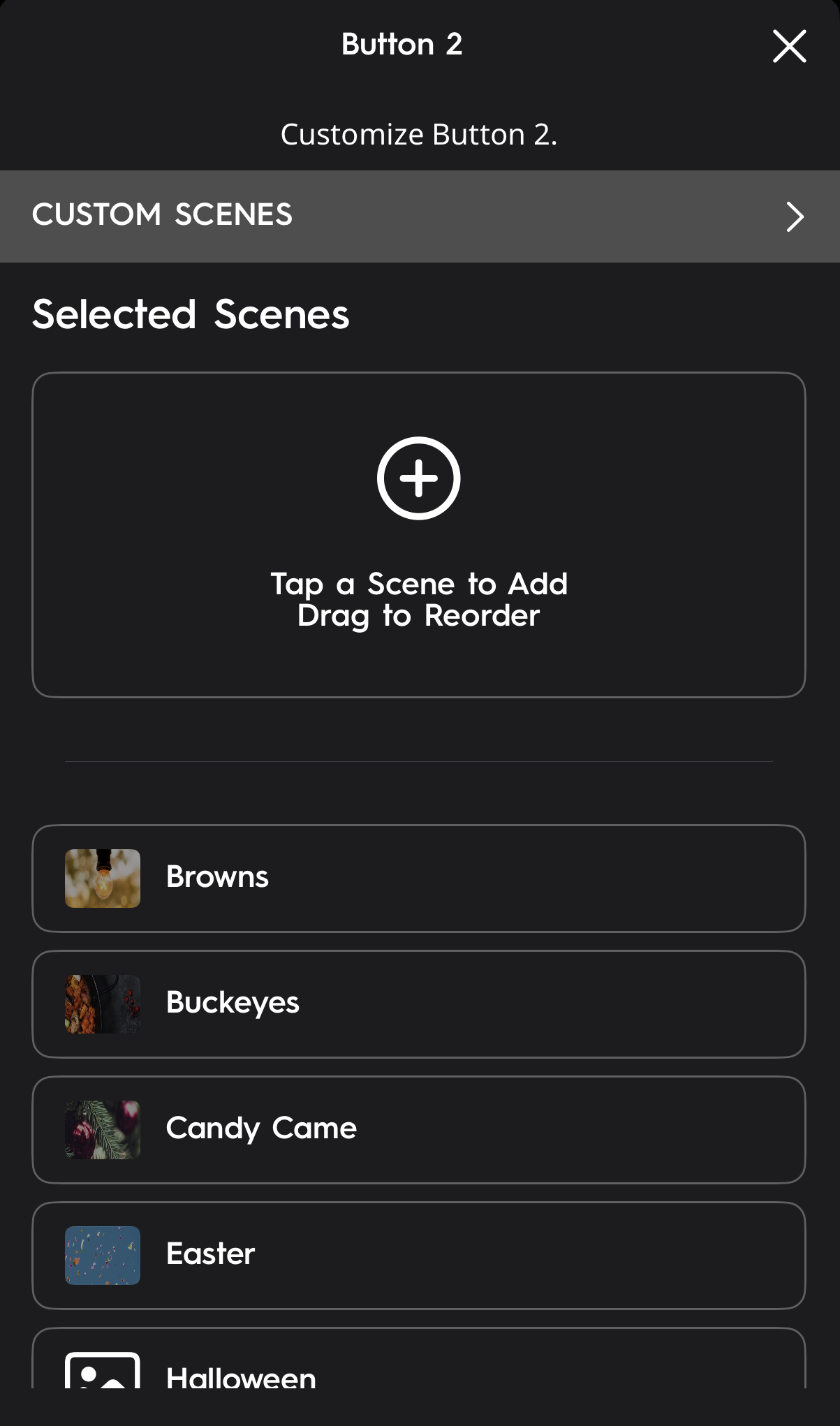 | Custom Scenes | Add and order custom Scenes created by you to cycle through with each press of the button. Tap the "+" icon to add a Scene to your list. Drag to reorder the Scenes. |
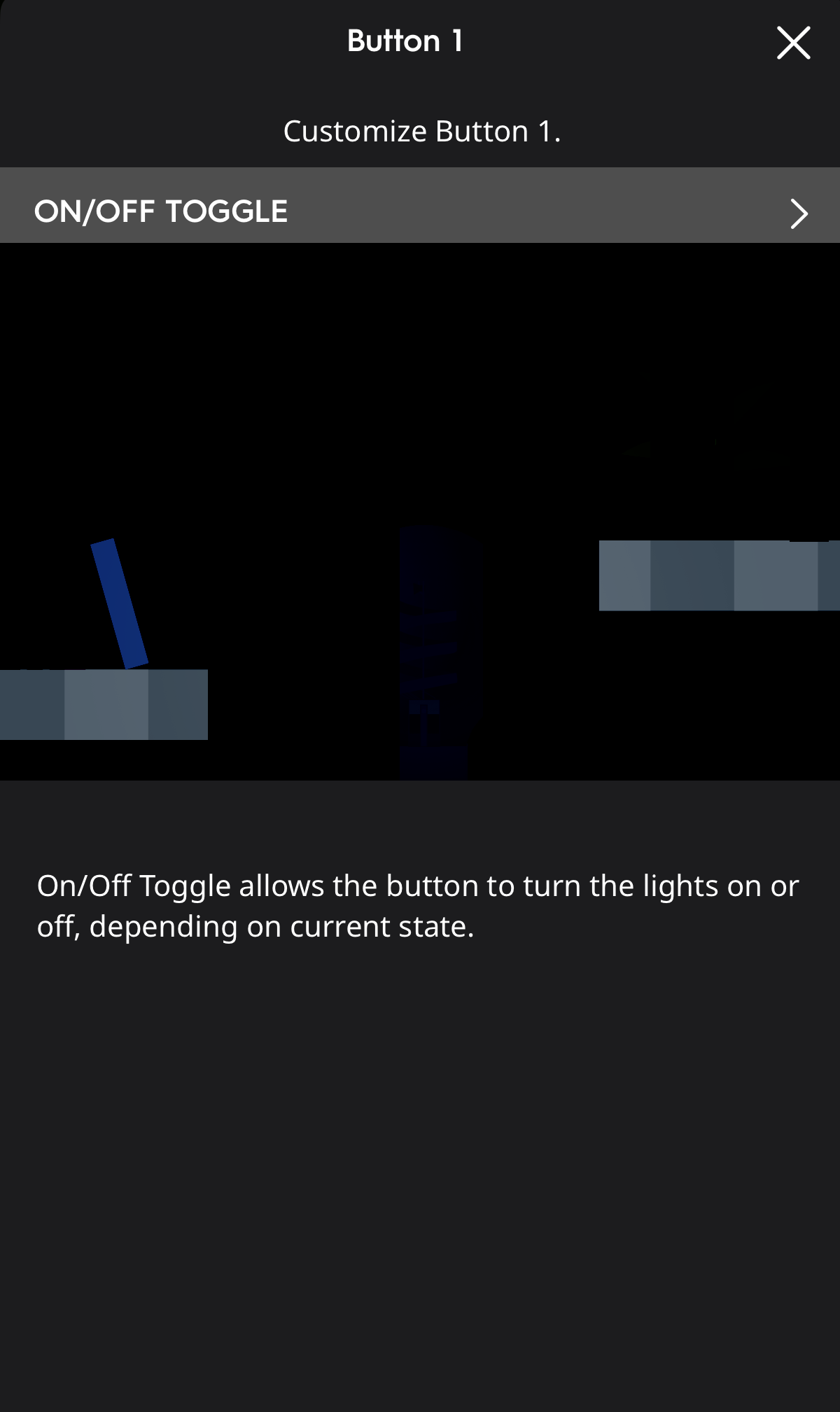 | ON/OFF Toggle | When the button is pressed, it will turn the lights either ON or OFF depending on the current state. (If ON, they will turn OFF. Id OFF they will turn ON.) |
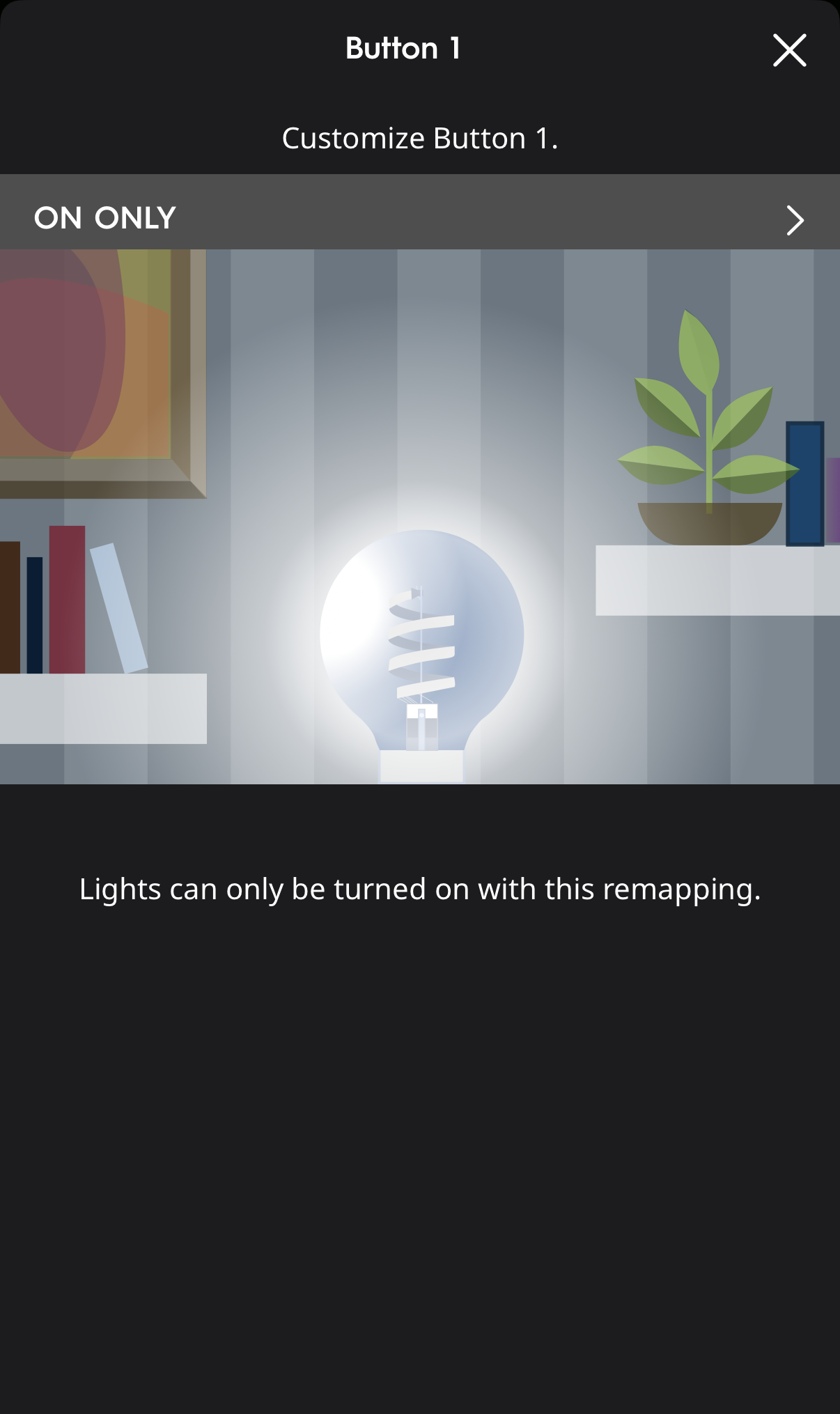 | ON Only | When the button is pressed with ON Only setting, lights on the circuit turn ON. (When pressed again they will NOT turn OFF.) |
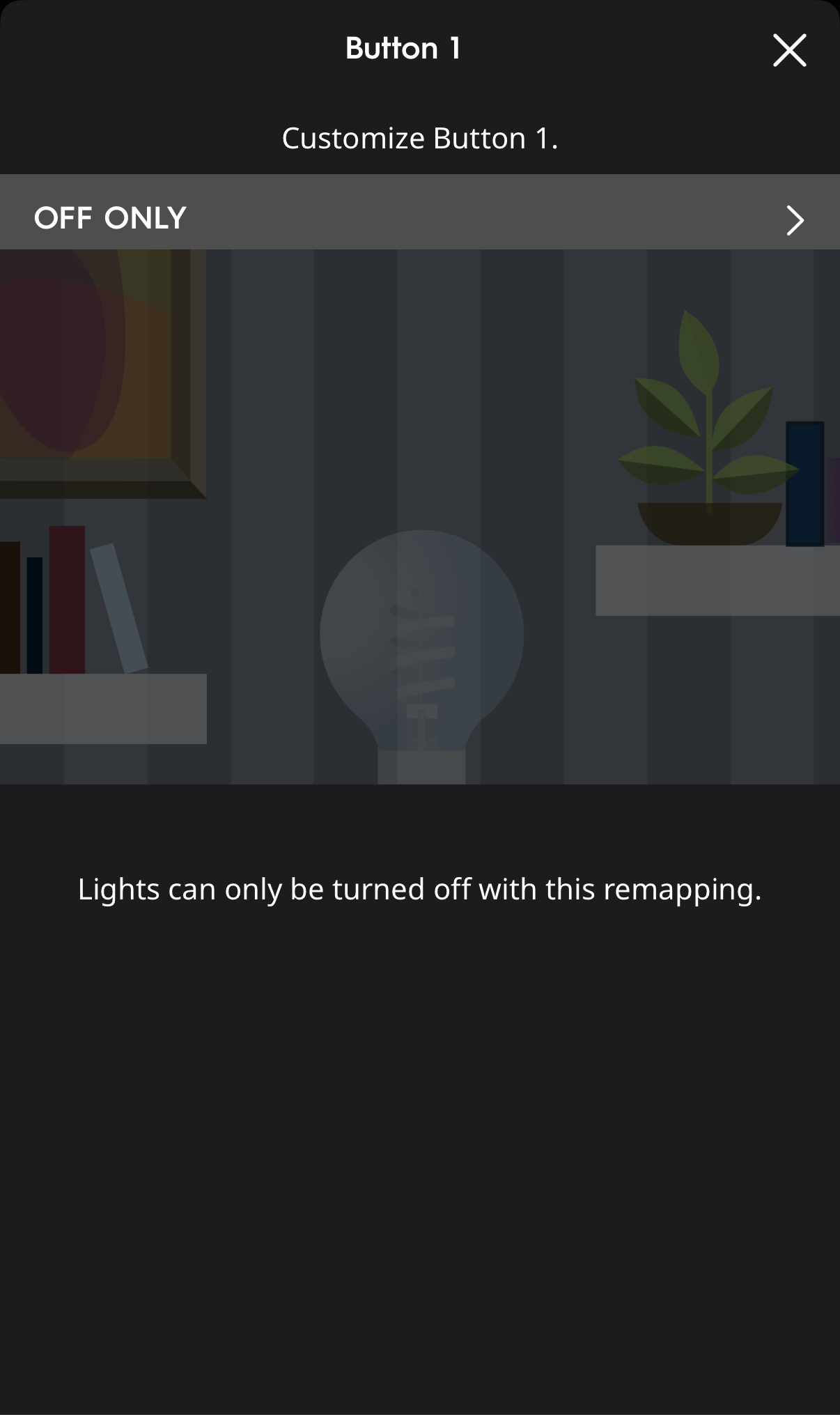 | OFF Only | When the button is pressed with OFF Only setting, lights on the circuit turn OFF. (When pressed again they will NOT turn ON.) |
- Tap Apply when finished.
Trim Customization
Trim Customization allows you to set the maximum and minimum brightness for all bulbs on the circuit. This setting can be used to avoid bulb flickering. (Default: maximum brightness = 100%, minimum brightness = 0%.)
- Select the Set Trim option from the Switch Customization screen.
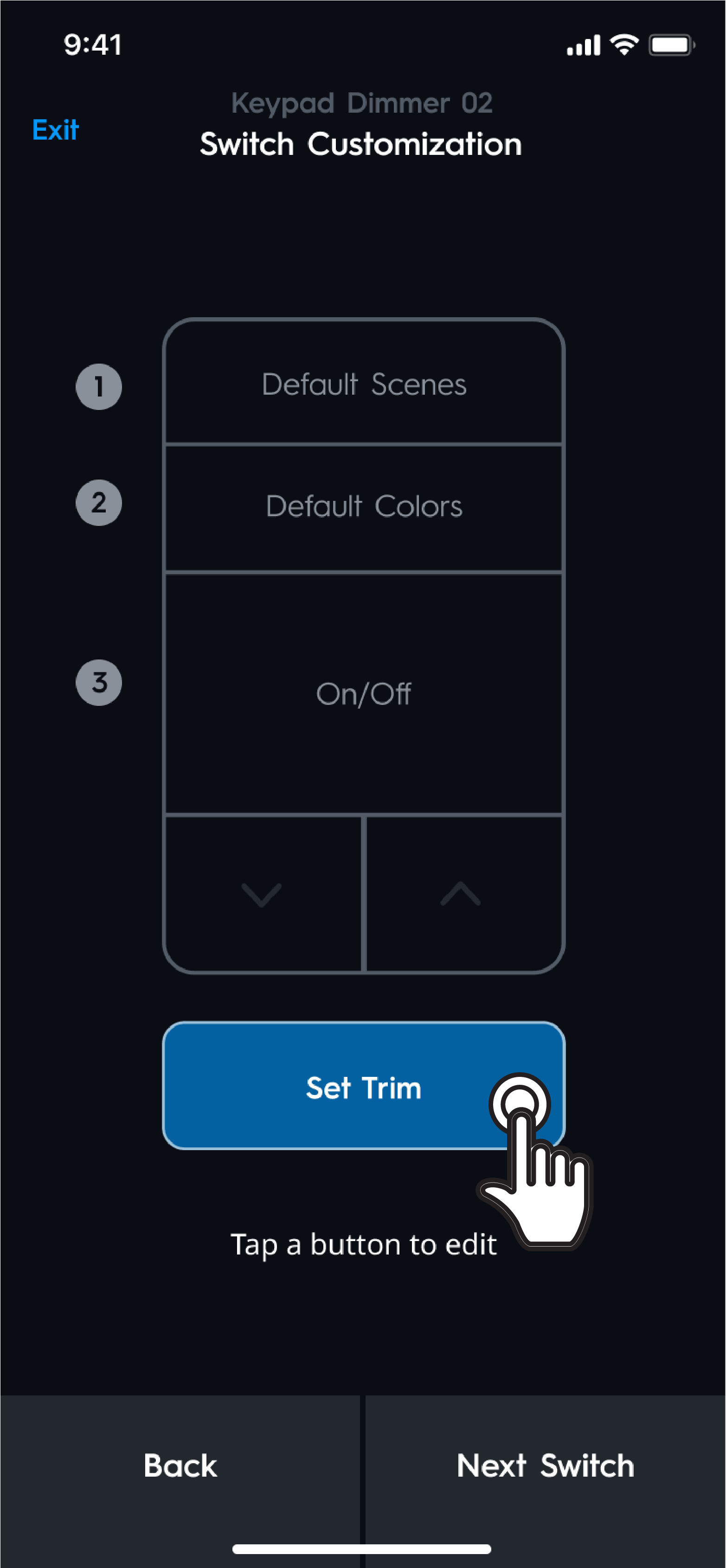
- Use the sliders to adjust the desired Minimum Brightness and Maximum Brightness of the trim to avoid flickering.
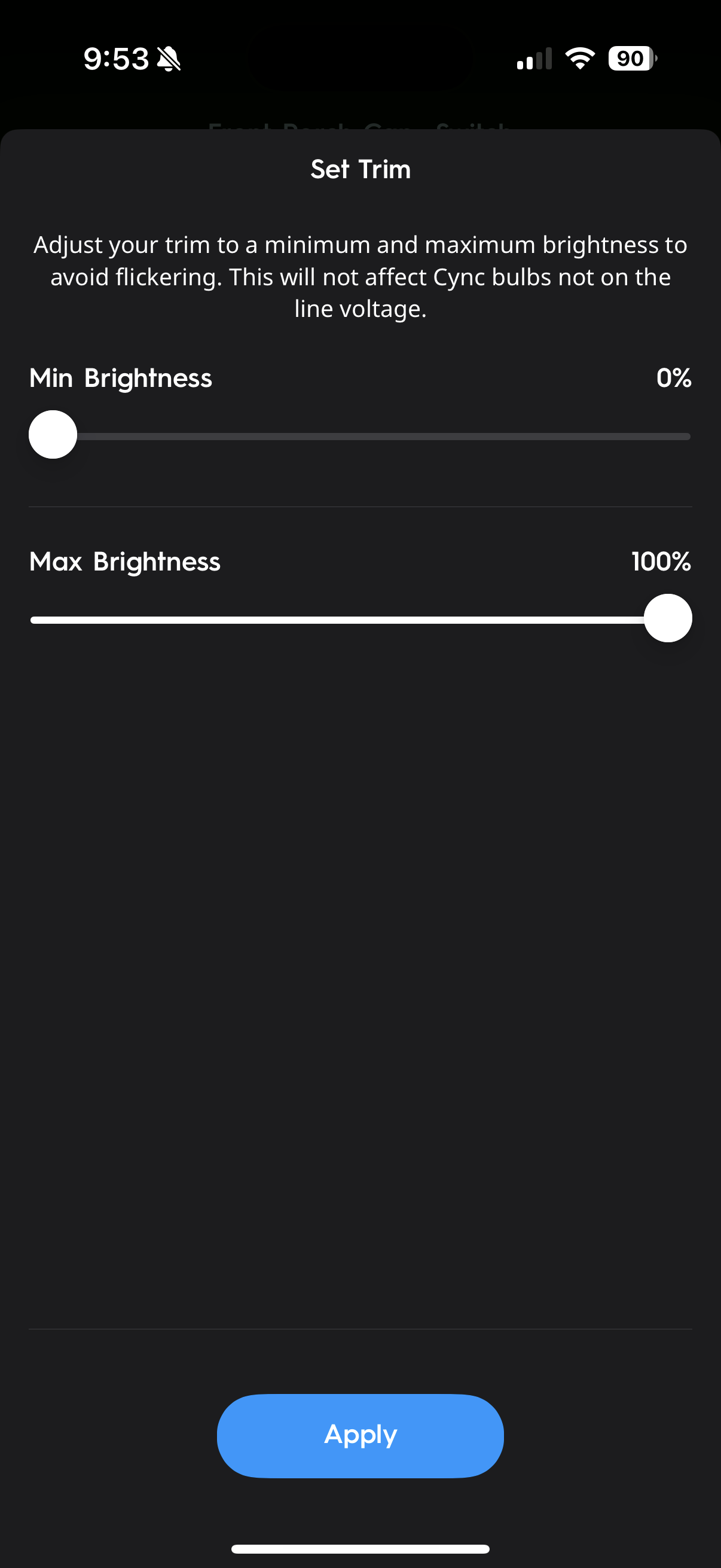
- Tap Apply when finished.
Multi-Way Mode
Enabling Multi-Way Mode hides dimming and ON/OFF controls in the Cync app. This simplifies control and prevents confusion in multi-way setups with traditional non-smart light loads. Enable this setting if you have switches not directly wired to the lighting load.
- Access the switch Settings.
- Select Multi-Way Mode and Save.