
Setting Up Cync Undercabinet Fixtures
How to connect your Cync Undercabinet Fixtures to the Cync app.
Quickly navigate to a specific section by selecting a link below.
Connecting to the Cync App
Troubleshooting Tips
Connecting Undercabinet Fixtures in the Cync App
Follow these steps to set up your Undercabinet Fixtures in the Cync app:
- Open the Cync app.
- Select Add Devices.
- Select the device type Undercabinet Fixtures.

- Turn off the power and install your Undercabinet Fixtures. See the Installing Undercabinet Fixtures article for more information.
- Tap Enable Bluetooth to start connecting to your device. Select Next.
- Tap Turn on Location to turn on location permissions and select Next.
- Tap Enable Wi-Fi to allow the Cync app to connect to your devices and select Next.
- There may be updates available for your new Undercabinet Fixtures, as well as any previously commissioned Cync devices. Select Update All and then Next.
- On the next Locate your device screen when your Undercabinet Fixtures starts blinking, select Next. The Cync app will now locate your Undercabinet Fixtures. Be sure your device's location has a strong Wi-Fi signal strength during commissioning.
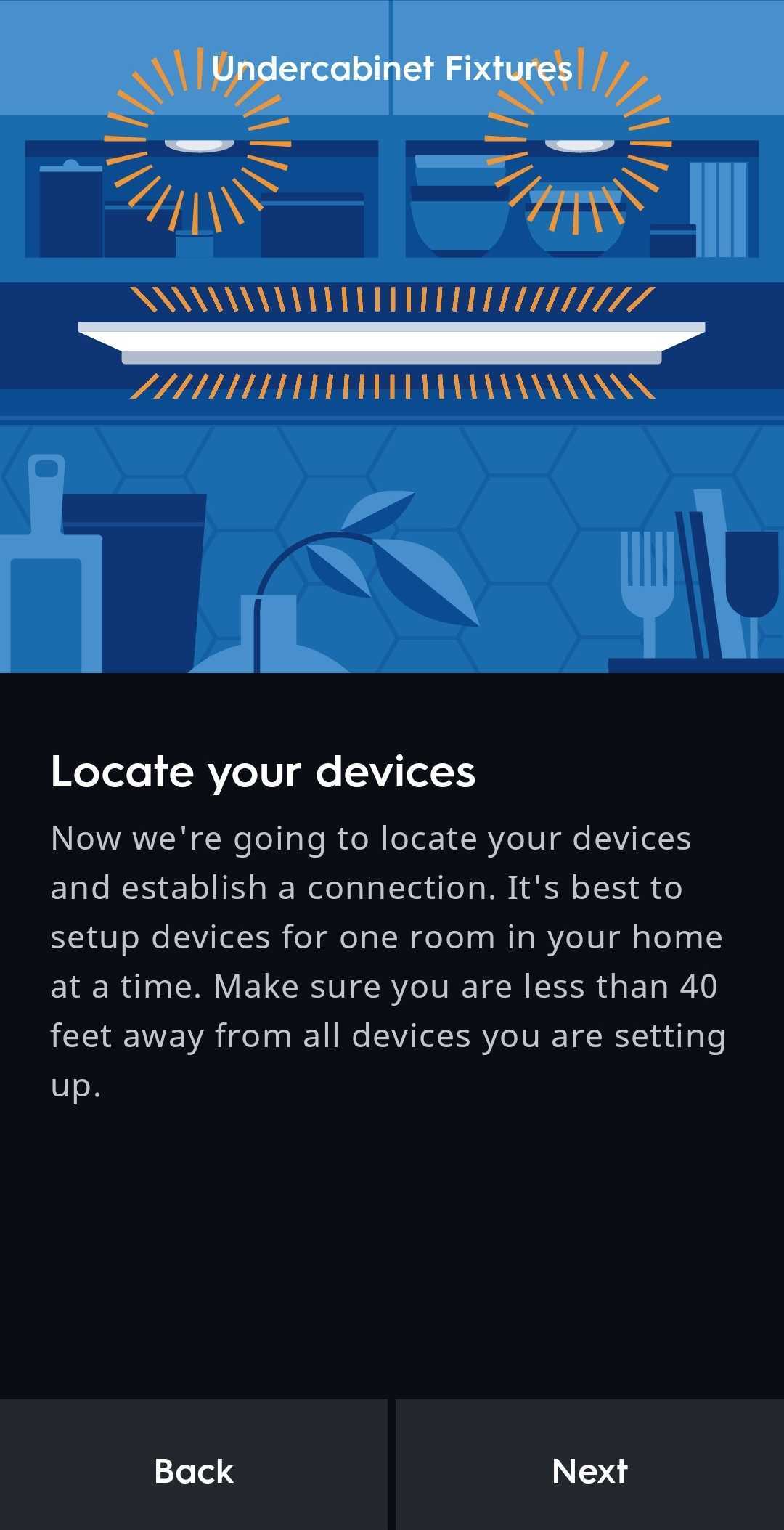
- Once the device has been located, select Set Up. Continue following the instructions on the app screens to finish commissioning, such as naming the device and choosing a network.
NOTE: Selecting the info icon on the located device(s) will reveal the MAC address.
NOTE: If you have multiple Undercabinet Fixtures and want the physical buttons to control all of the fixtures (wired together or not), group the devices in the Cync app. Otherwise the physical buttons will only control individual devices. The physical buttons will also affect all Cync devices in the same group not just undercabinet devices.
Troubleshooting Tips
Unable to connect Undercabinet Fixtures to the Cync App
- Make sure the fixtures are powered on.
- Go to Bluetooth within your phone’s Settings and toggle Bluetooth off and then on again.
- In some instances, having other Bluetooth devices (like a Smart Watch, Headphones or Speakers) paired to your phone could cause interference. Disconnect these devices during set up of your Cync fixtures. You can reconnect after setup is complete.
- Factory reset the fixtures.
The Cync App is Unable to Locate My Wi-Fi Network
- Manually type in your SSID and password. If you do not remember your credentials for your Wi-Fi Network, contact your Internet Service Provider.
- Confirm your Wi-Fi Router is powered on and broadcasting. You can check this by going to Settings on your mobile phone and looking for your Wi-Fi network.
- If your router is powered on, but not broadcasting, contact your Internet Service Provider.
- Confirm you are on a 2.4 GHz network. Cync is not compatible with 5 GHz networks. Some routers will combine the 2.4GHz and 5GHz bands into a single SSID. Cync devices are compatible with this situation for most routers.
- Check your Wi-Fi strength at the light location (you can do this by looking at the Wi-Fi signal bars on your phone).
- If you do not have a strong signal strength, move fixtures closer to your router. If you have a Wi-Fi Repeater, move it halfway between the fixtures and your router to improve signal strength.
The Cync App is Unable to Connect to My Wi-Fi Network
- Confirm your Wi-Fi Router is powered on and broadcasting. You can check this by going to Settings on your mobile phone and looking for your Wi-Fi network.
- If your router is powered on, but not broadcasting, contact your Internet Service Provider.
- Confirm you are on a 2.4 GHz network. Cync is not compatible with 5 GHz networks. Some routers will combine the 2.4GHz and 5GHz bands into a single SSID. Cync products are compatible with this situation for most routers.
- Check your Wi-Fi strength at the light location (you can do this by looking at the Wi-Fi signal bars on your phone).
- If you do not have a strong signal strength, move light closer to your route. If you have a Wi-Fi Repeater, move it halfway between the light and your router to improve signal strength.
- Confirm you have the correct Wi-Fi network and password. If you do not remember your credentials for your Wi-Fi Network, contact your Internet Service Provider.