Accessing and Sharing Camera Video Clips
Learn how to access your camera's video clips from a local Micro SD card or your Cam Cync cloud subscription to share with others.
Quickly navigate to a specific section by selecting a link below.
Saving Video Clips
Accessing Video Clips
Download and Sharing Clips
Saving Video Clips
You can view and access your video clips by saving them on an SD card or through a Cloud Subscription.
Cloud Subscriptions
A Cync Cloud Subscription is a paid service to view and store your video clips. For more information, visit Cloud Subscriptions.
Micro SD Cards
A Micro SD Card is required to view and store video clips if there is no active Cloud Subscription.
- MicroSD cards are compatible up to 128 GB.
- MicroSD cards must be formatted before they can be used with Cync Cameras. To format the MicroSD card, naviagte to the camera in the Cync app and select Settings > Camera Settings > SD Card > Format Card. This will erase all existing data on the MicroSD card.
- Videos stored on MicroSD cards are unable to be downloaded.
Accessing Video Clips
The location of your stored video clips may vary based on the type of storage the camera has. Review the locations below to learn how to access your video clips.
Active Cam Cync Subscription or SD Card
- Navigate to the live view of the camera you wish to access clips from.
- Below the live view, you will see thumbnails for the last 25 clips stored from the camera.
- Tap View All to see all clips stored from the camera.
Inactive Cam Cync Subscription and No SD Card
Clips cannot be accessed without an active storage method. If you wish to purchase a Cam Cync Subscription for cloud storage, follow the link provided to learn more.
Downloading and Sharing Video Clips (Cloud Subscription Only)
Downloading and sharing video clips vary between the operating system your phone has. This feature is only available if you are using the Cloud Subscription service. Locate your phone's operating system below to learn how to download and share your video clips.
Downloading and Sharing on iOS
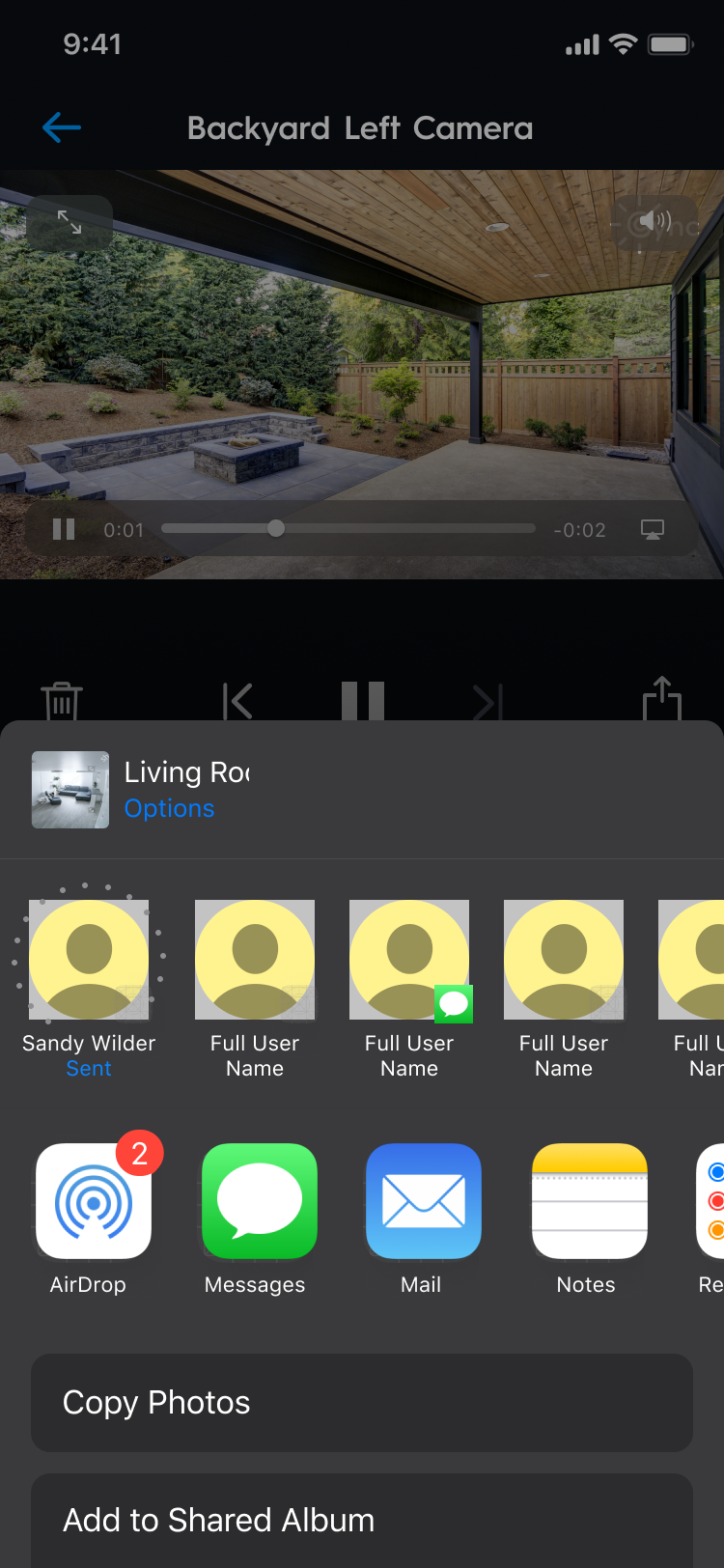
- When you tap the thumbnail of the clip, you will navigate to it's playback screen.
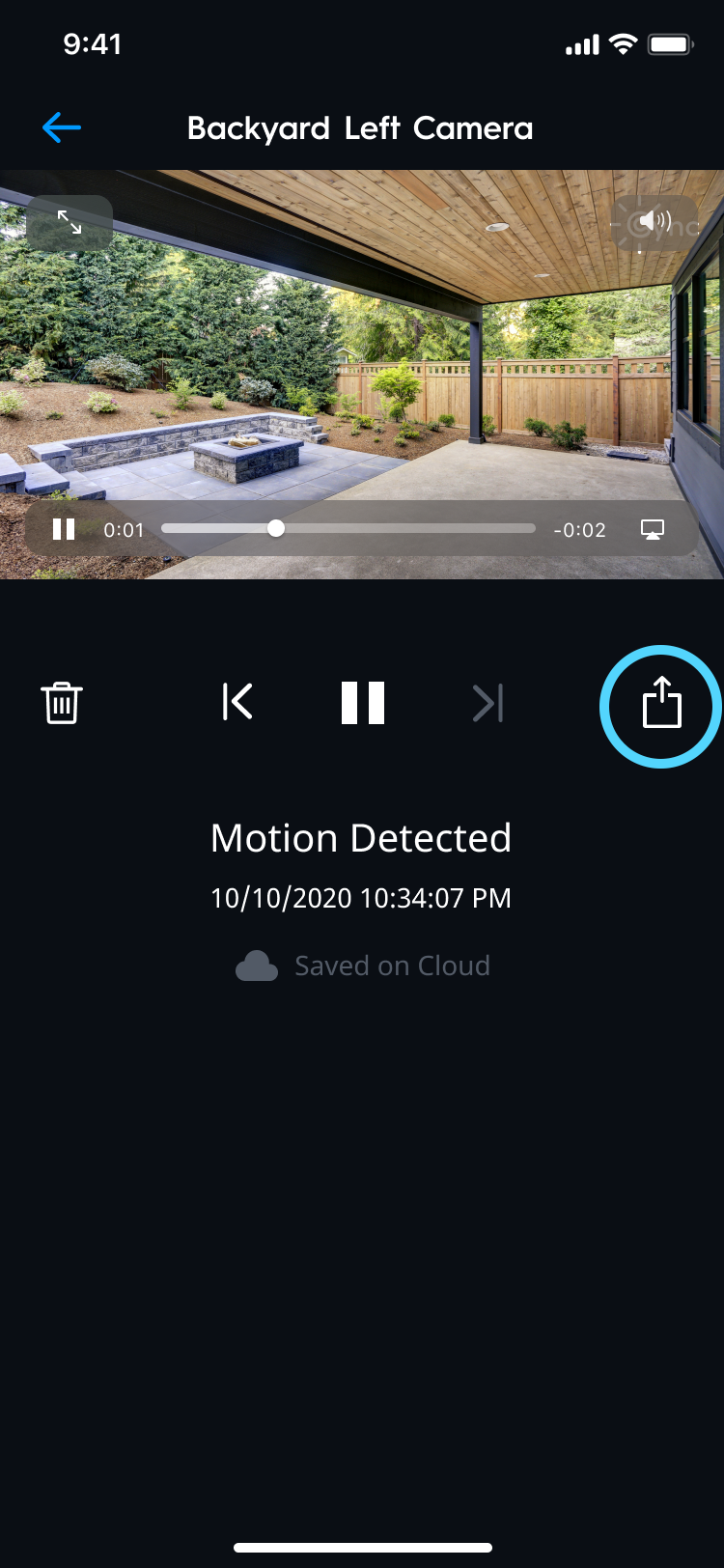
- On the clip playback screen, tap the share icon.
- The iOS share sheet will appear with options to choose from for sharing the video clip.
Downloading and Sharing on Android
- When you tap the thumbnail of the clip, you will navigate to it's playback screen.
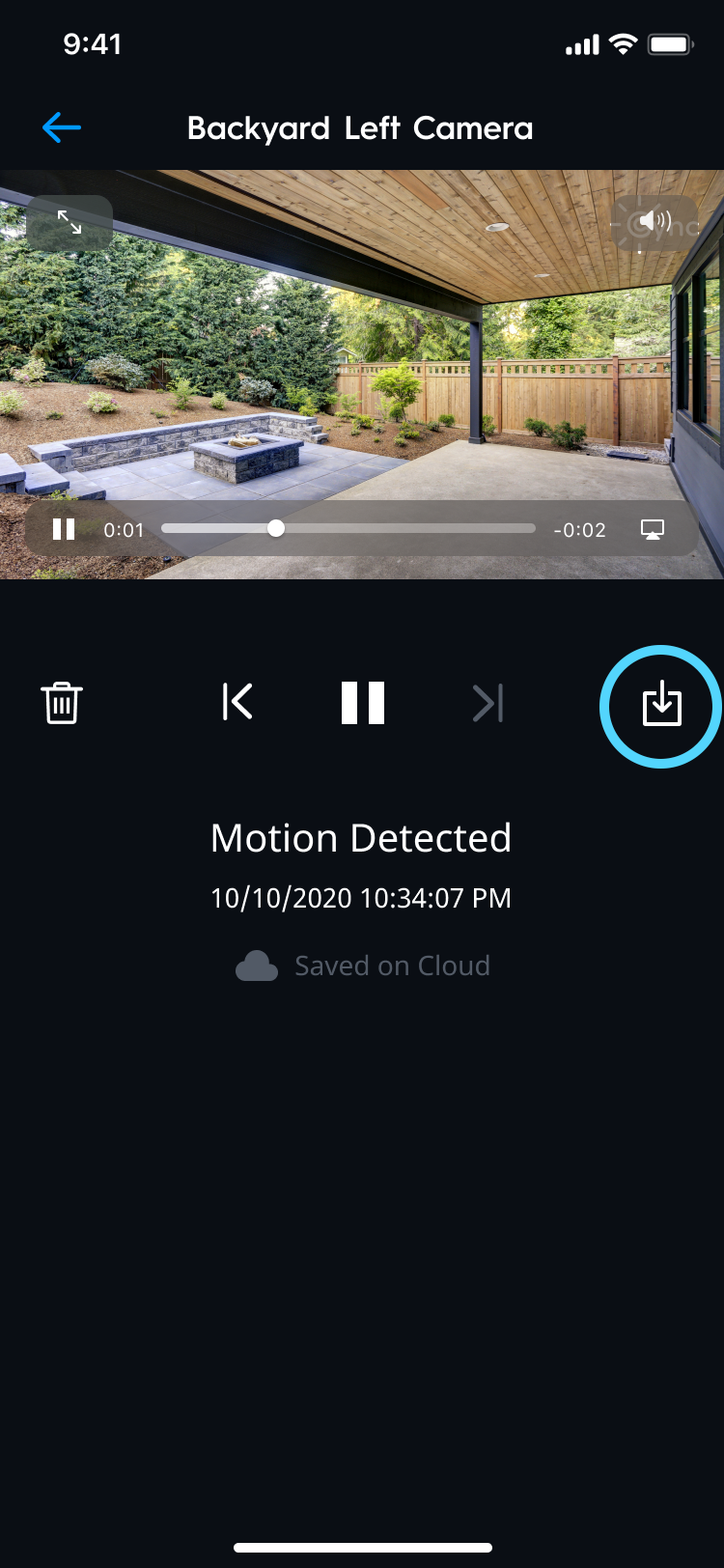
- On the clip playback screen, tap the download icon.
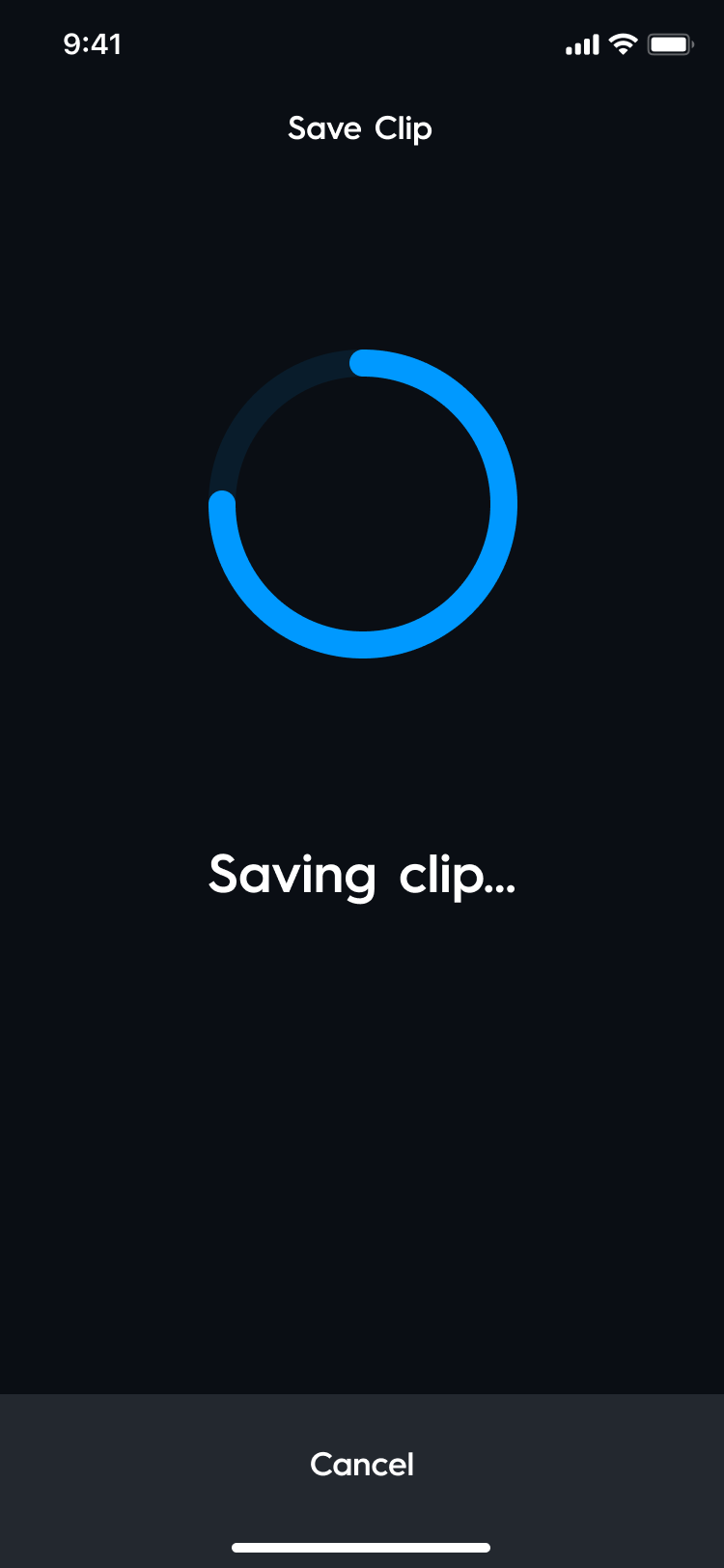
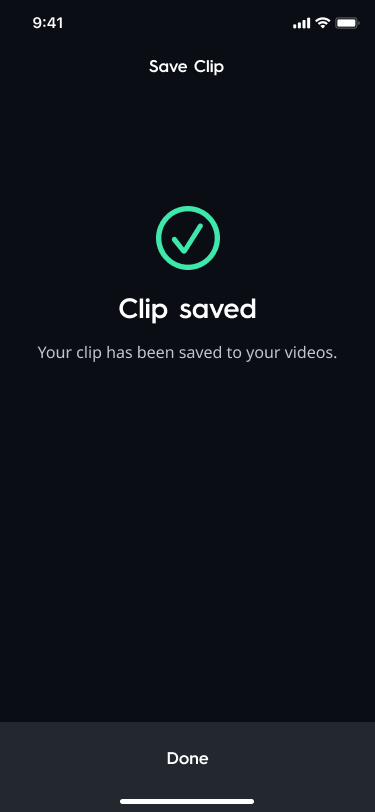
- The video will save to your video folder on your mobile device.
- From the video folder, you can share your video with any applicable app installed.