
Controlling Cync Smart Thermostats
You can easily control your Cync Smart Thermostat with the Cync app, a linked voice assistant, or right on the thermostat display.
Quickly navigate to the section you need by following one of the links below.
Smart Thermostat Controls
Smart Thermostat Modes and Indicators
Cync App Controls
Troubleshooting Tips
Smart Thermostat Controls

| Increase Temperature | Increases the temperature on the thermostat. |
|---|---|
| Decrease Temperature | Decreases the temperature on the thermostat. |
| Change Fan Mode |
|
| Change Mode | Changes the HVAC mode.
|
| Hold Status |
|
Smart Thermostat Modes and Indicators

| Cool Setpoint | Targeted temperature when Cool or Auto mode is activated. |
|---|---|
| Heating Setpoint | Targeted temperature when Heat or Auto mode is activated. |
| Auxiliary Heat | Heat pump's auxiliary heat is active. |
| Heating/Cooling Status | Displays the active heating or cooling status in the home. |
| Wi-Fi Disconnected | The thermostat has no connection to a network. |
| Wi-Fi Connected | The thermostat has connection to a network. |
| Setup Mode Activated | This icon will appear during set up of the thermostat. It indicates Bluetooth is being used for connection to commission the thermostat. |
| Temporary Hold | Manually override scheduled temperature until next scheduled event. |
| Hold | Manually overrides all scheduled temperature changes and holds temperature constant. |
| Schedule | Chosen schedule is currently running. |
| Emergency | Emergency heat mode is active. |
| Fan Mode |
|
| System Mode |
|
| Current Temperature | Current temperature of the home. |
Cync App Controls

Depending on how many devices or rooms you've set up in the Cync app, you will have different home screen views. The tile for multiple devices, the room view for single device type, or the multiple room view for single device type. To access Smart Thermostat controls in the Cync app, navigate to the thermostat you wish to control and tap the Controls button.
Temperature Readings
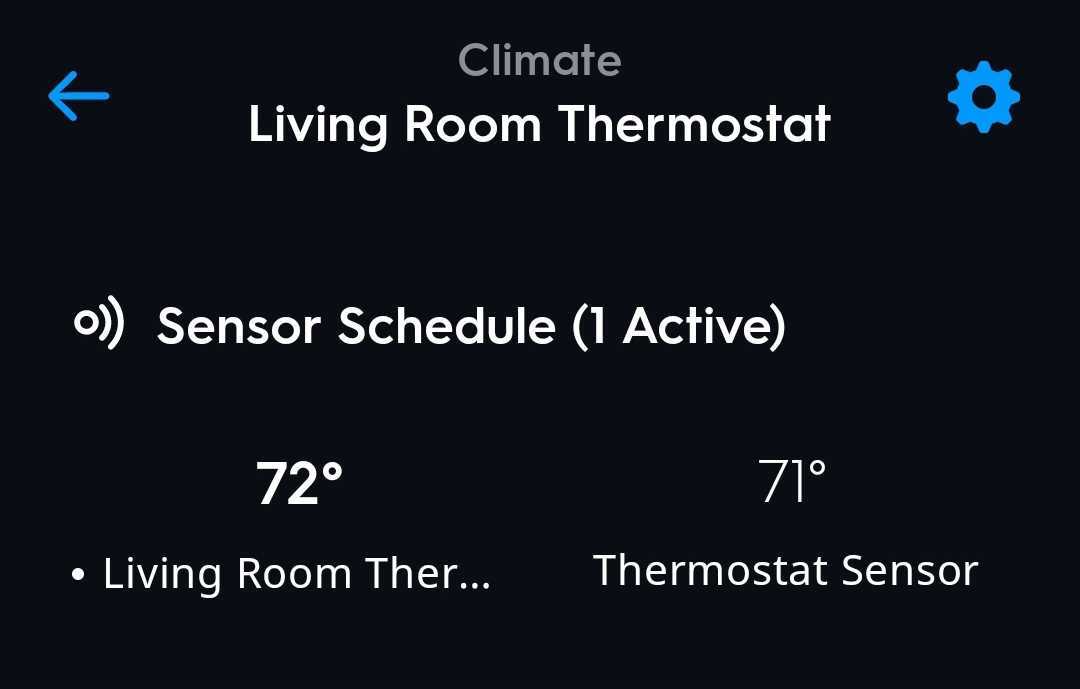
This section shows all the temperature readings from each thermostat and/or temperature sensor set up within the Cync app.
HVAC Mode
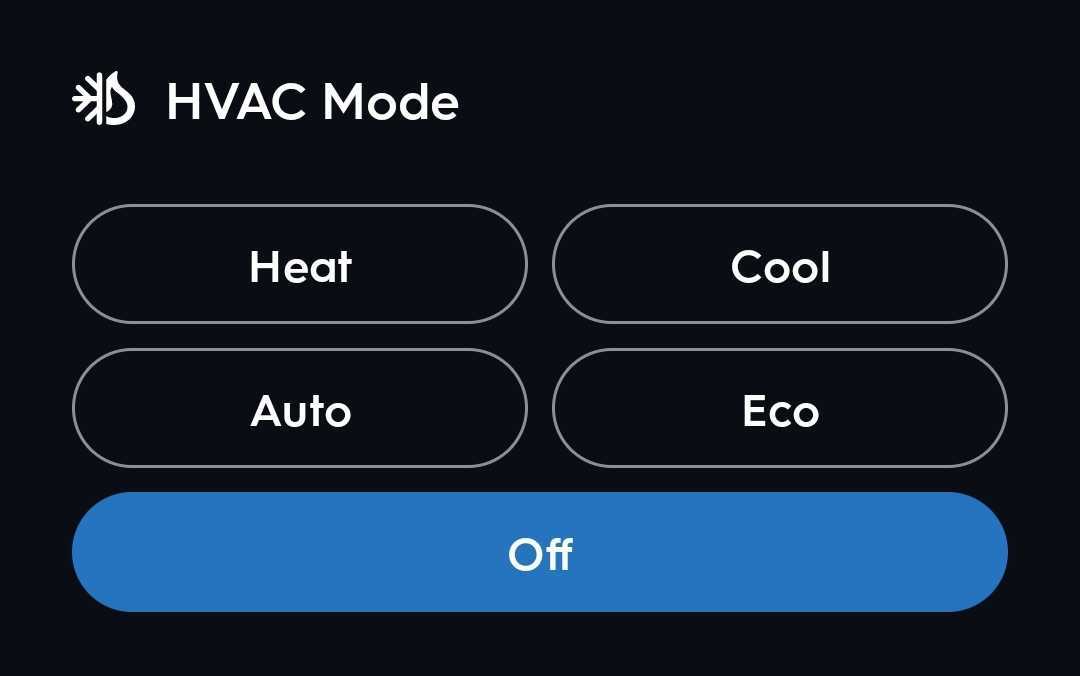
This section allows you to choose your HVAC mode.
- Heat: Turns the heat on in the home.
- Cool: Turns the AC on in the home.
- Auto: Automatically determines whether the heating or cooling should kick in based on temperature setpoints that you choose. To choose temperature setpoints, navigate back to the thermostats main page.
- Eco: Keeps the home within temperature range set by the Eco Temperature setpoints configured under Thermostat Settings. This is generally set to a wider range of temperatures so the home is not being cooled or heated while nobody is home.
Fan Mode

This section allows you select the Fan Mode, and how long the fans should circulate for.
- On: Turns the fans on continuously, whether your HVAC system actively is heating or cooling the home.
- Auto: Fans will only kick on whenever your HVAC system is actively heating or cooling the home.
- Circulate Fan: Ensures your fan runs a minimum amount of time per hour, regardless if the home is being cooled or heated. For example, if the Cirulate Fan setting is set to 15min per hour and only need cooling for 10 minutes, the fan with continue to run for another 5 minutes.
Schedules
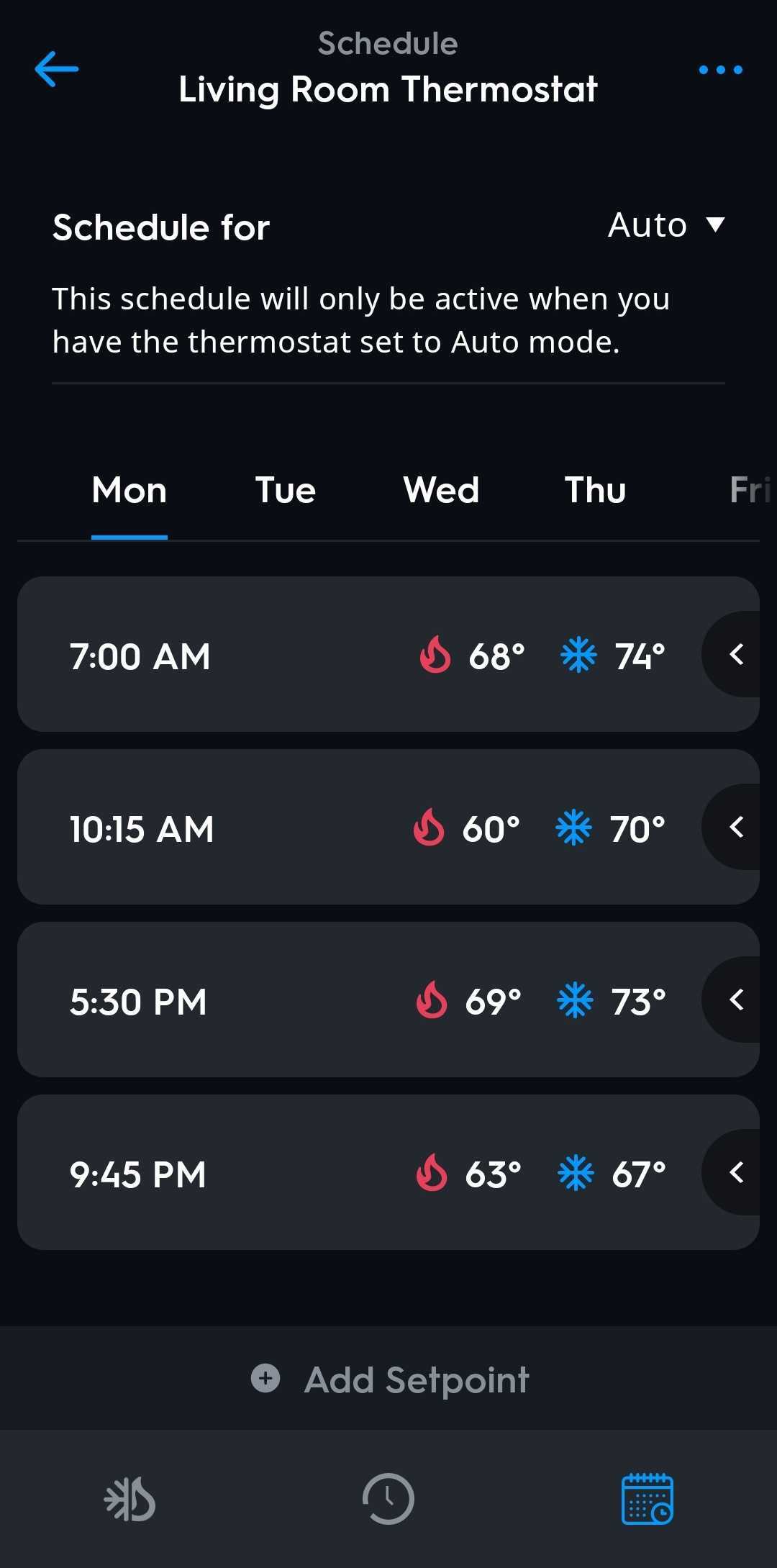
To access schedules for your Smart Thermostat, navigate to the thermostat in the Cync app and select the calendar icon  at the bottom of the screen.
From here you can add a new schedule, a new setpoint or edit existing setpoints.
Schedule for
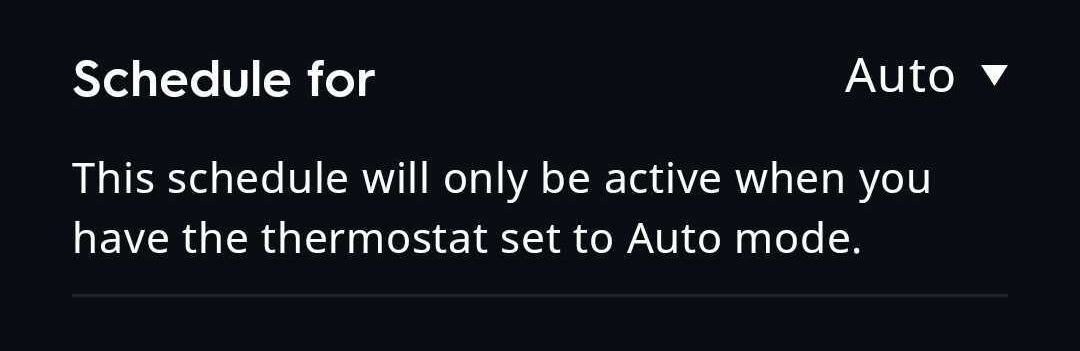
To start a schedule, choose to make a Schedule for either Auto, Heating, or Cooling.
- Choosing Auto will only be active when you have the thermostat set to Auto mode.
- Choosing Heating will only be active when you have the thermostat set to Heat mode.
- Choosing Cooling will only be active when you have the thermostat set to Cool mode.
Setpoints
A Setpoint adds a schedule for the ideal temperature range for specific hours of the day. A larger setpoint range for when you are not home will keep the HVAC system from turning on as often.
Add New Setpoint
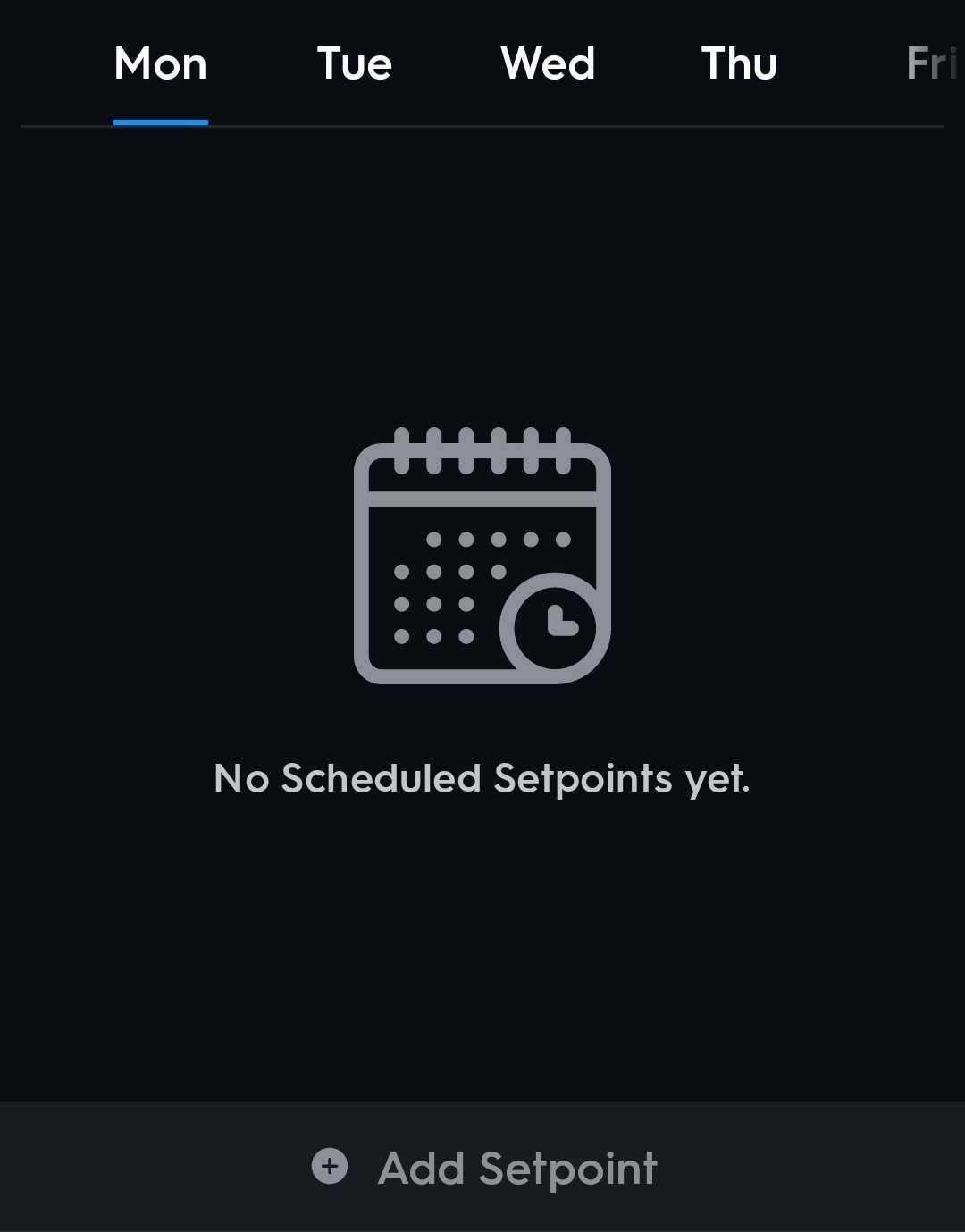
- Select Add Setpoint.
- Choose your desired temperature range, Start Time, and which Days this setpoint will be active.
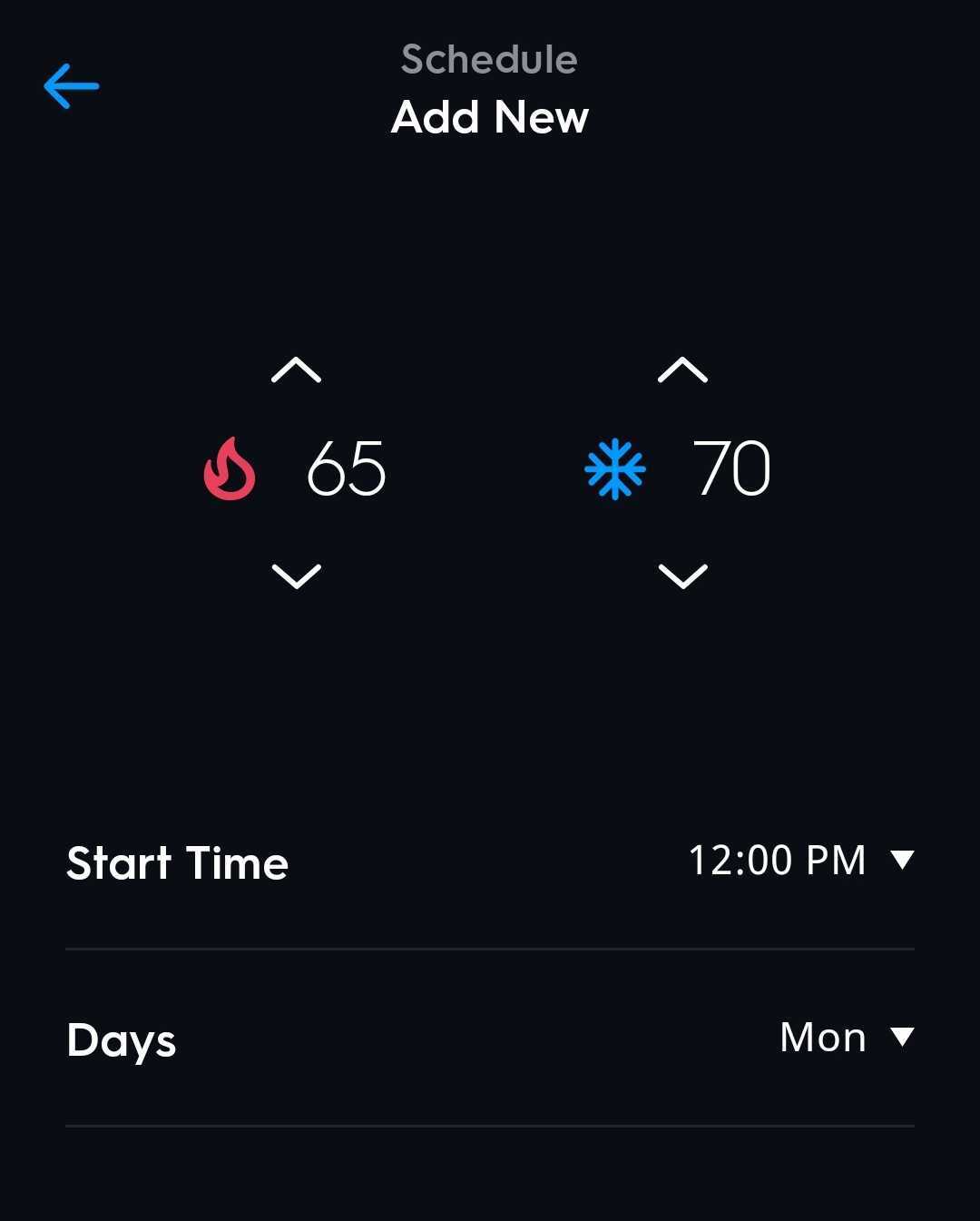
- Select Done when finished, and your new setpoint will be added to your thermostats schedule.
NOTE: You can add multiple setpoints for the same day.
Edit Setpoint
You can edit a Setpoint at any time.
- Navigate to the day the setpoint was made for and select the arrow to open the drawer.
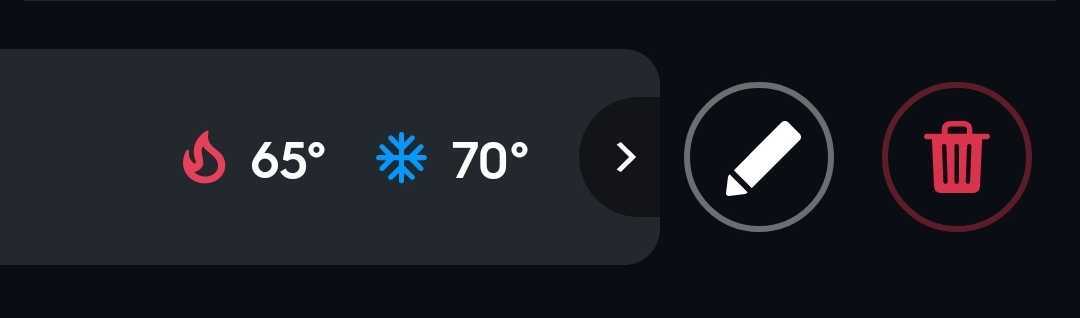
- Select the pencil icon.
- Edit your setpoint as desired and select Done when finished.
Deleted Setpoint
You can delete a Setpoint at any time.
- Navigate to the day the setpoint was made for and select the arrow to open the drawer.
- Select the trash bin icon.
- The Cync app will ask if you are sure you want to delete this setpoint. Select Delete to confirm. This cannot be undone.
Copying and Clearing Schedules
Copy Schedule
- Navigate to your thermostats Schedule page.
- Select the ellipses
 in the top right corner.
 - Select Copy Schedule.
- Check off the days of the week you would like to copy that schedule to.
- Select Done when finished.
Clear Day or Weekly Schedule
- Navigate to your thermostats Schedule page.
- Select the ellipses in the top right corner.
- Select Clear Schedule or Clear Weekly Schedule.
- The Cync app will ask you if you are sure you want to clear your schedule. Select Clear to confirm. This cannot be undone.
Troubleshooting Tips
How do I control my Smart Thermostat with the Cync app?
- Depending on how many devices or rooms you've setup, you will have different home screen views. The tile for multiple devices, the room view for single device type, or the multiple room view for single device type.
- Control setpoints, adjust temperature, and set schedules all from your Cync app.
How do I use a sensor in the Cync app?
Sensors allow you to schedule setpoints just like the thermostat. To create and edit sensor schedules navigate to the thermostat device screen that has the desired sensor you wish to create or edit a schedule for. Click the gear icon at the top right, then select Edit this Thermostat. Scroll down on the device settings screen and select Sensor Schedules.
From this screen you will be able to create a list of setpoints that the sensor will follow.
How do I control my Smart Thermostat with my Alexa or Google voice assistant?
You can control your thermostats with the Amazon Alexa app and voice assistant, and the Google Home app and voice assistant.
Alexa Voice Control
First, you need to Enable Alexa Control.
- Once you've enabled Alexa Control, make sure the names you give your Cync devices and rooms in the Alexa app matches the names in the Cync app.
- You can control your thermostat in various ways through the Alexa app, or with voice commands to an Alexa voice assistant.
Set the Temperature
- "Alexa, set the thermostat to <temperature>"
- "Alexa, set <thermostat name> to <temperature>"
Increase or Decrease the Temperature
- "Alexa, raise/lower the thermostat temperature by <number> degrees"
- "Alexa, raise/lower the <thermostat name> temperature by <number> degrees"
- "Alexa, increase/decrease the thermostat temperature"
- "Alexa, increase/decrease the <thermostat name> temperature"
Get the Temperature
- "Alexa, what's the thermostat temperature?"
- "Alexa, what's the <thermostat or sensor name> temperature?"
- "Alexa, what is the thermostat set to?"
- "Alexa, what is the <thermostat name> set to?"
Google Voice Control
First, you need to Enable Google Control.
- Once you've enabled Google Control, make sure the names you give your Cync devices and rooms in the Google Home app matches the names in the Cync app.
- You can control your thermostat in various ways through the Google Home app, or with voice commands to the Google voice assistant.
General Thermostat Commands
- Ok Google, what is the current temperature in the <thermostat name>?
- Hey Google, what's the <thermostat name> set to?
- Ok Google, what's the temperature of my thermostat?
Set the Temperature
- Ok Google, set the temperature in the <thermostat name> to <temperature>
- Ok Google, set the temperature to <temperature>
Increase or Decrease the Temperature
- Hey Google, increase the temperature in the <thermostat name>
- Hey Google, decrease the temperature in the <thermostat name>
- Hey Google, increase the temperature in the <thermostat name> by <number> degrees
- Hey Google, decrease the temperature in the <thermostat name> by <number> degrees
Adjusting Modes
- Ok Google, set the <thermostat name> to heat
- Ok Google, set the <thermostat name> to cool
- Ok Google, set the <thermostat name> to auto
- Ok Google, set the <thermostat name> to off
Scheduling
- Hey Google, turn off the <thermostat name> hold
- Ok Google, turn on the <thermostat name> schedule