Editing Device Settings
Edit a Cync or C by GE device's settings by navigating to the Settings Menu in the Cync app.
Settings Menu
- Tap Settings in the top left corner of the app homes screen.
- Select Room and Devices.
- Select the Room your device is assigned to.
- Select View Devices.
- Swipe through the devices assigned to that room until you find the device you want to edit.
- Tap the Edit button under the device image.
Tip: You can also access settings from by selecting the gear icon in the upper right corner of the Room and Group control screens. This will take you directly to that Room or Groups settings section.
Tip: When adjusting device settings, stay within Bluetooth Low Energy (BLE) range of the device to help ensure settings update successfully.
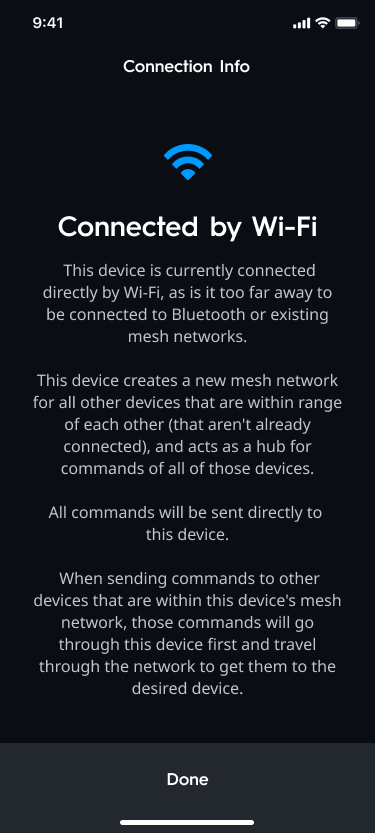
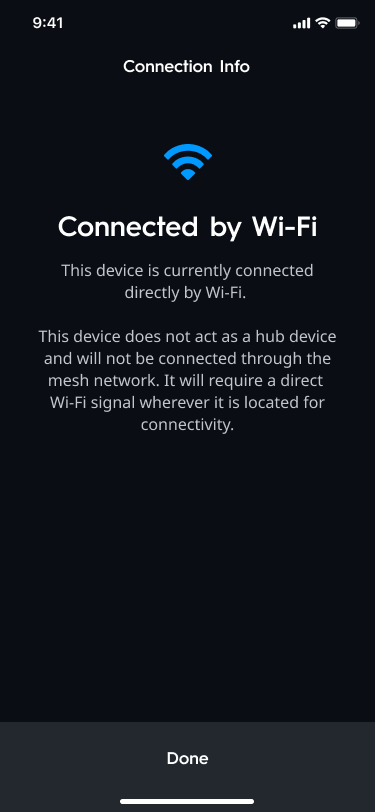
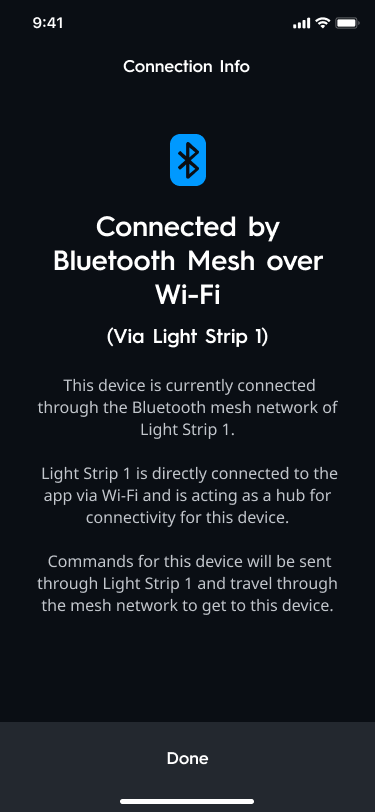
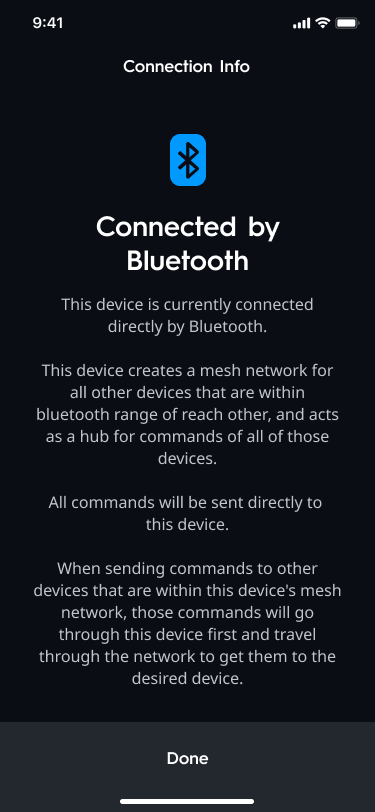
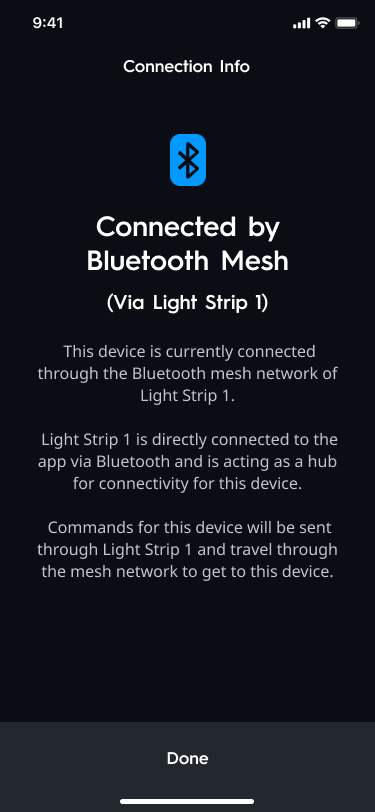
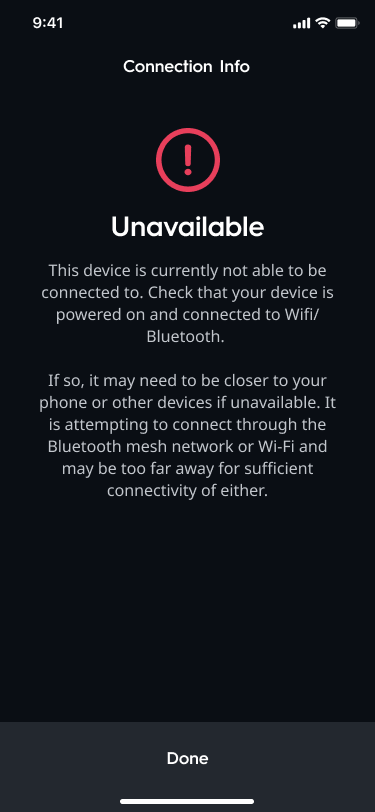
What does "Connected by" mean in my Device Settings?
For our products that utilize both WiFi/Bluetooth, A Bluetooth device is selected to be the main source of communication between the Cync app to create a mesh, and all other devices within range will connect through this mesh. Then a WiFi device is selected as an alternative source of communication to allow for out-of-home control, and any additional devices not connected through the first Mesh will connect through the selected WiFi device's mesh. If additional devices are needed to be connected directly to the app via WiFi for connectivity we will do so. The status provided in this section lets you know how the device is communicating with the Cync app. If you are experiencing connection issues, this will assist in the troubleshooting process.
You can select the information icon next to this section to learn more, or review the statuses in the images below.