
Setting Up Cync Dynamic Effects Smart Hexagon Panels
How to connect your Cync Hexagon Panels to the Cync app.
Quickly navigate to a specific section by selecting a link below.
Connecting to the Cync App
Create a Design
Calibration
Connecting Hexagon Panels in the Cync App
Follow these steps to set up your Hexagon Panels in the Cync app:
- Open the Cync app.
- Select Add Devices.
- Select the device type Light Panels.

- Plug in the first Hexagon Panel and confirm power before attempting to connect. Select Next.
- Tap Enable Bluetooth to start connecting to your device. Select Next.
- Tap Turn on Location to turn on location permissions and select Next.
- Tap Enable Wi-Fi to allow the Cync app to connect to your devices and select Next.
- There may be updates available for your new Hexagon Panels, as well as any previously commissioned Cync devices. Select Update All and then Next.
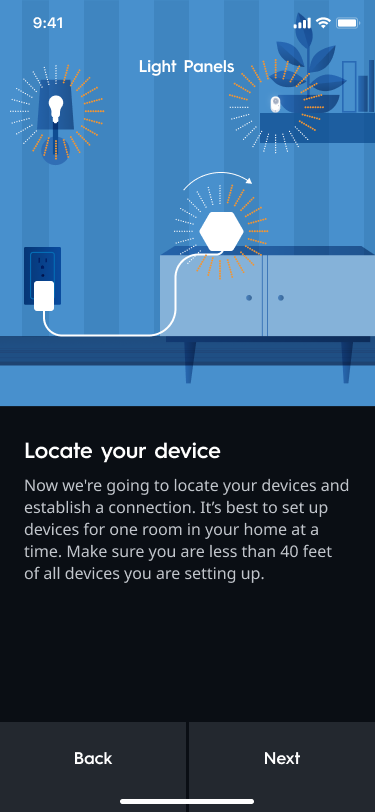
- On this next Locate your device screen when your Hexagon Panel starts blinking, select Next. The Cync app will now locate your Hexagon Panel. Be sure your device's location has a strong Wi-Fi signal strength during commissioning.
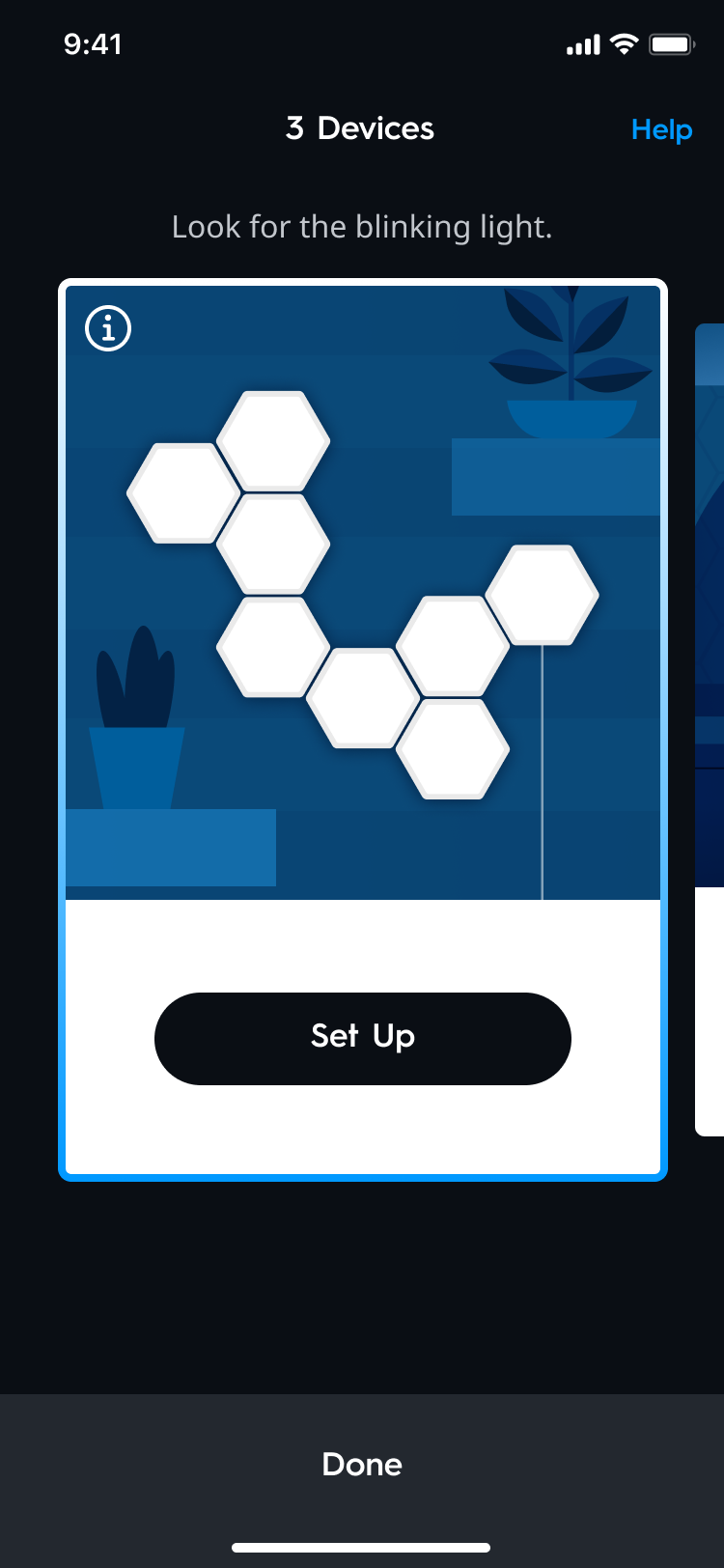
- Once the device has been located, select Set Up. Continue following the instructions on the app screens to finish commissioning, such as naming the device and choosing a network.
NOTE: Selecting the info icon on the located device(s) will reveal the MAC address.
- Once your device has been added to the home, you will be prompted to create a design for your Hexagon Panels. Continue to the next section for instructions.
Create a Design
Follow these next steps to create a layout design for your Cync Hexagon Panels.
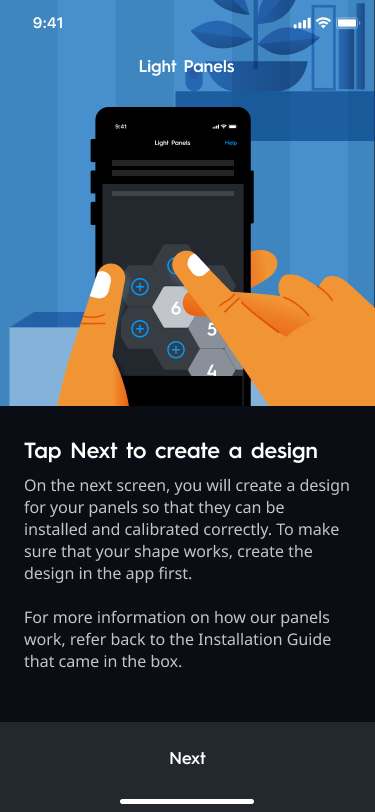
- On the next screen you will create a design for your panels so that they can be installed an calibrated correctly. To make sure that your shape works, create your design in the app first. For more information on how our panels are installed, refer to the Installing Smart Hexagon Panels article. Select Next on this screen to continue making your design in the Cync app.
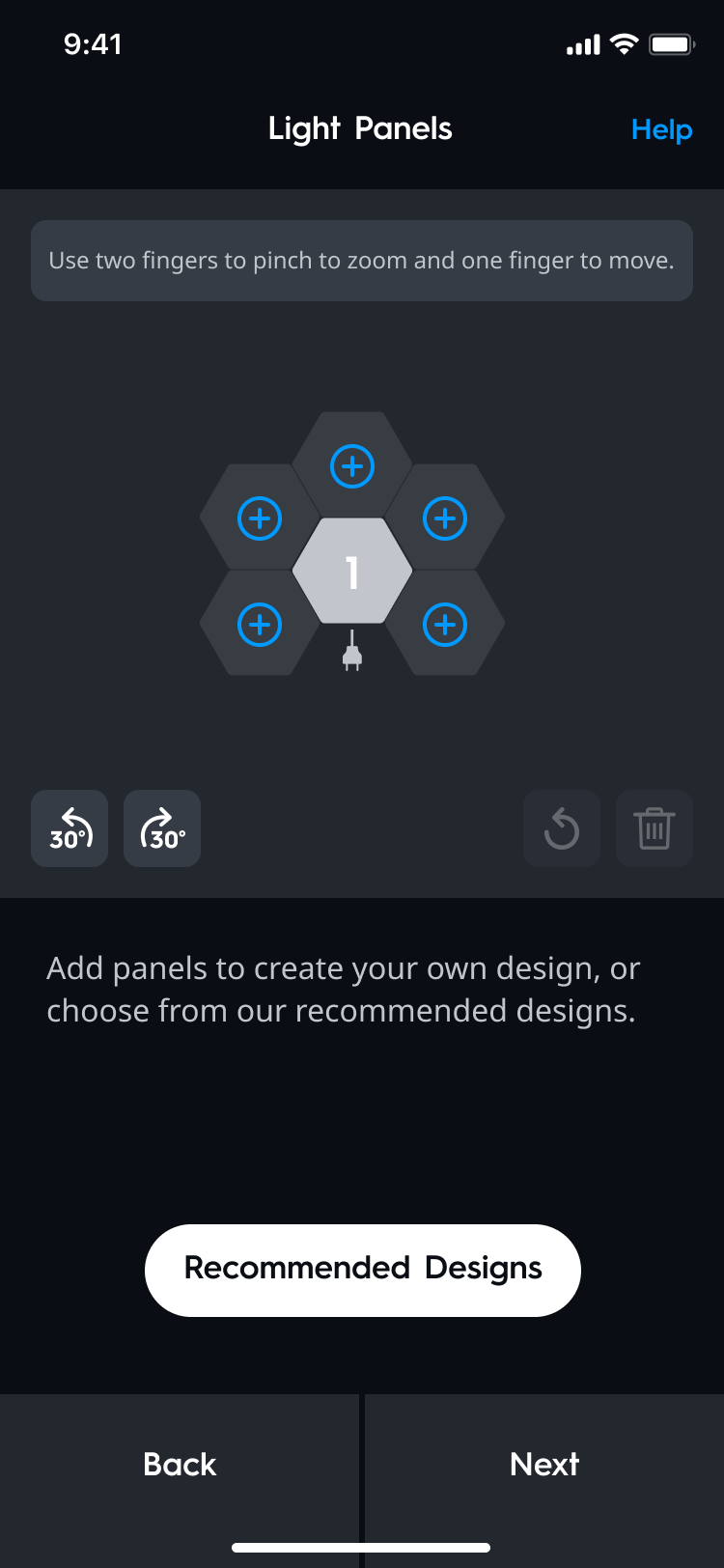
- Use two fingers to pinch to zoom, and one finger to move on the Hexagon Panel Design canvas. Click on the (+) icons to add a panel to the design. As you are creating your design, new panel spots with (+) will appear where a Hexagon Panel can be physically installed. Alternatively, you can browse our premade designs by selecting Recommended Designs. When you are finished designing, select Next.
NOTE: Selecting a design from Recommended Designs will override your current one.
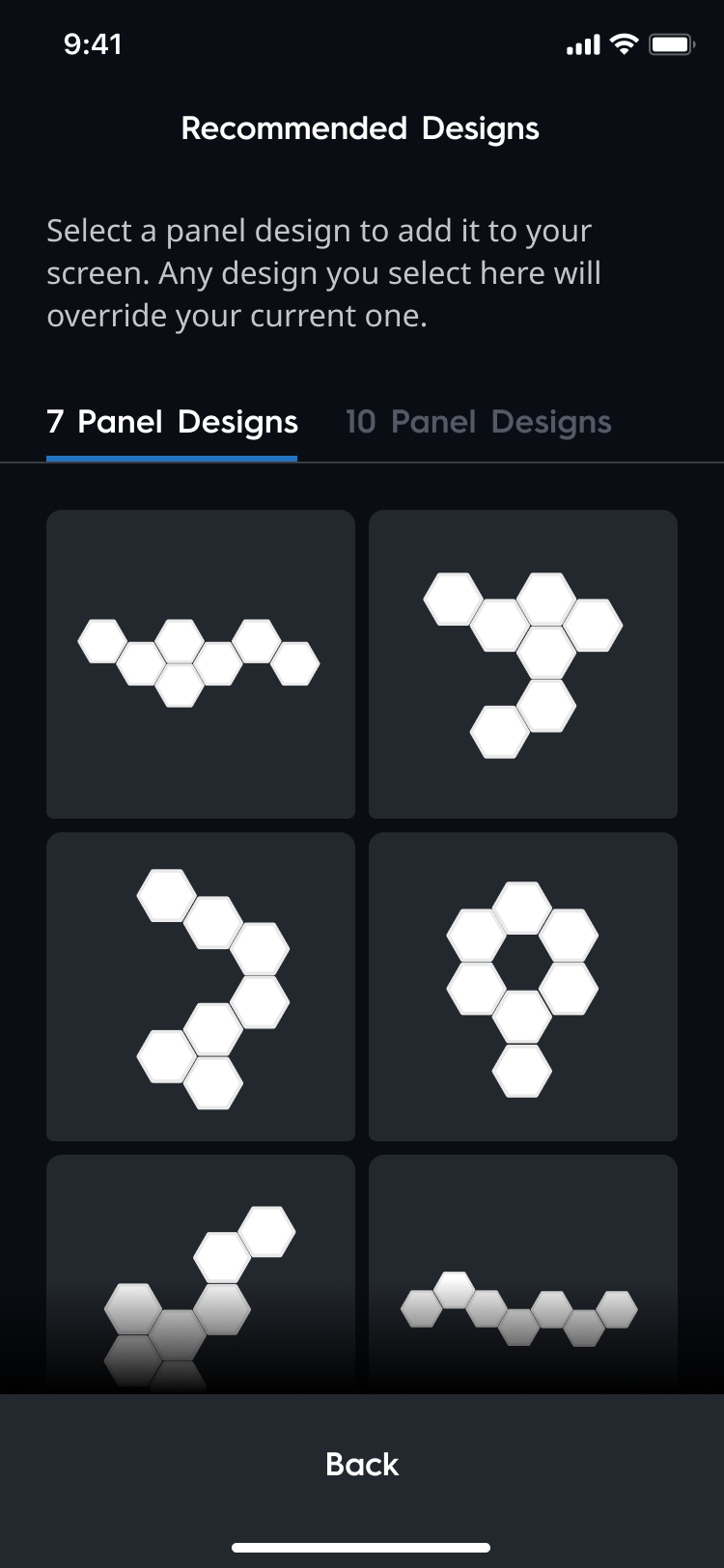
- You will now use the paper templates provided to place your design on the wall. This step is highly recommended to make sure the design fits on the wall. Select Next to continue and visit the Installing Smart Hexagon Panels article for installation steps. You may follow along with instructions in the Cync app.
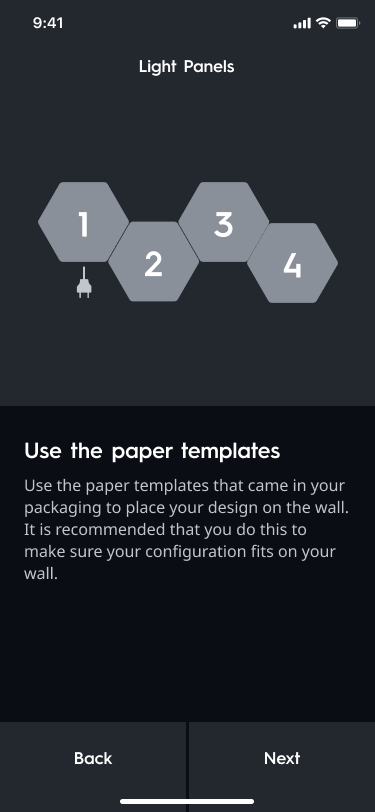
- Once all of the panel are connected, make sure you have tapped (in the Cync app) through each panel to identify connection slots, and connected all of your panels accordingly before proceeding.
- Select Next to save the design.
Calibration
- Tap each panel on the screen (example shown below) to toggle it on/off. They will appear green when selected. It is important the position of the panels match the panels on the wall. If they do not match, go back to double check connections or edit your design.
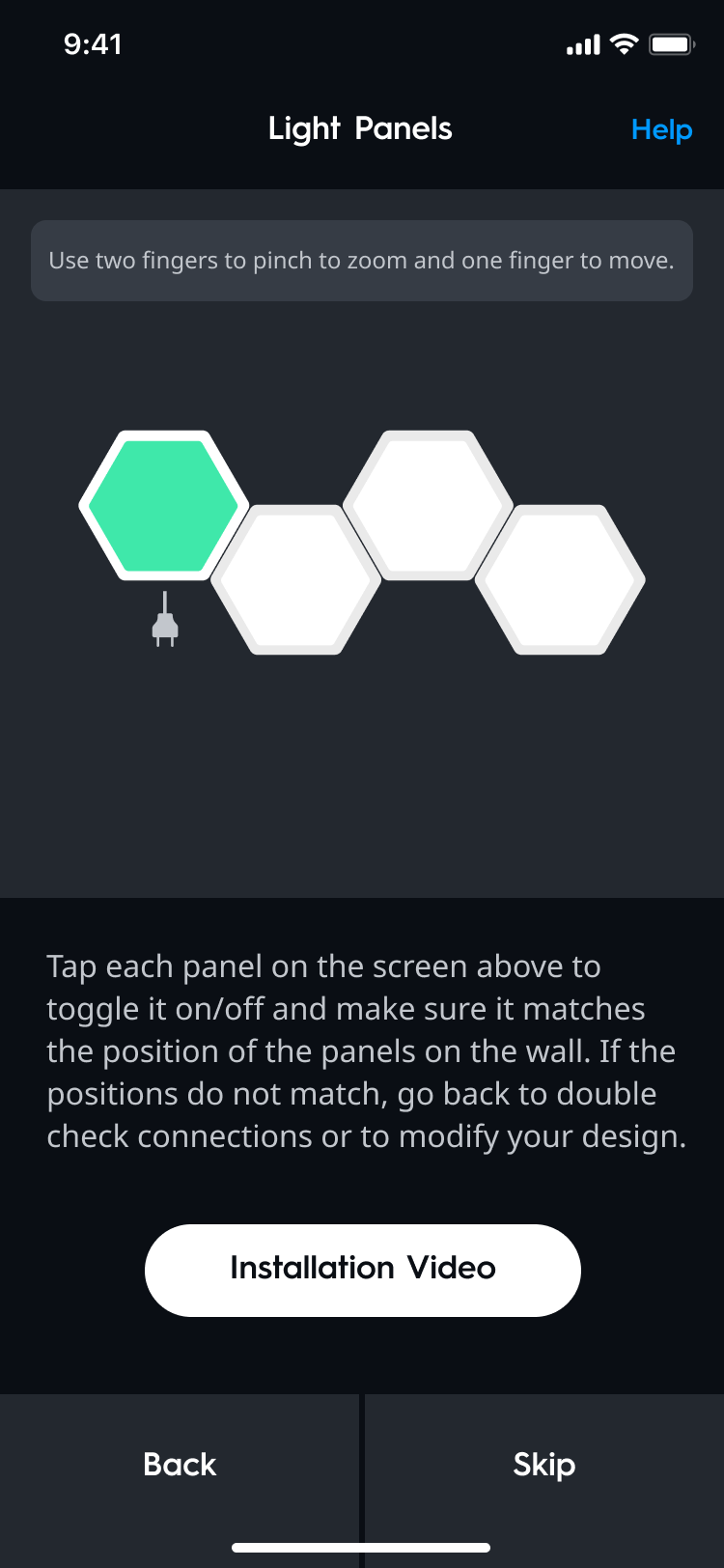
- Select Continue after verifying the position of the panels. You may not be able to confirm whether your panels are set up correctly if you do not interact with each one in the app.
- Use two fingers to pinch and zoom and one finger to move on the screen if needed.
- Select Finish when all panels have been selected.
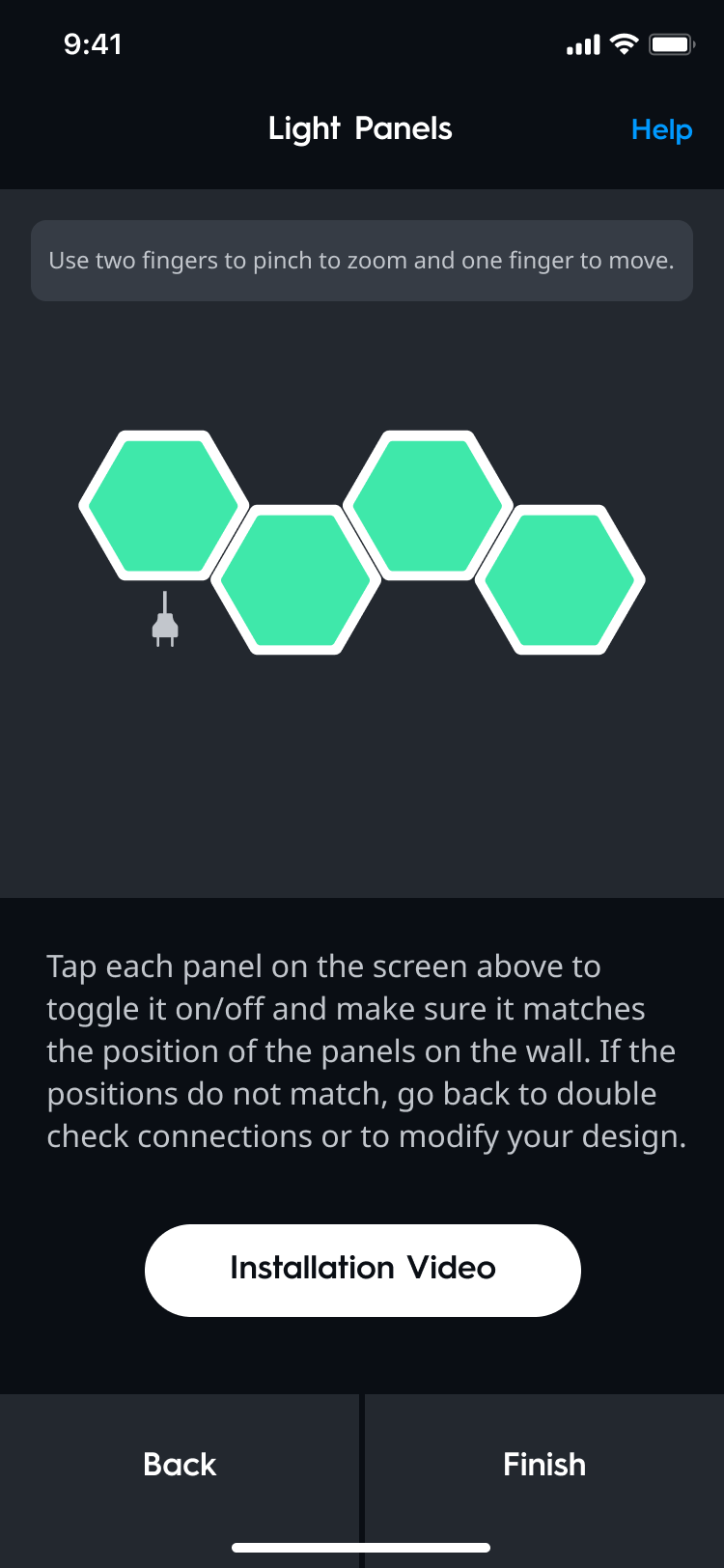
- Your panels have now been calibrated.