
Group Settings
Edit Your App Groups and its Devices Within App Settings
When pairing Cync Smart Home devices to the Cync app, you will be prompted to create a Room to assign your smart devices to. You have the option to create an Group within that Room to control a specific set of smart devices. This can help organize the devices into smaller control groups while still maintatining the overall room control. You can edit the name of your group and the devices assigned to it at any time under Settings.
- Choose Settings in the upper left corner of your app's home screen.
- Select Rooms and Devices.
- Select the room you want to edit from the list.
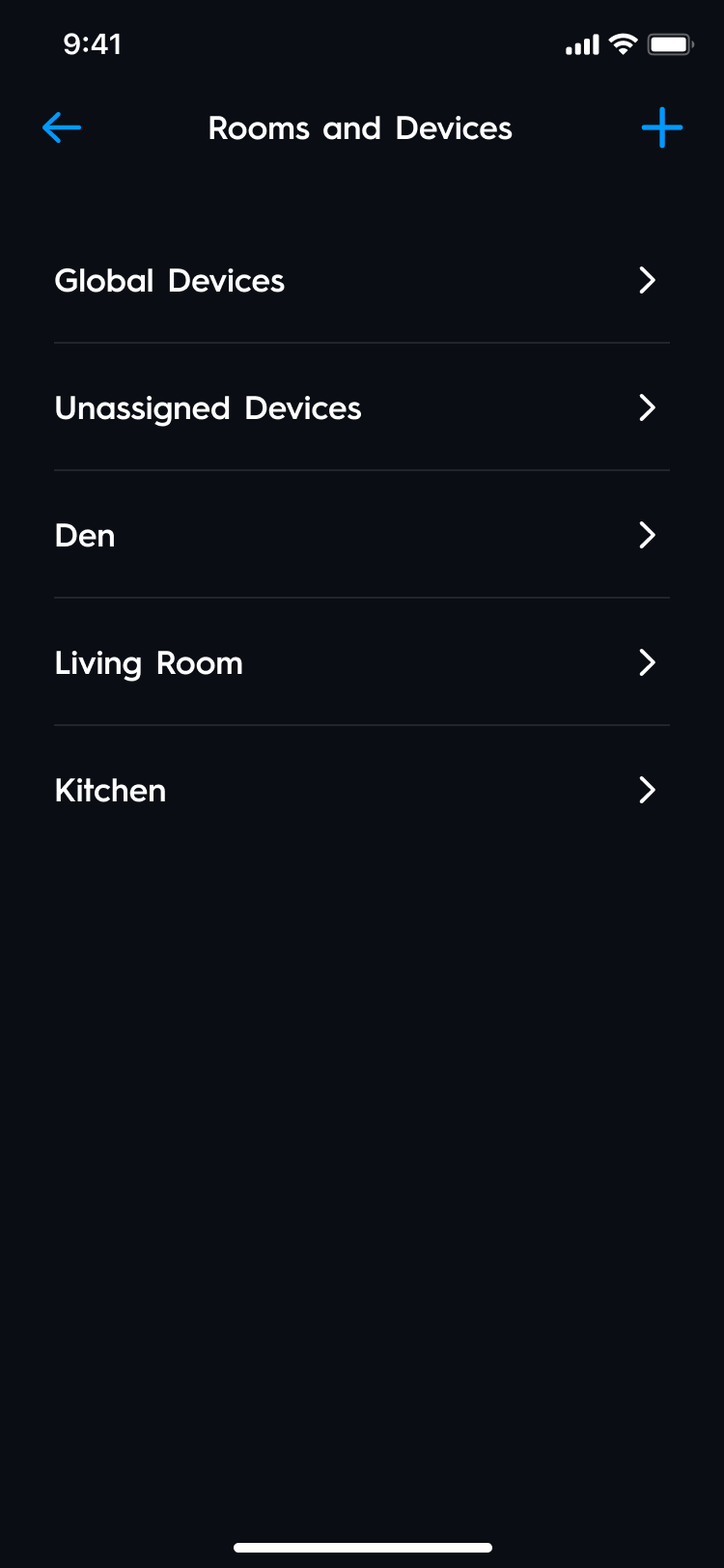
Global Devices: Global devices, such as the Cync Thermostat do not have a group that could be managed.
Unassigned Devices: Cync or C by GE devices that are not assigned to an App Room will display under Unassigned Devices. You will not have an App Group within this option.
- Select Name to edit the Name of your Room.
- Select Groups to edit your App Groups.
- Select the group you want to edit.
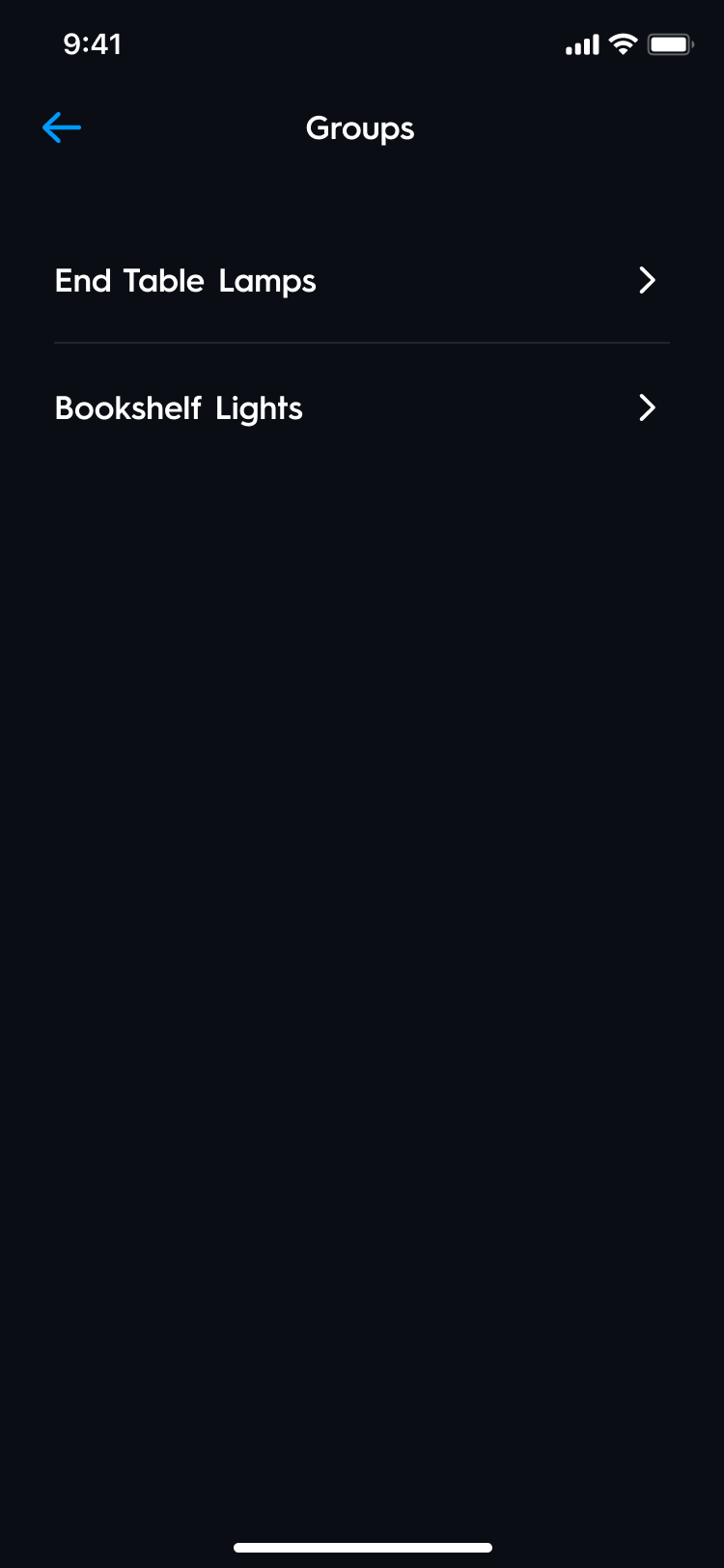
- Select Name to edit the Name of your Group.
- Select View Devices to edit your smart devices in that Group.

You can also delete the App Group from this screen. Keep in mind that deleting a room will also require you to manually factory reset any devices before setting them up again with the Cync app.