
Ceiling Fan Smart Switch Settings
Use this guide to customize settings and optimize the Cync Ceiling Fan Smart Switch to meet the needs of your smart home.
Accessing Ceiling Fan Smart Switch Settings
In order to successfully change settings in the Cync App, you must be nearby the device and your phone must be connected to Bluetooth.
- From the home screen, select Settings > Rooms and Devices.
- Select the room that the device is in and select View Devices.
- Find the switch you would like to edit and select Edit this Switch.
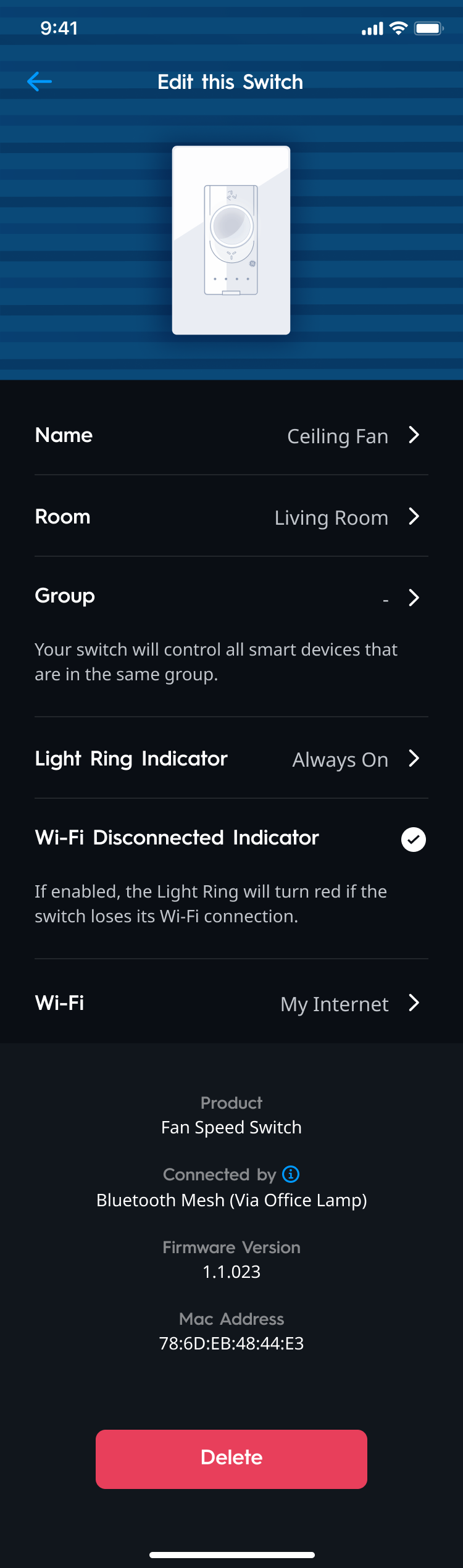
|
Name |
Select the Name of the device to change it. |
|
Room |
Select Room to change the room for the device or choose Add New Room to create a new one. Your switch will control all smart devices that are in the same Room. |
|
Group |
Select Group to change the group for the device or choose Add New Group to create a new one. Your switch will control all smart devices that are in the same group. |
|
Light Ring Indicator |
Select Light Ring Indicator to change its settings. |
|
Wi-Fi Diconnected Indicator |
If enabled, the Light Ring will turn red if the switch loses its Wi-Fi connection. |
|
Wi-Fi |
Select Wi-Fi to change the Wi-Fi network that the device is on. |
|
Delete Device |
This will remove the device and all device configurations. Please note that you must be within Bluetooth range to successfully remove the device. You will see the light indicator begin to blink blue after selecting Delete Device. You may also have to factory reset the device before recommissioning. |
Tip: You can also access settings from the home page by tapping the 3 dots to the right of the room with the switch. Once the 3 dots have been hit, select the arrow to the right of the switch, and select the gear icon to access the settings of the switch